Brand Generator: Creating and Managing Polls

Olivia Reyes
Choosing a brand name is a major decision, and you don’t have to make it alone. The Brand Generator Polls feature allows you to gather real-world feedback from partners, friends, or potential customers to see which names resonate most before you commit to trademarks and packaging.
Here is how to set up your first poll and analyze the results.
Step 1: Shortlist Your Favorites
Before you can create a poll, you need candidates. Browse your generated names and click the Heart icon next to any brand that catches your eye. This "shortlists" the names into your favorites gallery.
Step 2: Initiate the Poll
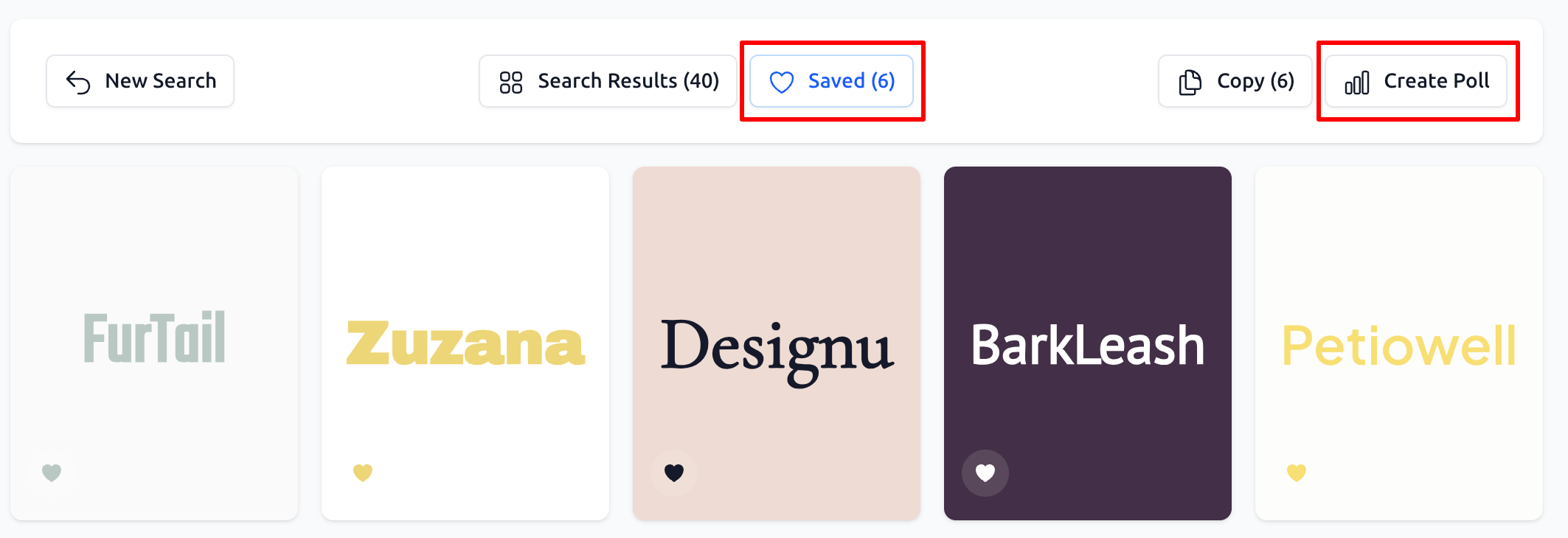
Once you have a few favorites saved, click the Create Poll button located in the top navigation bar of the Brand Generator. This will launch the multi-step poll creation wizard.
Step 3: Enter Poll Details (Step 1)
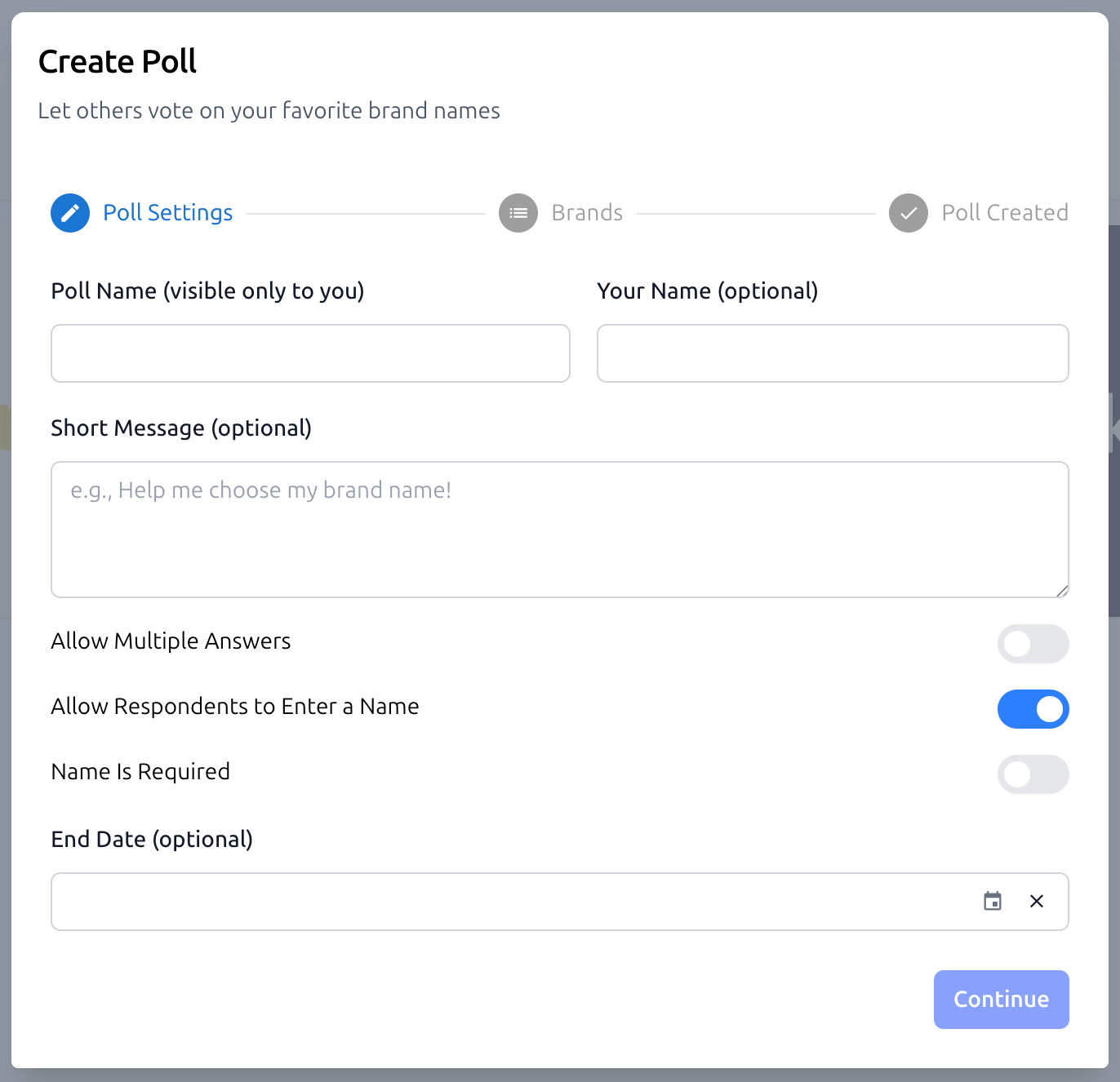
In the first step of the wizard, provide the necessary context for your voters:
Poll Name (visible only to you)
An internal name to help you recognize this poll later. Voters will not see it.Your Name (optional)
Your name, if you want participants to know who created the poll.Short Message (optional)
A brief note shown to voters. For example, you can ask for help choosing the best brand name.
Allow Multiple Answers
Enable this if voters should be able to select more than one option.Allow Respondents to Enter a Name
Lets voters enter their name when voting.Name Is Required
If enabled, voters must provide their name to submit a vote.End Date (optional). Set a date when the poll will automatically close. You can leave this empty if you want the poll to stay open.
Once all settings are ready, click Continue to move to the next step and add brand options.
Step 4: Refine the Candidate List (Step 2)
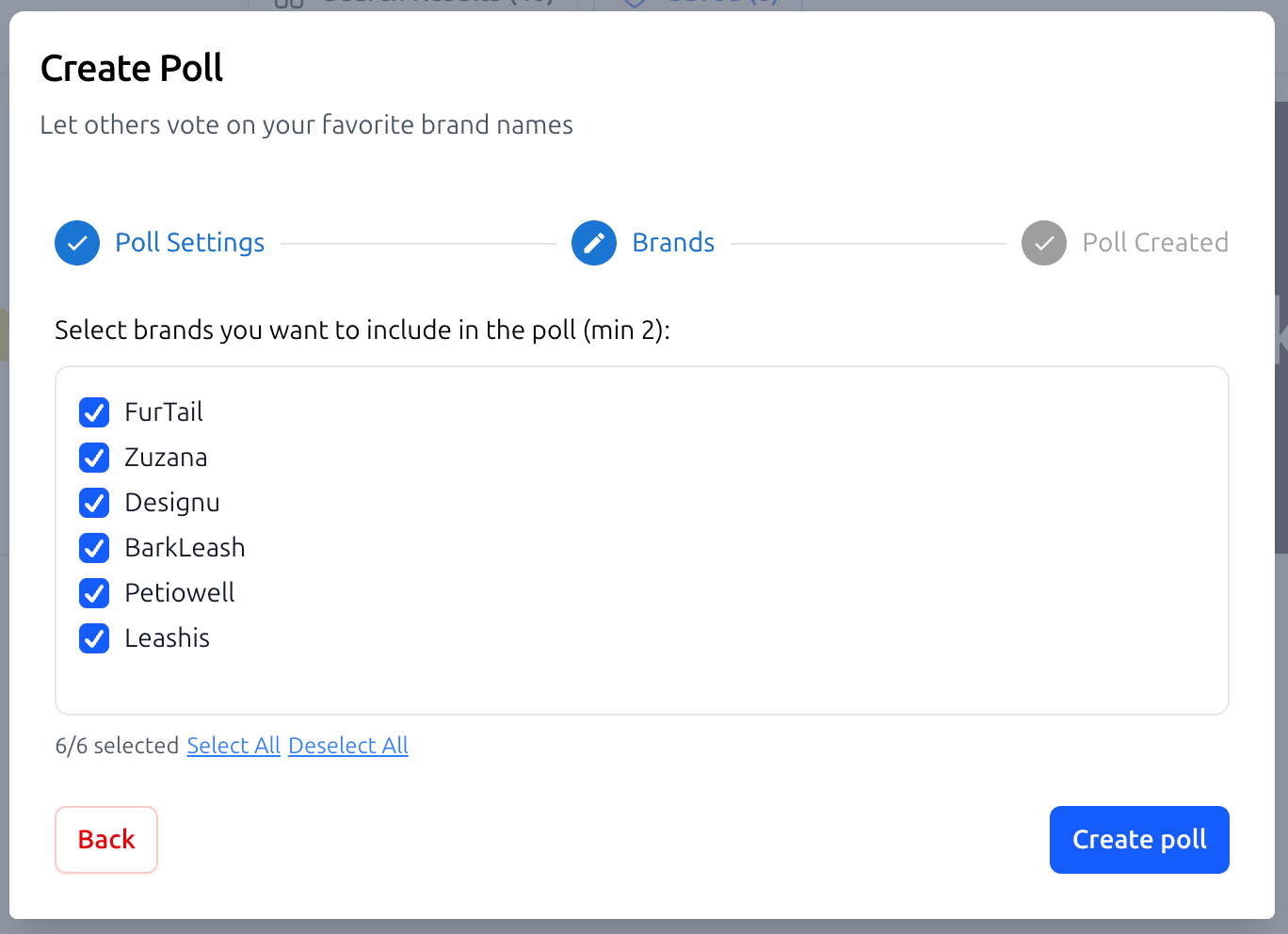
On the second step, you will see the list of names you selected.
Edit the List: You can remove names that no longer feel right or reorder them.
Final Review: Ensure you are only presenting your strongest options. We recommend keeping polls to 3–5 names to avoid "voter fatigue" and get clearer results.
Step 5: Share the Poll
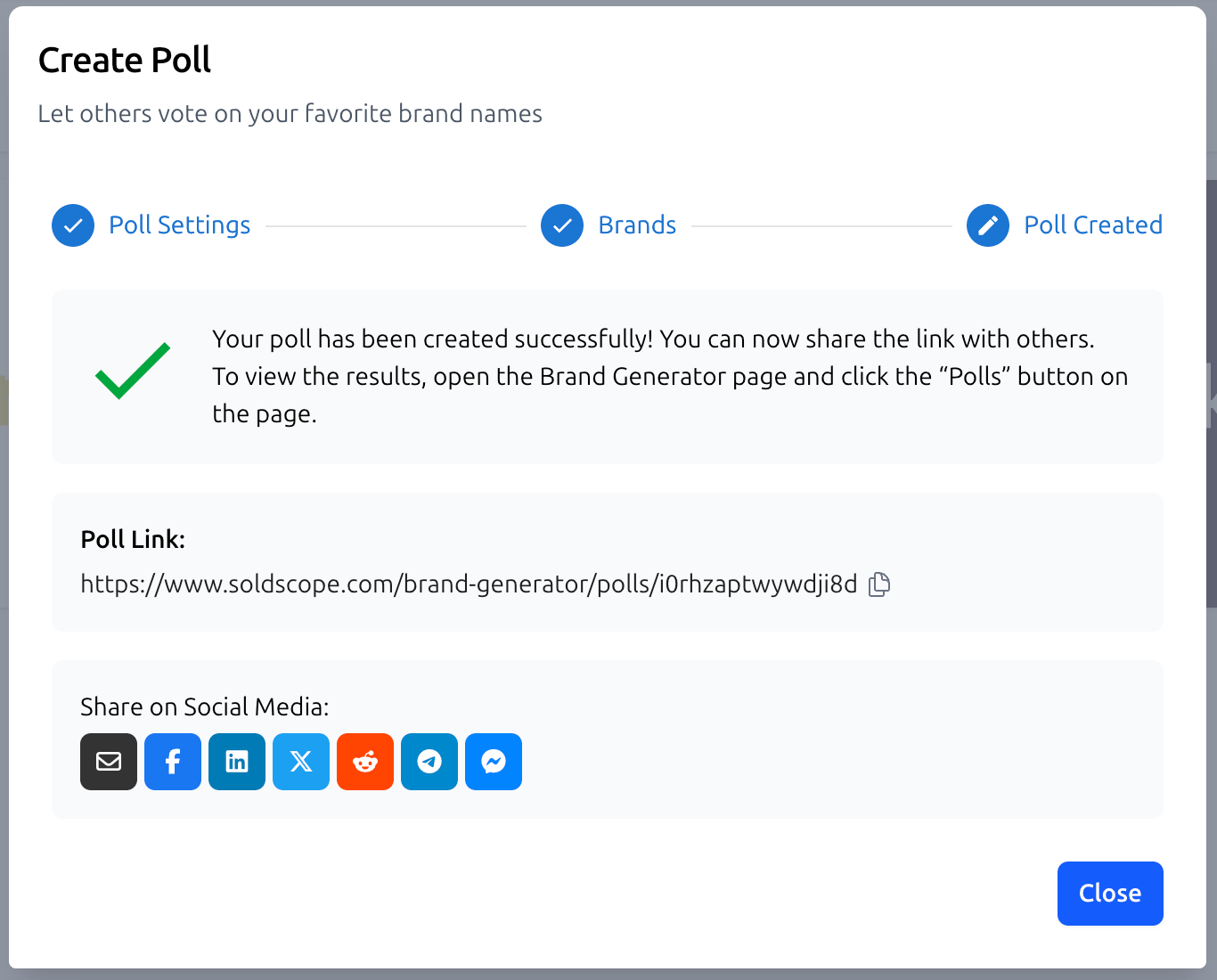
Once you click "Finish," your poll is live! You will be provided with a unique sharing link.
Copy the link to send it directly to business partners via email or messaging apps.
Use the social sharing buttons to post the poll on platforms like Facebook, LinkedIn, or Twitter to reach a broader audience.
Step 6: The Voting Experience
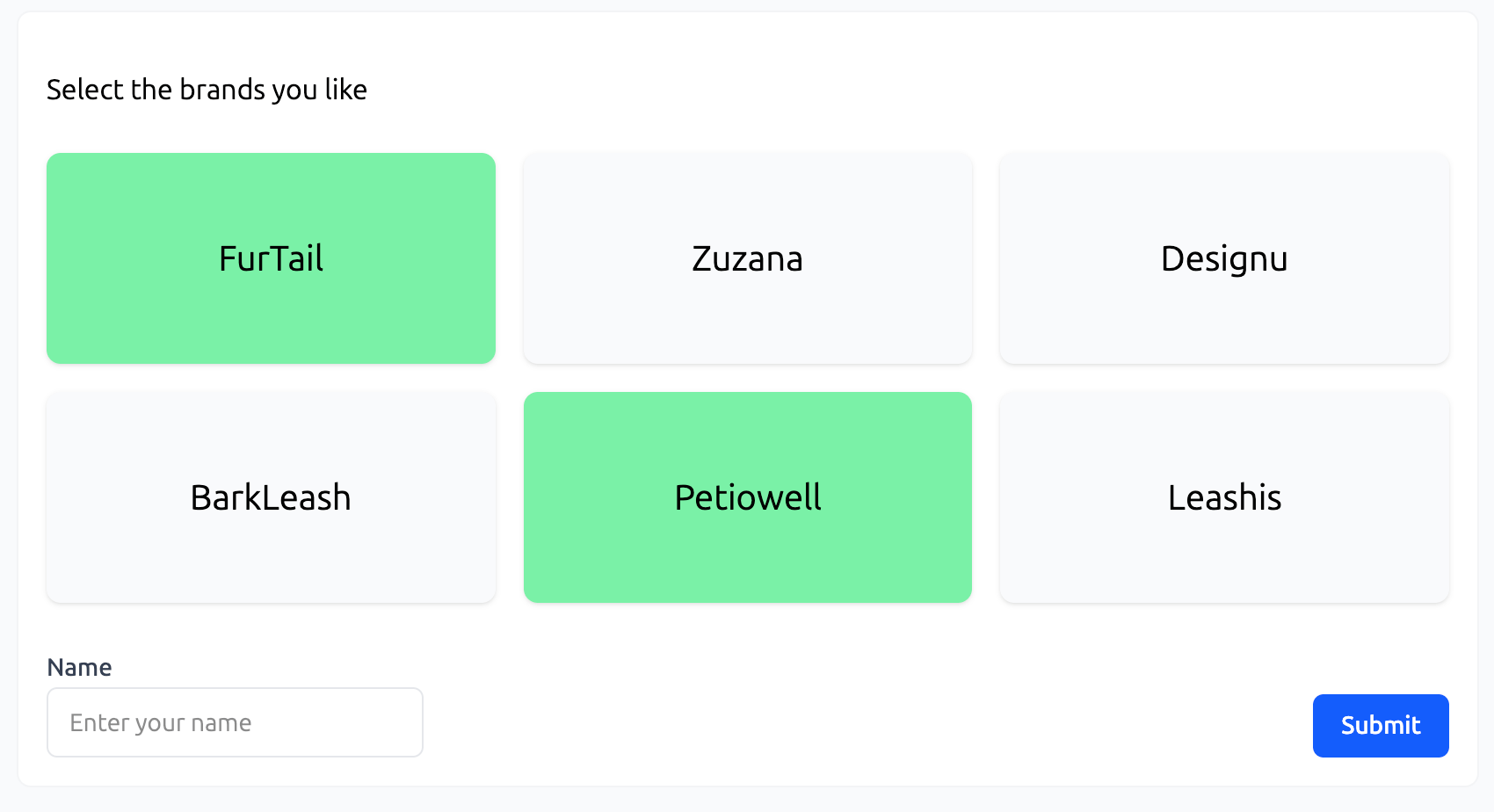
The link is public and accessible to anyone - voters do not need a SoldScope account to participate.
Voters follow the link and read your brand description.
They can select one or multiple brands that they prefer.
They click Submit to cast their vote.
Step 7: Analyze the Results
You can track the progress of your polls in real-time.
Go back to the Brand Generator main page.
Click the Polls button to see a list of all your active and past polls.
View the vote distribution to see which name is the clear winner among your audience.
Pro Tip: Target Your Audience
If you are selling a niche product (like "Professional Chef Knives"), try sharing the link in cooking forums or groups. Feedback from your actual target demographic is much more valuable than generic votes!