Index Checker Overview: Is Amazon Seeing Your Product?

Olivia Reyes
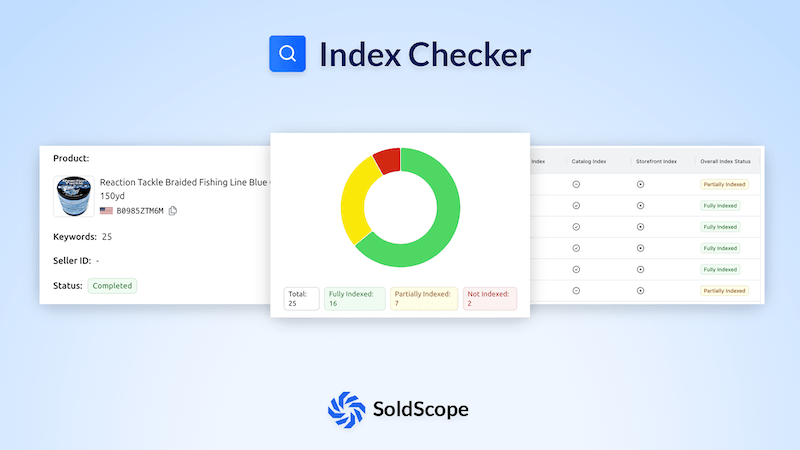
You can spend thousands on PPC and have perfect photography, but if Amazon has not indexed your product for a specific keyword, customers will never find it. You are effectively invisible.
The SoldScope Index Checker is a diagnostic tool that verifies if Amazon's algorithm links your ASIN to specific search terms.
Indexing vs. Ranking
It is important to distinguish between two concepts:
Indexing: Your product is findable in the search results for a keyword (even if it's on page 20). The algorithm considers your product relevant.
Ranking: Your product's specific position (e.g., Top 1, Top 10).
Rule: You cannot rank (get a position) if you are not indexed. Indexing is the mandatory first step.
Understanding the 3 Types of Indexing
SoldScope performs a comprehensive "Health Check" using three different methods simultaneously to give you the most accurate picture:
Standard Index: The standard check. We simulate a customer searching for "ASIN + Keyword" in the main search bar. If your product appears, you are indexed.
Catalog Index: A deeper technical check using specific URL parameters (historically known as the Field-ASIN check). We simulate a customer searching for keyword in the context of the product.
Storefront Index: Checks if the keyword is indexed specifically within your (or a competitor's) Storefront. This requires entering a Seller ID.
How to Use the Index Checker
Navigate to Tools > Index Checker.
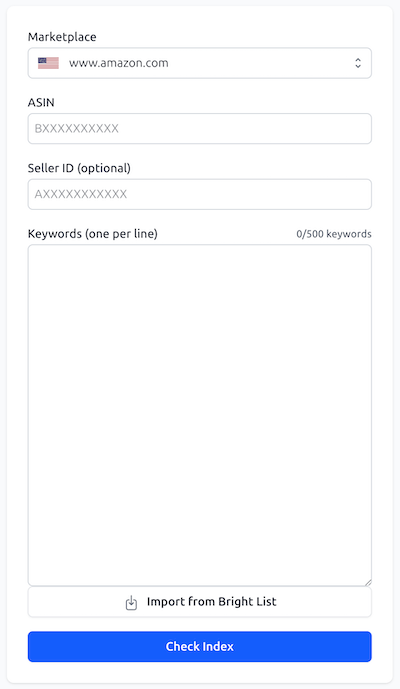
Step 1: Enter Product Data
ASIN: Enter the product identifier.
Marketplace: Select the region (e.g., US, DE, UK).
Seller ID (Optional): If you want to run the Storefront Index check, enter the Seller ID here. If left blank, the Storefront check will be skipped.
Step 2: Add Keywords
You need a list of keywords to test. You have two options:
Import from Bright List: Select a folder from your saved keyword collections to instantly load relevant terms.
Enter Manually: Paste a list of keywords (one per line).
Step 3: Run Check
Click Check Indexing. The system will query Amazon in real-time.
Note: Please be patient. The time required to complete all checks depends on the input data, the number of keywords, and the current system load.
Interpreting the Results
The results table provides a detailed breakdown for every keyword.
[TABLE-SCREENSHOT]
1. The Icons
Each column (Stardard Index, Catalog Index, Storefront Index) displays an icon indicating the result of that specific check:
Checkmark: Indexed. Amazon successfully found your product for this specific check type.
Minus Sign: Not Indexed. We searched Amazon, but your product was not found.
Cross (X): Skipped. This specific check was not performed (usually because no Seller ID was provided for the Storefront check).
Pro Tip: You don't have to take our word for it! You can click on any icon in the table. This will open a new tab with the actual Amazon search results page corresponding to that specific check, allowing you to verify the result manually.
2. Overall Index Status
Based on the combination of these checks, we assign a final status:
Fully Indexed (Green): ✅ Success! Your product passed the critical checks. You are visible.
Partially Indexed (Yellow): ⚠️ You might pass the Catalog Index check but fail the Stadard Index check. This often happens with newly updated listings that are still propagating through Amazon's system.
Not Indexed (Red): ❌ Problem. Amazon does not associate your product with this keyword at all.
Summary Stats (Left Sidebar)
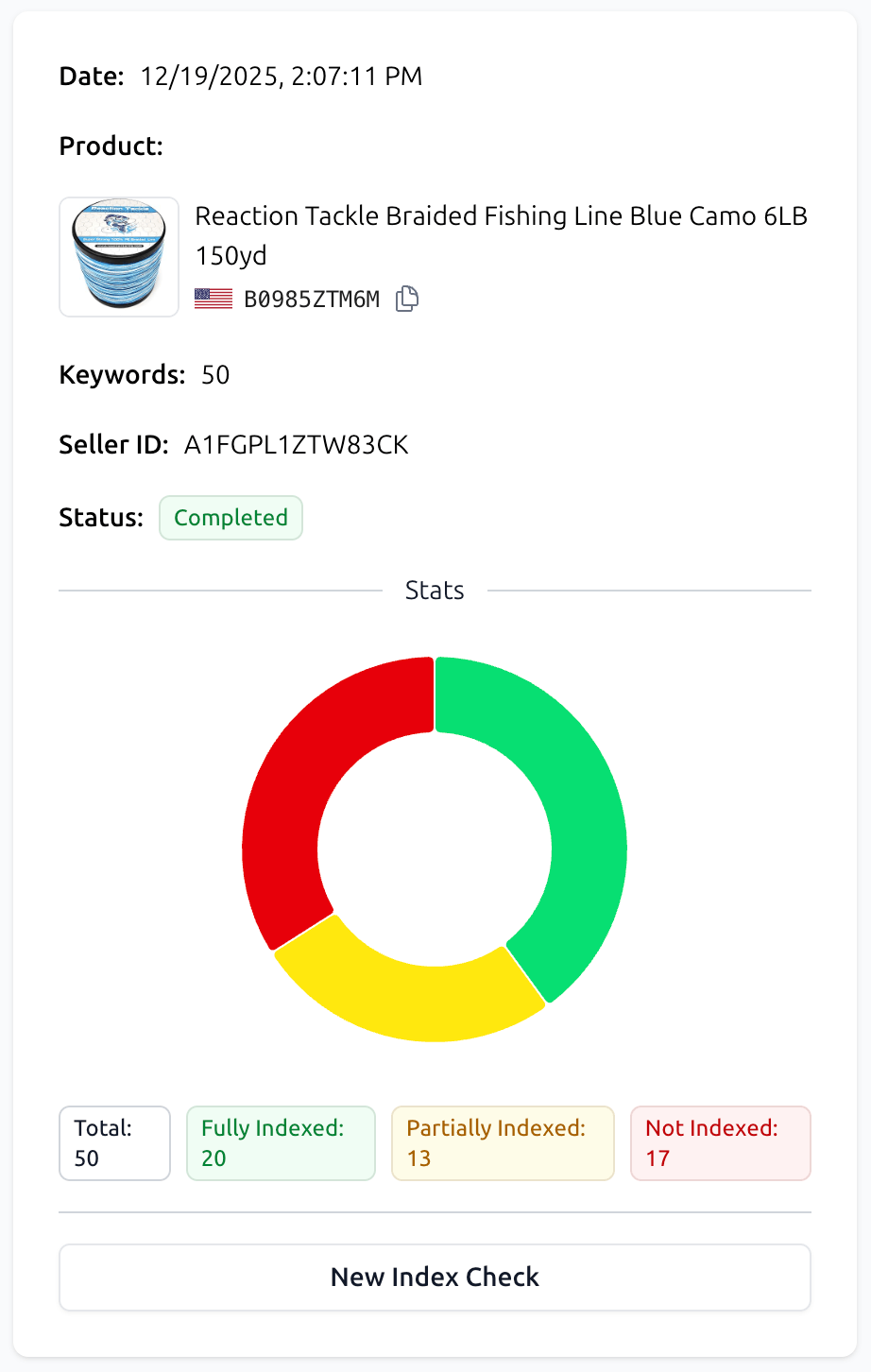
On the left side of the screen, you get a visual overview of the entire check:
Product Info: Shows the product image, title, and ASIN being checked.
Check Stats: A Pie Chart visualizing the ratio of Indexed vs. Not Indexed keywords.
Counters: Exact numbers for Total keywords checked, how many are Fully Indexed, Partially Indexed, or Not Indexed.
New Index Check: A button to clear the current results and start a fresh check for a different ASIN.
Managing Results & Actions

Above the table, you will find a toolbar to help you manage large lists of data:
Recheck Index: Reruns the check for the current list of keywords (useful if you just updated your backend keywords and want to verify the fix).
Export: Downloads the current results as a file (Excel/CSV) for reporting.
Add to BL (Bright List): Saves the selected keywords to a Bright List folder (e.g., save all "Not Indexed" keywords to a "Fix ASAP" folder).
Status Filter: A dropdown menu that allows you to show only "Not Indexed", "Partially Indexed", or "Fully Indexed" keywords.
Search Bar: Quickly find a specific keyword in the list.
Accessing History
You don't need to re-run checks if you closed the tab. All your previous checks are automatically saved.
Simply click the History button at the top right of the page. This will open a list of your past sessions, allowing you to revisit the results of any previous check at any time.