Troubleshooting: Why is my keyword "Not Indexed" and how to fix it?

Olivia Reyes
You ran the SoldScope Index Checker and saw a red status next to a critical keyword. This means Amazon's algorithm does not associate your product with this search term, and customers cannot find you.
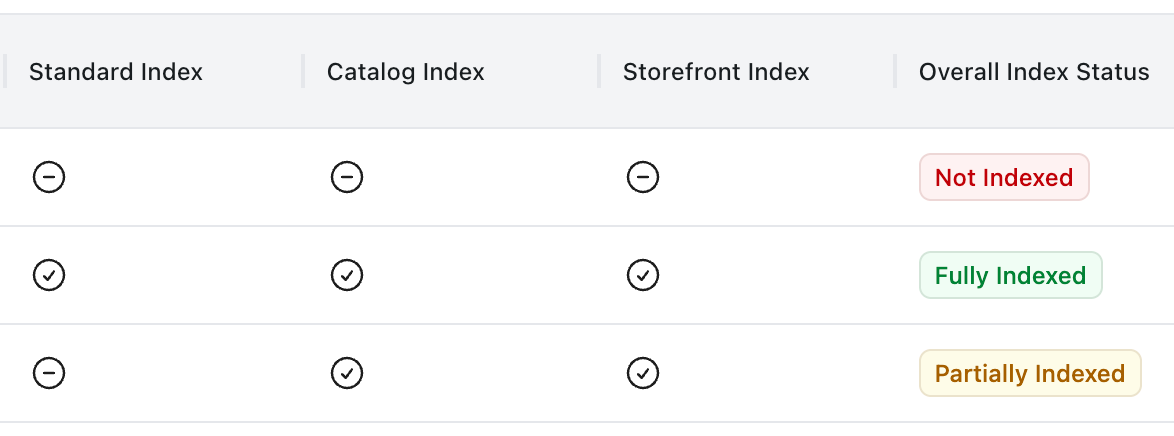
Don't panic. In 90% of cases, this is a fixable optimization error. Go through this checklist to restore your visibility.
1. Diagnosis via Catalog Index (Partial Indexing)
First, look at the Catalog Index column in your results.
SoldScope performs two types of checks:
Standard Index: Simulates a real customer search (typing in the search bar).
Catalog Index: Uses advanced parameters to force Amazon to check if the keyword exists specifically within your ASIN's data scope (backend).
The combination of these two gives you a precise diagnosis.
Scenario A: The "Partial Index" (Most Common)
Status: Catalog Index (✅) / Standard Index (⛔)
Meaning: Technically, your product is indexed. The keyword is correctly associated with your ASIN in the Amazon catalog (backend). However, the main search results page hasn't updated its cache yet to show you.
Solution: This usually resolves itself within 24 hours. If you just optimized the listing, grab a coffee and wait.
Scenario B: The "Ghosting" (Stuck Listing)
Status: Both Checks (⛔)
Meaning: Amazon does not see your keyword at all.
Solution: If this persists for more than 24 hours, your listing is "stuck." Perform a "Force Refresh":
Go to Seller Central -> Edit Listing.
Change a minor detail (e.g., price by 1 cent).
Save and wait 30 minutes. This kicks the algorithm to re-scan your catalog data.
Scenario C: The "False Negative" (Rare)
Status: Catalog Index (⛔) / Standard Index (✅)
Meaning: This looks confusing, but it is actually Good News. Since the Standard Index is Green, it means customers can find your product by typing the keyword in the search bar. The "live" search is working perfectly. The failure of the Catalog Index here is likely a temporary glitch in Amazon's filtering parameters.
Solution: Ignore it. As long as Standard Index is Green, your product is searchable.
2. Basic Check: Is the word actually there?
The most obvious but common reason. The algorithm cannot index what isn't there.
Ensure the exact keyword or phrase is physically present in one of these fields:
Title (Highest weight).
Bullet Points.
Description / A+ Content.
Search Terms (Backend keywords).
Check for typos. Writing
Kitecheninstead ofKitchenmeans missing out on traffic.
3. Issues with Backend Search Terms
The "Search Terms" field in your listing settings is a minefield. Errors here can block indexing for the entire block of keywords.
Check the following:
Byte Limit: Amazon strictly limits this field to 249 bytes (not characters!). If you exceed this limit by even 1 byte, Amazon may ignore the entire field.
Forbidden Words: If you accidentally added a competitor's brand name (Adidas, Nike) or a prohibited word (free, best, gift), Amazon might suppress the listing or block indexing for this field.
Repetition: Don't waste space on words already used in your Title or Bullets.
Tip: Use spaces between words, not commas. Commas take up precious bytes and are not required by the algorithm.
4. Category and Relevance
The Amazon A10 algorithm has become smarter; it understands context.
Wrong Category: If you are selling a "plastic bottle" but trying to index for "glass vase," Amazon may forcibly remove indexing because it considers the item irrelevant to the query.
Item Type Keyword: Ensure the correct sub-category is selected in your listing settings (More Details tab). This field heavily influences which keywords Amazon considers "allowed" for your product.
5. The "Adult Flag"
Sometimes the algorithm mistakenly flags a harmless product as an "Adult Product" (18+). Symptoms:
You are not indexed for broad, high-volume keywords.
PPC campaigns have stopped delivering impressions.
The product cannot be found in the general "All Departments" search.
If you suspect this, open a case with Seller Support asking them to check if your ASIN has been flagged as Adult.
When to contact Seller Support?
If you have gone through all the steps:
The keywords are in the listing.
Search Terms limits are respected.
"Force Refresh" didn't help.
Open a case in Seller Central. Important: Do not write "I am not ranking." Instead, write: "Technical issue: My ASIN is not searchable for keyword X." This frames it as a catalog bug rather than an SEO complaint.