Deep Dive: Mastering Search Filters and Filter Presets in Product Research

Olivia Reyes
The key to successful product research isn't just seeing data - it’s knowing how to filter out the noise. With millions of products in the Amazon catalog, the SoldScope filtering system allows you to drill down to the exact niches that match your business goals.
Below is a comprehensive guide to every filter available, organized to help you refine your strategy.
1. Product Performance & Revenue
These filters help you identify products with high demand, healthy financial velocity, and growth potential.
Price & Price Change: Set your target Buy Box price. Use Price Change (%) to identify products with stable pricing or to spot markets currently in an aggressive price war.
Estimated Monthly & Yearly Sales: Filter by projected units sold over the last 30 or 365 days.
Note: For products with variations, sales figures are aggregated at the Parent Product level (representing the sum of all variations).
Sales Change (%): Focus on trending products by filtering for the percentage growth or decline in monthly sales over the last 90 days.
Monthly Revenue: Filter for gross monthly sales in dollars to ensure the niche has enough financial "room" for a new seller.
Net Price & Net Revenue: * Net Price is the amount remaining after deducting estimated FBA fulfillment and Amazon referral fees.
Net Revenue (Net Price × Estimated Monthly Sales) shows your monthly profit potential before Cost of Goods Sold (COGS).
Best Sellers Rank (BSR): Filter by the product's popularity rank. A lower BSR indicates higher sales velocity.
2. Logistics & Fulfillment
Use these filters to ensure your potential product has manageable shipping costs and a favorable competitive landscape.
Fulfillment Type: Filter by how orders are shipped: FBA (Fulfilled by Amazon), FBM (Fulfilled by Merchant), or Amazon (Sold by Amazon). This is key for avoiding niches dominated directly by Amazon.
Product Size Tier & Weight: Target lightweight, standard-sized items to minimize storage and shipping fees - essential for maintaining high margins in Private Label.
Variation Count: Filter by the number of versions (size, color, etc.) available. Fewer variations often lead to simpler inventory management for new brands.
3. Listing Quality & Social Proof
These filters are designed to help you find "weak" competitors or underserved niches where you can provide a better customer experience.
Star Rating & Ratings Count: Look for products with high sales but a Star Rating of 3.5 to 4. This indicates a gap between demand and product quality - your opportunity to launch an improved version.
Listing Quality Score (LQS): Our proprietary 1–10 score measures the quality of a listing's content. A low score identifies competitors with poor titles or descriptions that you can easily outperform.
Number of Images & Videos: Listings with few photos or no video content are often unoptimized, presenting a "buy-and-improve" opportunity.
Listing Age (Months): Distinguish between established "legacy" products and successful newcomers that have recently broken into the market.
4. Search, Brand & Seller Filters
Refine your results to focus on specific keywords, competitors, or regions.
Categories: Narrow your search to specific Amazon departments and subcategories to find specialized niche items.
Title Keywords & Exclusions: Use Title Keywords to find exact product types, and Exclude Title Keywords to hide irrelevant results (e.g., searching for "Yoga Mat" but excluding "Towels").
Product Identifiers: Directly search for or upload a file of up to 500 UPC, GTIN, EAN, or ISBN codes for targeted research.
Brand & Seller Filters: Target specific competitors using Exact Search, or remove market leaders using the Exclude Brands/Sellers options.
Seller Country: Filter or exclude products based on the country where the seller's business is registered to better understand the global competitive landscape.
The Filter Library: Speed Up Your Research
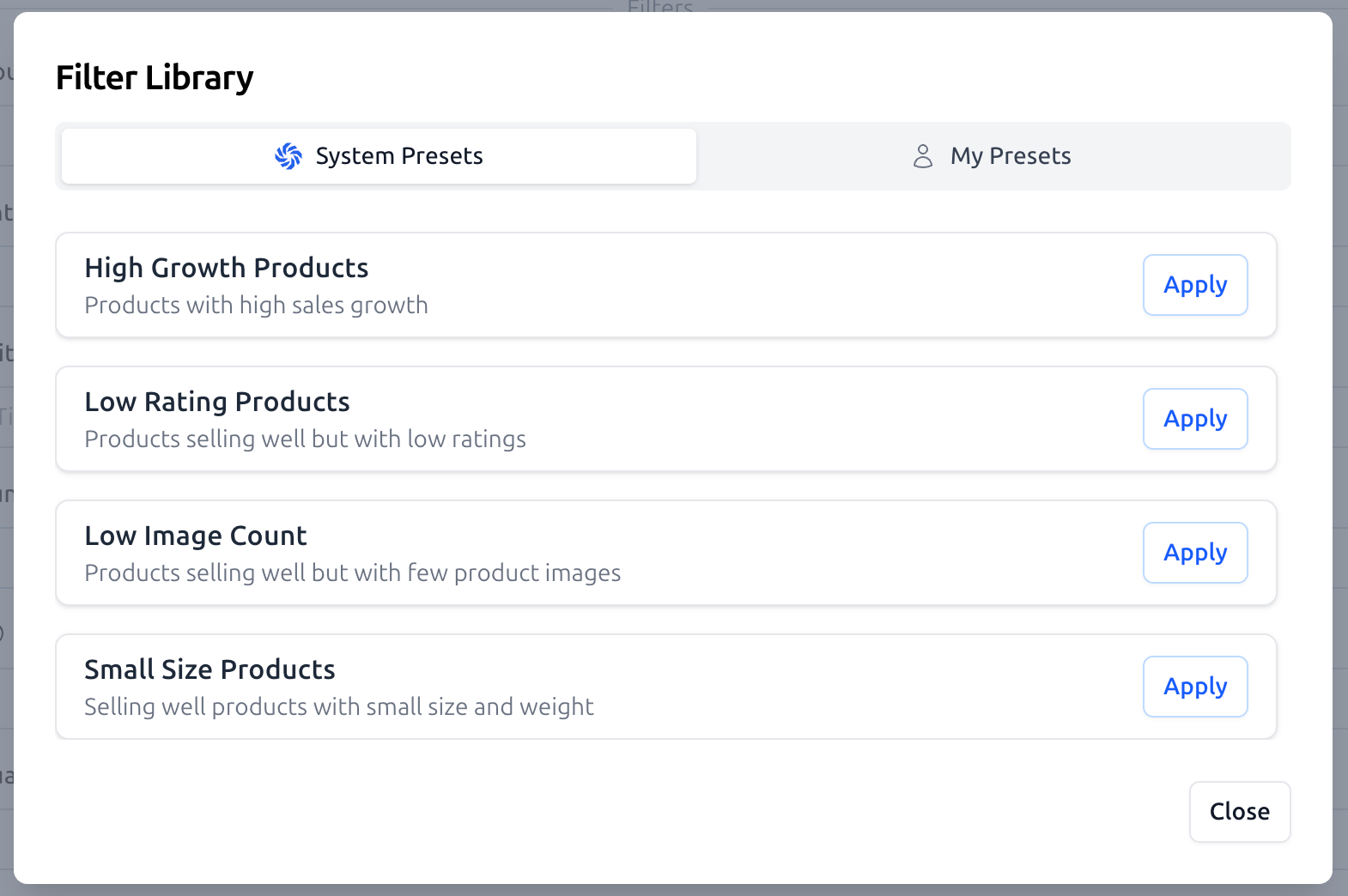
To make your research sessions more efficient, SoldScope includes the Filter Library. This feature allows you to apply complex configurations in a single click, ensuring you never have to set up the same search twice.
System Presets
SoldScope comes with built-in System Presets - expertly crafted filter sets designed to find specific types of opportunities:
High Growth Products: Spot items with rapidly increasing sales velocity.
Low Rating Products: Find high-demand items where customers are unhappy - a perfect chance to launch an improved version.
Low Image Count: Uncover successful listings that are poorly optimized visually.
Small Size Products: Target lightweight items to keep your shipping and storage costs at a minimum.
Custom Presets
Once you have fine-tuned a combination of filters that works perfectly for your strategy, you can save it for future use.
Save as Preset: Click this button at the bottom of the filters panel to name and save your current configuration.
Instant Access: Your saved setups will appear in the "My Presets" tab, ready to be deployed whenever you start a new research session.