Integrating Bright List and Keyword Research: Scaling Your Semantic Strategy

Olivia Reyes
Keyword research is the foundation of any successful Amazon strategy. The integration between Bright List and Keyword Research creates a closed-loop system: you use your curated competitor lists to trigger deep analysis and instantly save the best search terms back into your folders for optimization or advertising.

Why Use This Integration?
Instant Starts: Launch a multi-ASIN "Reverse ASIN" search using an entire group of competitors without typing a single ID.
Bulk Management: Collect hundreds of relevant keywords in seconds for SEO or PPC campaigns.
Data Hygiene: Organize your semantic core by project, brand, or niche directly during the research phase.
How to Use the Integration
This integration works at both the beginning and the end of your research workflow.
1. Importing ASINs to Start a Search
Instead of manually searching for and entering competitor ASINs, you can use a pre-made collection from your Bright List.
How to do it:
Open the Keyword Research tool.
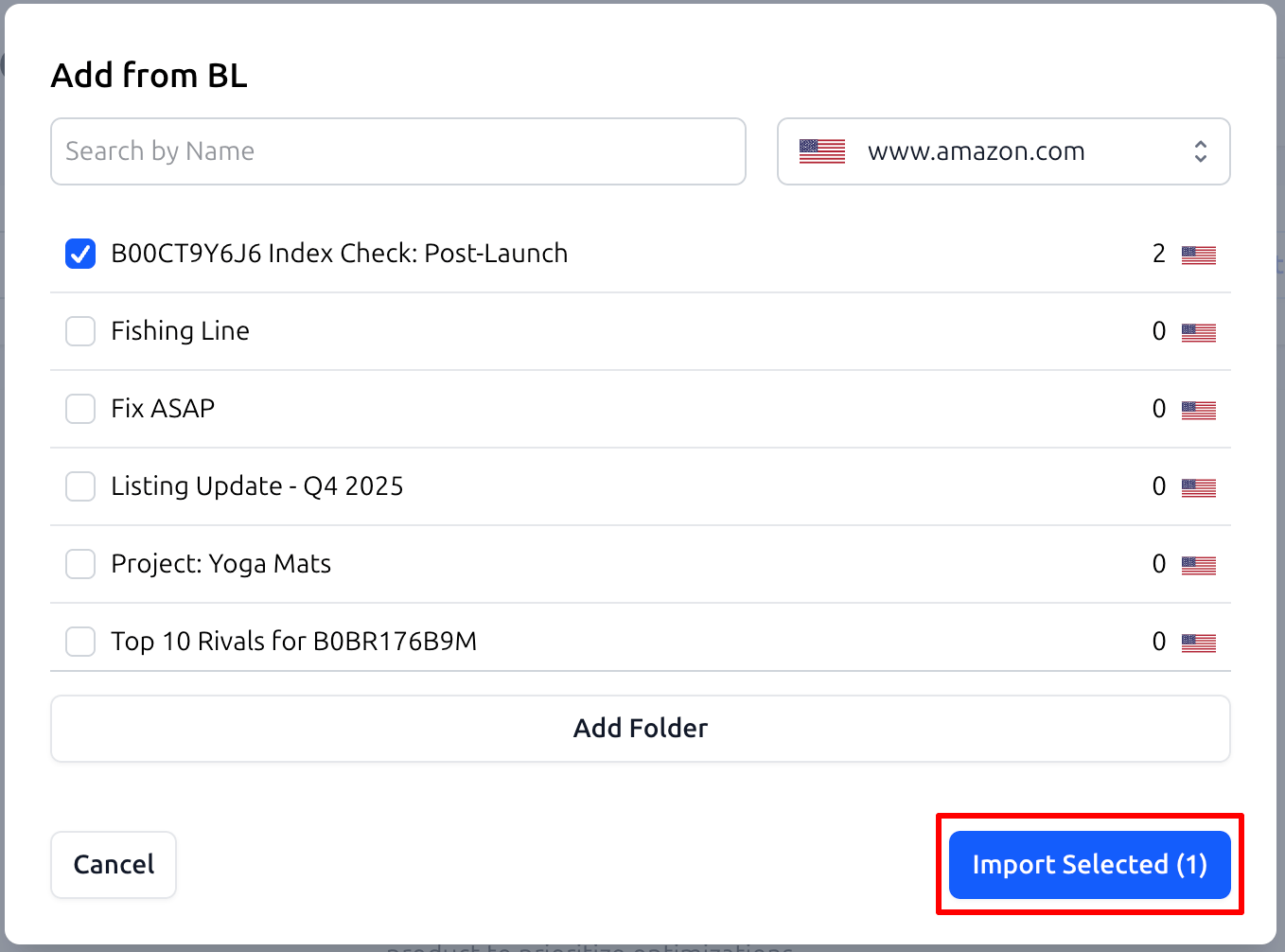
In the input block, locate and click the "Import from Bright List" button.

In the modal window, select the folder containing your target competitors (e.g.,
Top 10 RivalsorNiche: Yoga Mats).Click "Import Selected" (see screenshot: KR-BL-2.png). All ASINs from that folder will be instantly populated into the search field.
2. Saving Keywords to Bright List
Once the search results are generated, you can save individual keywords or massive groups of data back to your folders.
How to do it:
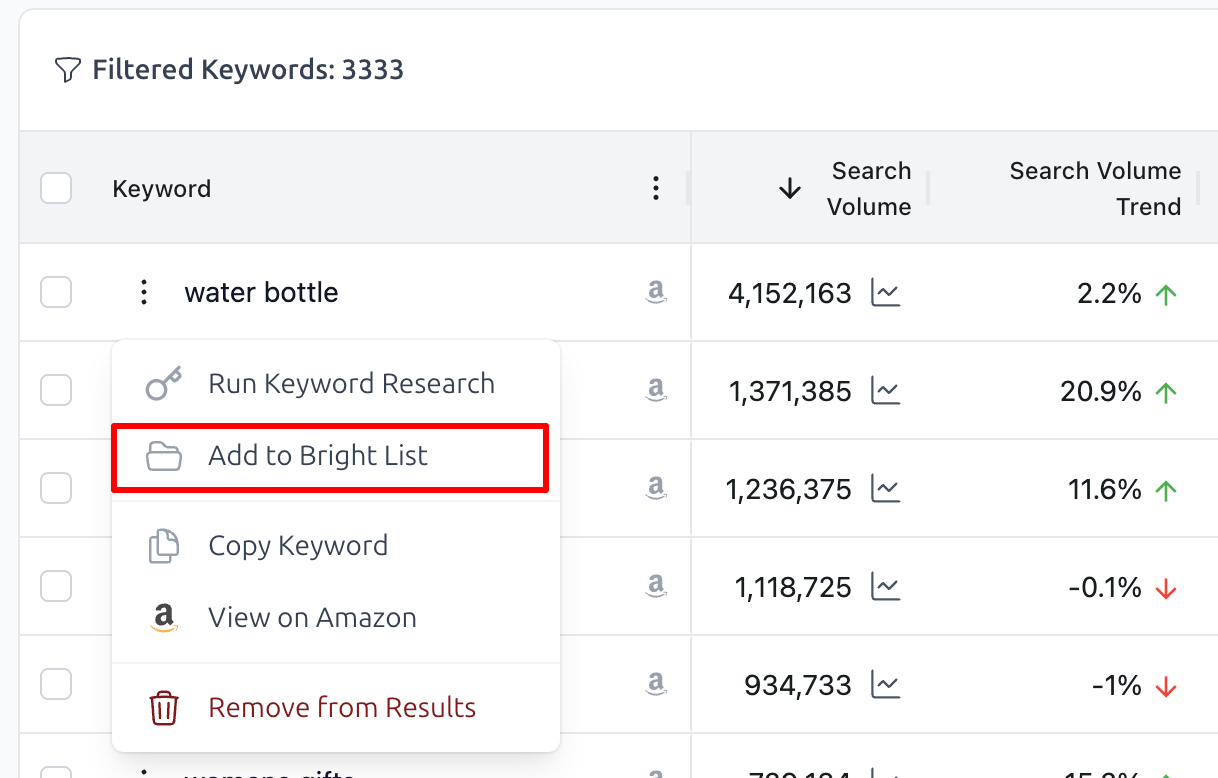
Individually: Click the Menu Icon (three dots) on any specific keyword row and select "Add to Bright List".
In Bulk: Use the checkboxes in the results table to select multiple keywords at once.
Click the "Add to BL" button in the top control bar.

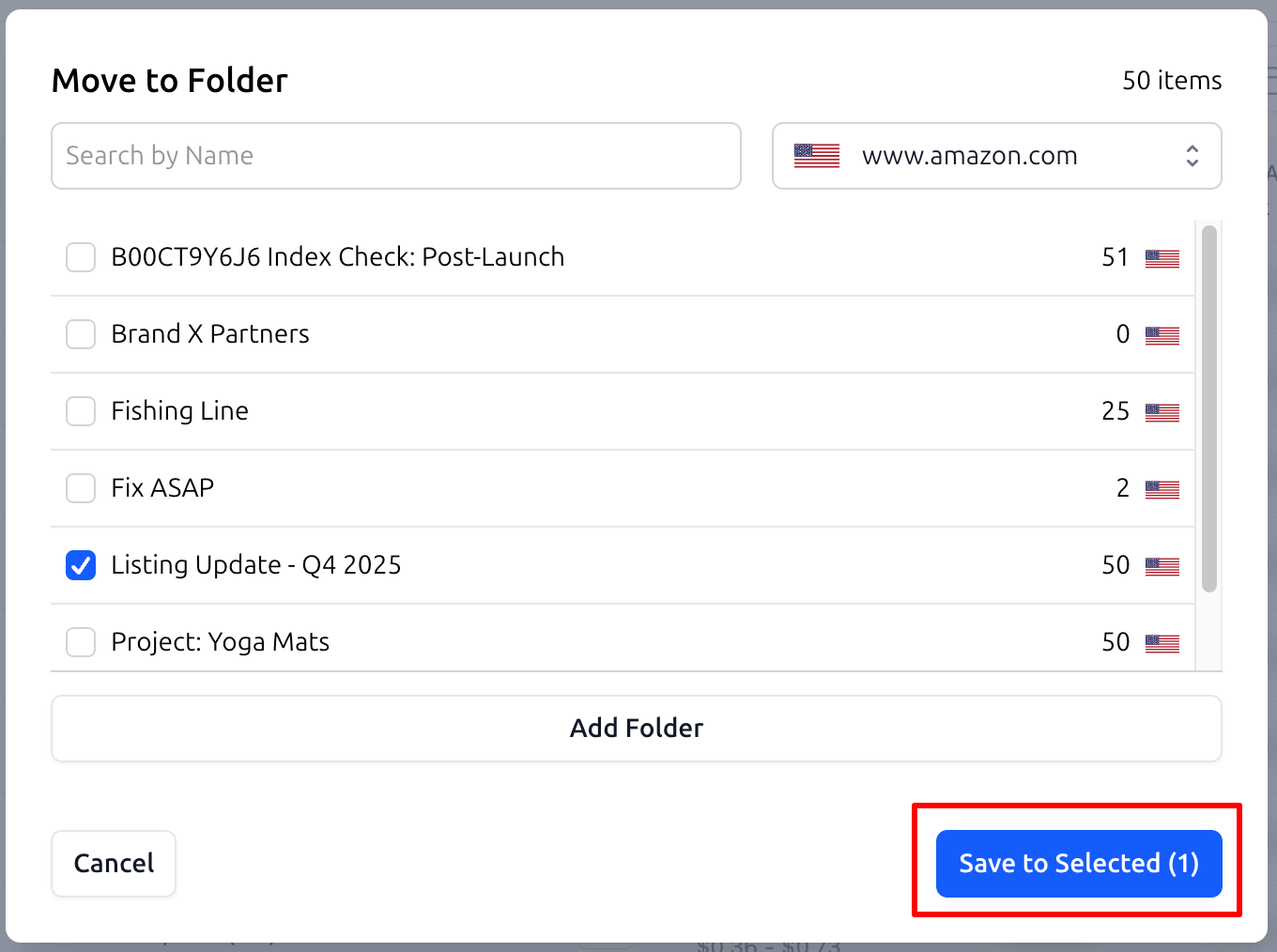
In the "Move to Folder" modal, select your destination folder and click "Save to Selected".
Practical Use Cases
1. Building a "Turnkey" Semantic Core
When entering a new niche, you need every keyword that the market leaders rank for.
Workflow: Import your
Niche Leadersfolder into Keyword Research. Filter by high Search Volume, and save the top terms to a folder namedSEO: Main Keywords. You can later open this folder directly in the Listing Builder to write your copy.
2. Sourcing PPC Campaign Ideas
Quickly identify keywords that competitors are bidding on, but you aren't.
Workflow: Run a search on a competitor list, select the most relevant "sponsored" terms, and save them to a folder called
PPC: Test Keywords. You can then export this list as a CSV to upload directly to Amazon Advertising.
3. Segregating Backend Search Terms
Often you find keywords that are important for indexing but don't belong in your visible Title or Bullets.
Workflow: Select these "hidden" terms and save them to a folder named
Backend: Search Terms. This keeps your primary SEO lists clean while ensuring you don't lose the keywords needed for your listing's backend.
Summary
The synergy between Bright List and Keyword Research turns a chaotic list of words into an organized, actionable strategy. By moving data seamlessly between tools, SoldScope ensures your research is always organized and ready for the next step of your business growth.