Integrating Bright List and Listing Builder: Effortless SEO Writing

Olivia Reyes
The Listing Builder is where your research turns into sales copy. By integrating it with Bright List, you can pull your curated keyword collections directly into the editor. This eliminates the need for messy spreadsheets and ensures that every "must-have" keyword you found during research actually makes it into your title, bullets, and description.

Why Use This Integration?
Speed: Start writing immediately by importing hundreds of keywords in one click.
Accuracy: Never miss a high-volume keyword because of a copy-paste error.
Real-Time Tracking: As you write in the Listing Builder, the tool automatically tracks which keywords from your Bright List have been used and which are still missing.
How to Use the Integration
Moving your keywords from research to writing is designed to be a seamless part of your workflow.
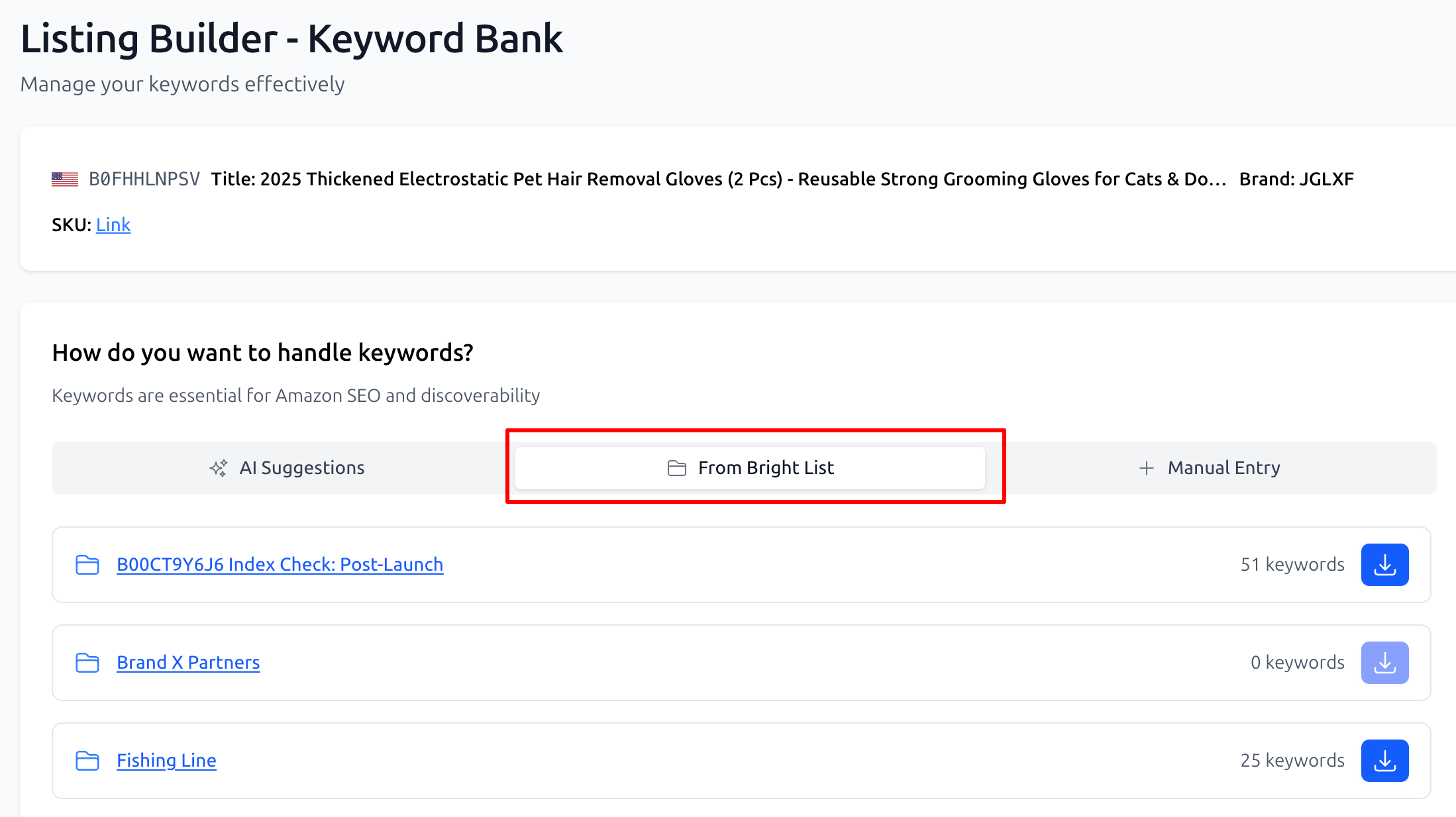
Step 1: Open the Listing Builder - Keyword Bank
When you start a new listing project or edit an existing one, you will arrive at the Keyword Bank stage.
Step 2: Select the Bright List Source
Under the section "How do you want to handle keywords?", click the button labeled "From Bright List".
Step 3: Import Your Collection
Your saved folders will appear in a list below.
Find the folder you need, such as
SEO: Main KeywordsorListing Update - Q4 2025.Click the Blue Import Icon on the right side of the folder row to pull all keywords into your project bank.
Once imported, these keywords will follow you into the Editor, where they will be highlighted as "Used" the moment you type them into your copy.
Practical Use Cases
1. New Product SEO Launch
When launching a product, you have a specific set of "Anchor Keywords" you must rank for.
Workflow: Save these high-priority terms to a folder named
Launch SEO: Main Keywords. Import them into the Listing Builder to ensure your Title and Bullet Point 1 are perfectly optimized for your primary traffic drivers.
2. Bridging Competitor Gaps
If your analysis showed that competitors are ranking for terms you are missing.
Workflow: Save those "missing" keywords into a folder named
Competitor Gaps. Import this list during your next listing refresh to strategically add these terms into your Backend Search Terms or Description.
3. Seasonal Content Updates
Updating listings for Prime Day or the Holiday season requires specific seasonal triggers.
Workflow: Curate a list of seasonal terms (e.g., "gift for mom," "stocking stuffer") in a folder named
Seasonal: Q4 2025. Use the integration to quickly swap out your standard bullets for seasonal ones without losing track of your core SEO keywords.
Summary
The Bright List to Listing Builder integration is the final step in a data-driven SEO workflow. By acting as the bridge between your research and your content, SoldScope ensures that your listings are always as powerful as your data.