Keyword Research Overview

Olivia Reyes
Keyword Research by SoldScope is an advanced Reverse ASIN Lookup tool. It scans Amazon search results to reveal exactly which keywords products are ranking for - in both Organic and Sponsored (Advertising) positions.
This allows you to uncover not just where competitors are getting free traffic, but also the specific keywords they are paying to target.
Three Search Modes
The tool adapts to your specific goals and supports three input methods:
1. Single ASIN Search
The "X-Ray" Mode. Use this mode for a deep audit of a specific product.
Input: One ASIN (yours or a competitor's).
Goal: To get a complete list of keywords for which this specific product is visible to shoppers. You will see where it ranks in the top organic spots and where it is running ads.
2. Multi-ASIN Search
The "Niche Analysis" Mode. The most effective way to build a Master Keyword List.
Input: Multiple ASINs (up to 20), typically the top sellers in your category.
Goal: To find intersections. If 5 top competitors are all ranking for the same phrase, that keyword is essential for your listing.
3. Single Keyword Search
The "Idea Generation" Mode. Instead of an ASIN, you enter a search query.
Input: A "Seed Keyword" (e.g., running shoes).
Goal: The tool will generate hundreds of related phrases, long-tail keywords, and synonyms that shoppers use when looking for similar products.
Refining Data: Filters
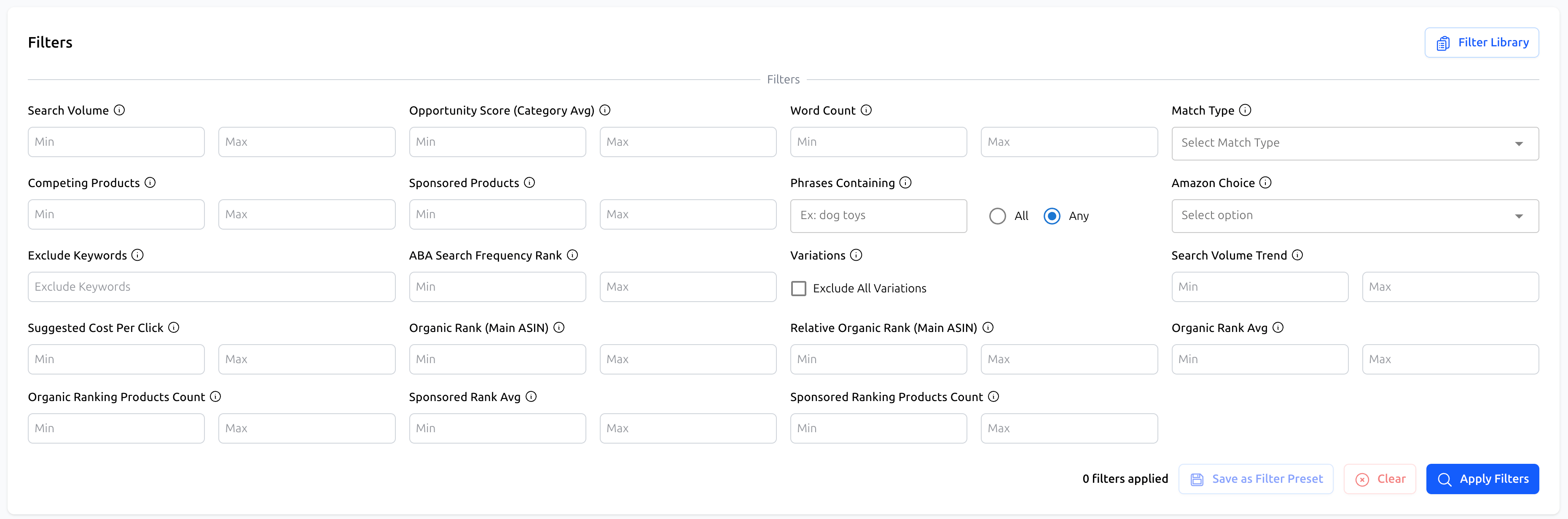
A single search can return thousands of keywords. To find the winning targets, you need to filter out the noise.
The Filters panel allows you to narrow down results based on strict criteria. You can filter by:
Search Volume: Find high-traffic terms.
Organic/Sponsored Rank: See only keywords where you (or a competitor) are in the top 10 positions.
Opportunity Score: Identify low-competition keywords.
Word Count & Phrases: Filter for long-tail keywords or include/exclude specific words (e.g., exclude "free" or "cheap").
Saving Presets: You can save your favorite filter combinations (e.g., "High Volume Low Competition") as a Filter Preset to use again later.
For a deep dive into every filter option, read: Mastering Filters & Presets
Two Result View Modes
Once the search is complete, you can analyze the data in two different formats. You can switch between them at any time.
1. Keyword Table View
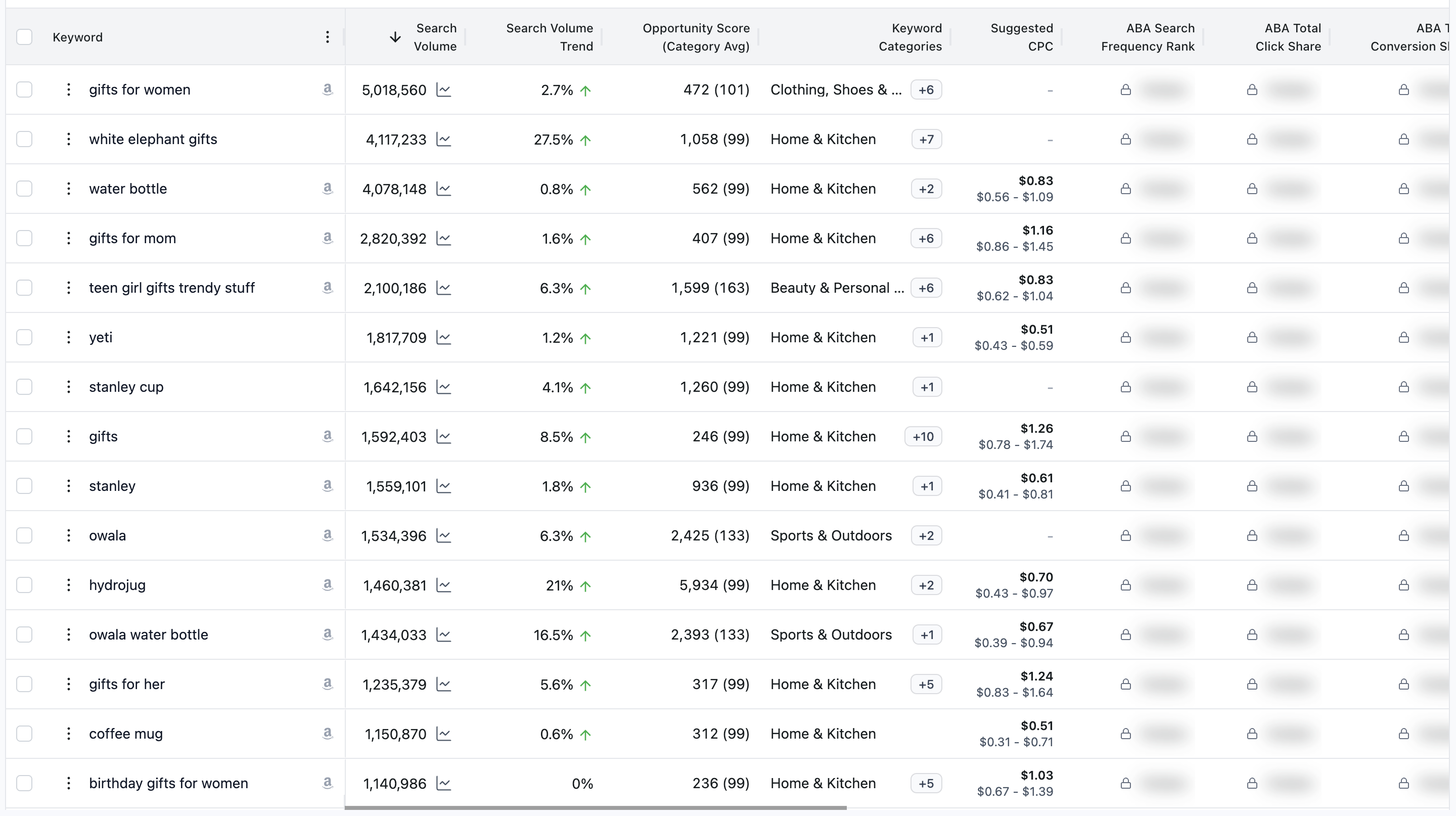
Available for all search modes. This is the classic list of keywords with detailed metrics for each phrase.
Structure: Each row is a keyword. Columns show search volume, competition, and other key data points.
Best for: Selecting high-volume keywords for SEO optimization and setting up PPC campaigns.
Read more in the article: Analyzing Results: Keyword Table View
2. Matrix View
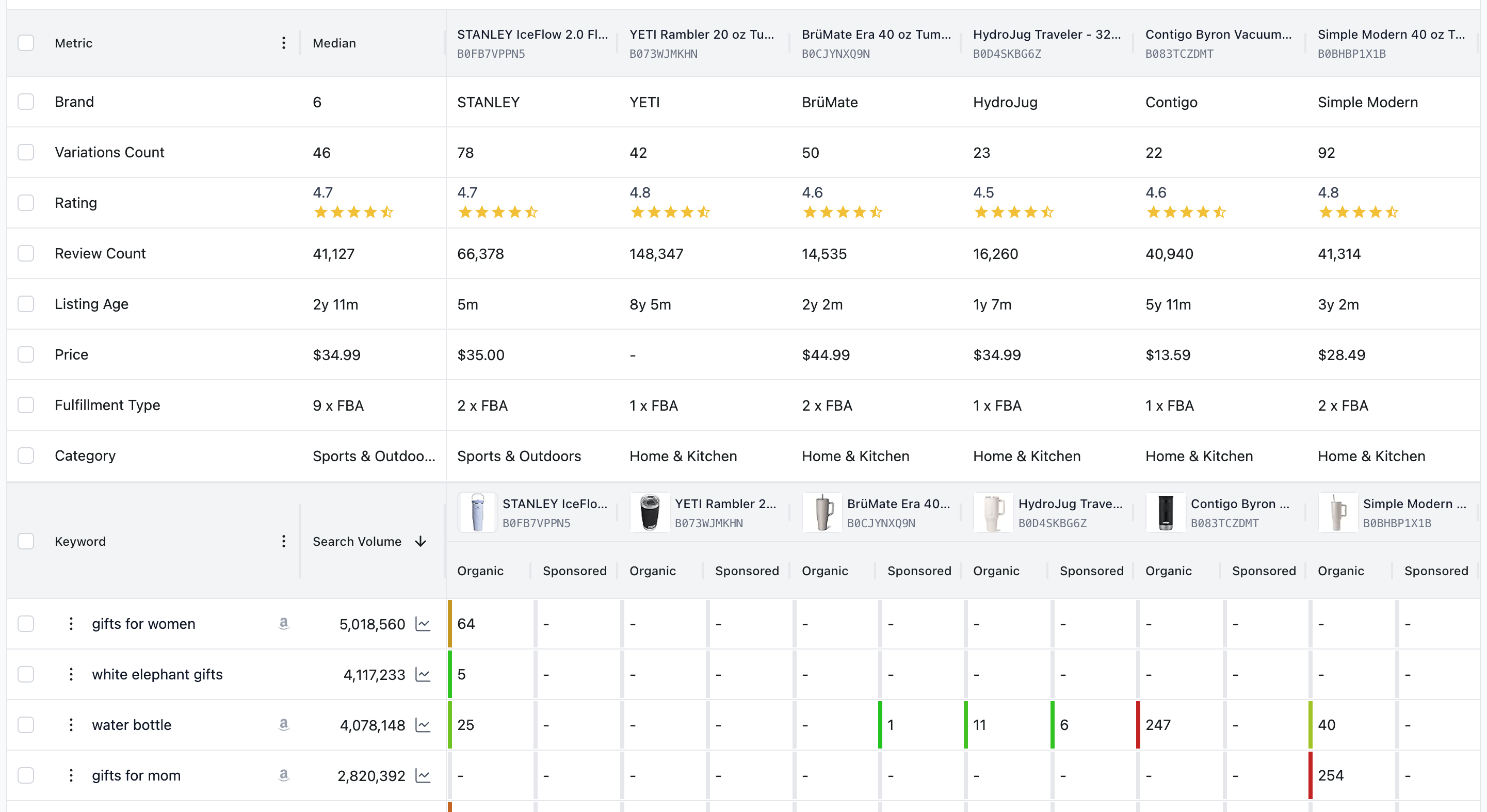
Ideal for comparing multiple products. This is a visual grid designed for competitor analysis.
Structure:
Rows: Keywords.
Columns: Products (ASINs).
Cells: The ranking position of each product for that keyword (Organic / Sponsored).
Best for: Seeing at a glance who dominates the niche for specific terms and finding "Content Gaps" (keywords your competitors missed).
Read more in the article: Analyzing Keyword Research Results (Matrix View)
What's Next?
Ready to dive into the data? Select a view mode to learn more: