Analyzing Keyword Research Results (Keyword Table View)

Olivia Reyes
Once you run a search in Keyword Research (whether Single ASIN, Multi-ASIN, or Keyword mode), the default result screen is the Keyword Table View.
This is your "Control Center." It displays a comprehensive list of every keyword found, enriched with data points ranging from search volume to ranking positions.
1. The Summary Dashboard

Before diving into the list, look at the top dashboard area. This gives you a high-level health check of the product(s) you are analyzing.
Keyword Distribution: This breaks down the total keywords found.
Total Keywords: The full count of keywords where the product appears.
Organic: Keywords where the product appears naturally (free traffic).
Sponsored: Keywords where the product is running ads (paid traffic).
Search Volume: Shows the total monthly search volume potential of all keywords combined, and the average volume per keyword.
Word Frequency: A bubble chart showing the most common single words appearing in phrases (e.g., "water", "bottle", "cup"). This is excellent for identifying "root keywords" for your backend search terms.
2. Key Metrics & Columns
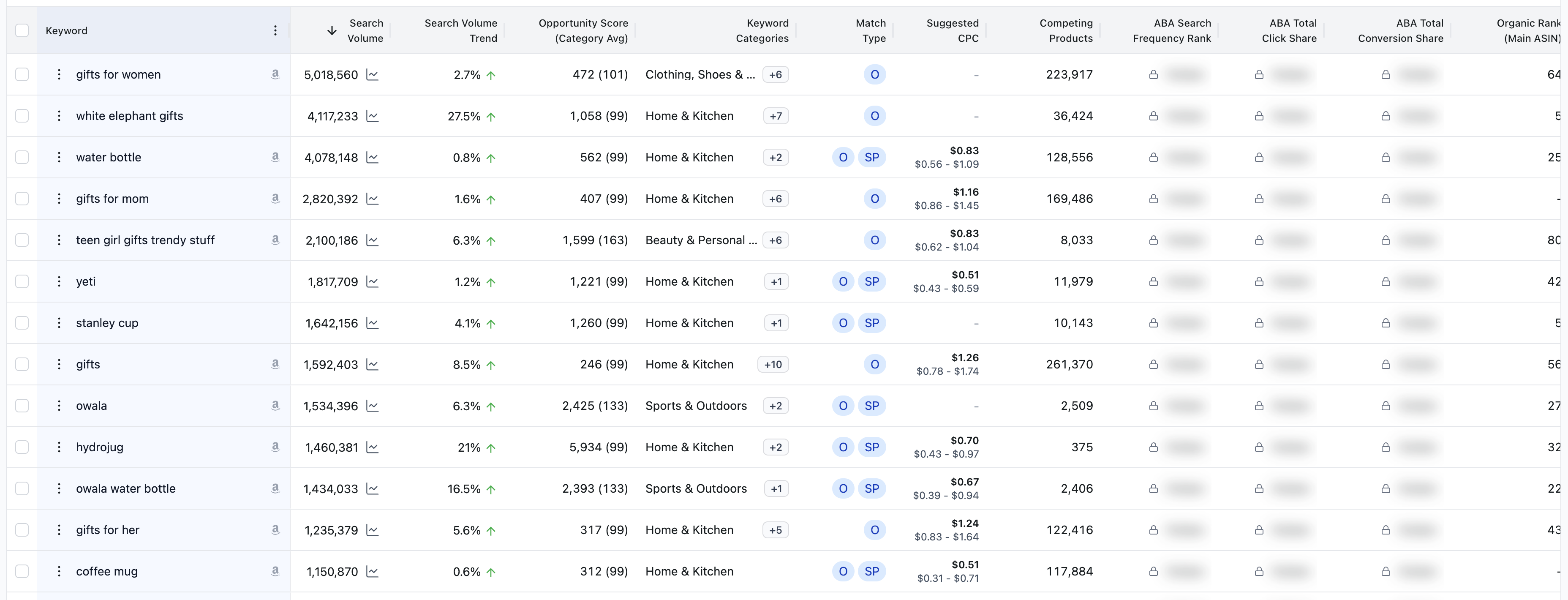
The table is packed with data. You can customize which columns are visible by clicking the Settings (Columns) button. Here are the critical groups:
Traffic & Potential
Search Volume: The estimated number of times this keyword is searched per month.
Search Volume Trend: A percentage showing if interest in this keyword is growing (green arrow) or shrinking.
Opportunity Score: A composite score that helps you find "low hanging fruit" - keywords with high volume but lower competition.
Match Type: Understanding "O" and "SP"
O (Organic): The product ranks naturally in the search results. This is "free" real estate earned by sales history and relevance.
SP (Sponsored): The product is buying visibility via PPC (Pay-Per-Click) ads for this keyword.
The Combo (O + SP): If you see both badges next to a keyword, it means the seller is "double dipping" - they rank organically and are running ads to dominate the search page real estate.
Ranking Performance
Organic Rank (Main ASIN): The exact position of the primary product you are analyzing. For example, a rank of "64" means the product is the 64th result on the page.
Sponsored Rank (Average): The average position where the product's ad appears.
Relative Organic Rank: Shows how the Main ASIN compares to others in your search group. A "1" means it is the highest-ranking product for that keyword among the selected competitors.
Competition
Competing Products: The total number of products indexed for this keyword. A higher number (e.g., 223,917) means extremely high competition.
Sponsored Products: The number of competitors bidding on this keyword with ads.
Amazon Brand Analytics (ABA)
ABA Total Click Share & Conversion Share: These columns reveal what percentage of clicks and sales the top products capture for a specific keyword.
Important: This data will be hidden or blurred if you have not connected your Amazon SP-API token or if you are not enrolled in the Amazon Brand Registry.
3. Taking Action

Above the table, you have a toolbar for managing your data:
Delete: Remove irrelevant keywords from your current view to clean up the list. Don't worry, they are not gone forever - you can restore them if needed.
Add to BL (Bright List): Select the most promising keywords (checkbox on the left) and click this to save them to a project folder for later use.
Matrix View: Toggle this switch to change the layout to a competitor comparison grid (covered in the next article).
Export: Download your filtered list to CSV or Excel for external analysis.
What's Next?
Want to see how your ranking compares side-by-side with competitors?
[Read the guide on Matrix View]