Mastering Keyword Research Filters & Presets

Olivia Reyes
Running a Reverse ASIN search often returns thousands of keywords. While more data is better, you need a way to cut through the noise to find the specific terms that matter for your strategy.
The Filters panel is your refinement tool. It allows you to sort through the chaos based on strict numerical and text-based criteria.
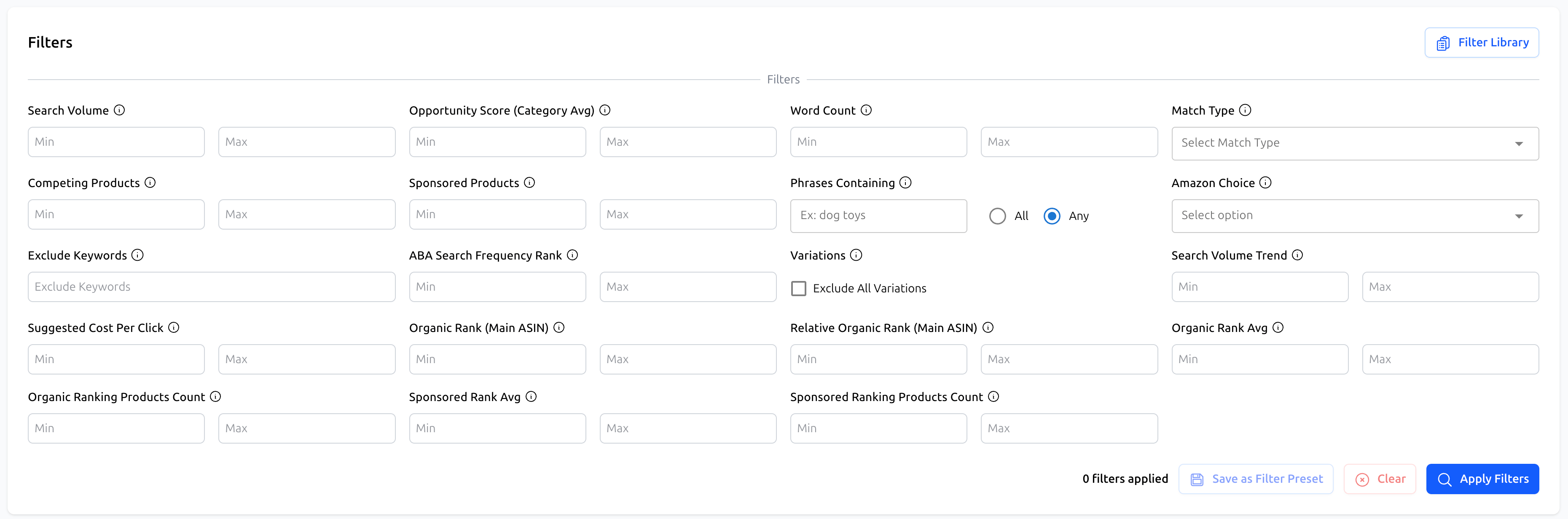
Accessing Filters
The filter panel is located at the top of the results page. It contains over 15 specific parameters to help you segment the data.
Key Filter Categories
Here is a breakdown of the most critical filters available:
Traffic & Potential
Search Volume: Set a minimum value (e.g., "500") to hide low-traffic keywords and focus only on terms with significant demand.
Search Volume Trend: Use this to find trending topics. Set a positive minimum value (e.g., "10%") to find keywords that are growing in popularity.
Opportunity Score (Category Avg): This helps find "low hanging fruit." A higher score generally indicates a keyword with decent volume but weaker competition.
Competition & Cost
Competing Products: Filters keywords based on how many other listings are indexed for them. Set a "Max" limit to find less crowded niches.
Suggested Cost Per Click (CPC): Ideal for PPC planning. Filter out keywords that are too expensive for your ad budget.
Sponsored Products: Shows how many competitors are actively advertising on this keyword.
Ranking Performance (The "Striking Distance" Filter)
Organic Rank (Main ASIN): This is one of the most powerful filters for SEO.
Strategy: Set Min: 10 and Max: 50. This reveals keywords where you are ranking on Page 2 or 3. pushing these up to Page 1 is often easier than starting from scratch.
Match Type: Select specific visibility types, such as filtering to show only keywords where you rank Organically or only those where you are running Sponsored ads.
Content Refining
Word Count: Useful for finding "Long-Tail" keywords. Set Min to "3" to exclude generic single words like "gift" or "cup".
Phrases Containing: Enter specific words you must have in the results (e.g., "stainless"). You can toggle between All (must contain every word typed) or Any (can contain any of the words typed).
Exclude Keywords: Clean up your list by removing irrelevant terms. For example, if you sell a premium product, exclude words like "cheap", "free", or "plastic".
Advanced Options
Variations: Check the Exclude All Variations box if you want to analyze the listing at the parent level or simplify the view by removing child ASIN noise.
Amazon Choice: Filter to see only keywords where a product holds the "Amazon's Choice" badge.
ABA Search Frequency Rank: Filter based on Amazon's official Brand Analytics popularity data.
Saving Your Strategy (Presets)
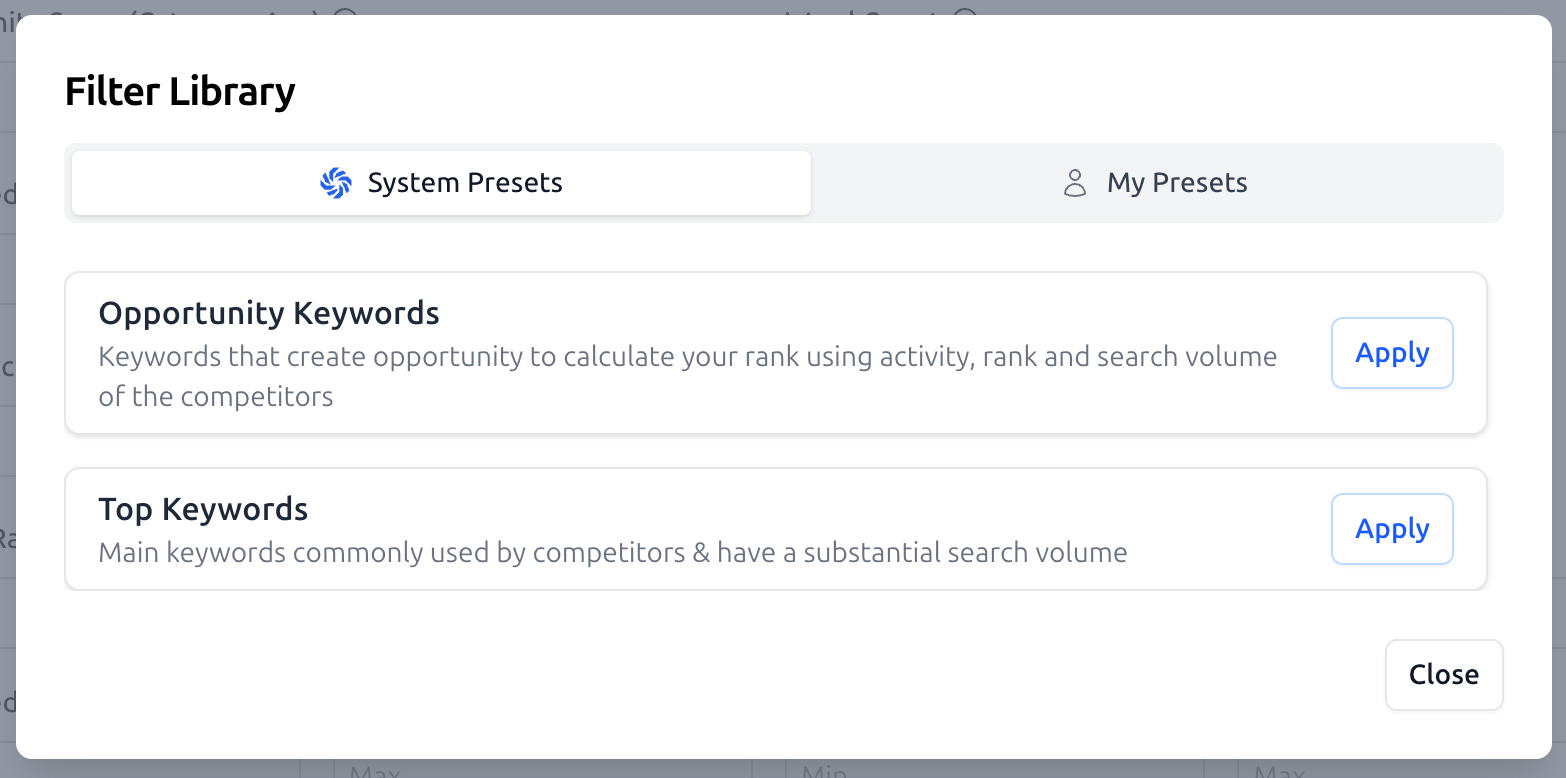
You don't need to configure these settings every time.
Creating a Preset:
Set up your filters (e.g., "High Volume SEO Targets").
Click the Save as Filter Preset button at the bottom right.
Give it a name.
Loading a Preset:
Click the Filter Library button at the top right.
Select your saved preset or use one of the System Presets.
Summary
Use Filters to turn a raw list of 5,000 keywords into a targeted list of 50 "must-win" terms. Once filtered, hit Apply Filters to update the table.