Publishing, Version History, and the Amazon API

Olivia Reyes
The final stage of the listing process is moving from your draft to a live Amazon marketplace. The SoldScope Listing Builder ensures this transition is seamless by providing a secure preview environment, direct API publishing, and a comprehensive versioning system to track every change you make.
Linking Your Amazon ASIN
To utilize the full power of SoldScope’s automation, your draft should be linked to a specific product in your Amazon Seller Central account.
Automatic Linking: If your Amazon Seller Account is already connected to SoldScope and you selected an existing product during the creation process, your listing is already linked.
Manual Linking: If you are working on a new draft, you can link it at any time by clicking the Link button next to the SKU identifier.
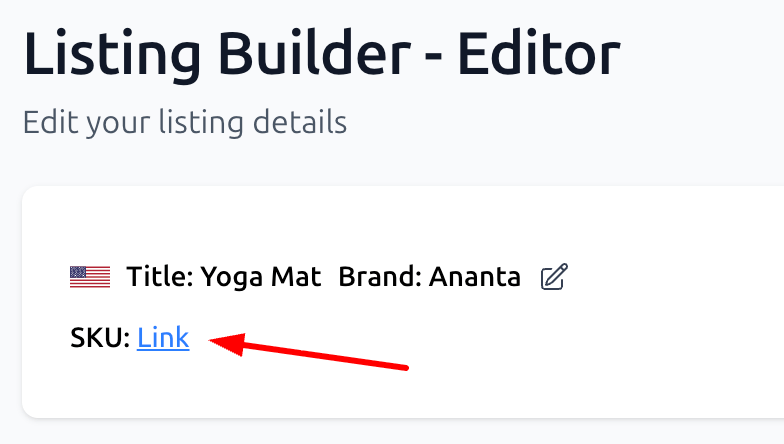
Optional Workflow: Linking is not strictly required; you can always choose to manually copy and paste your optimized text directly into Amazon Seller Central if you prefer.
Preview & Publish
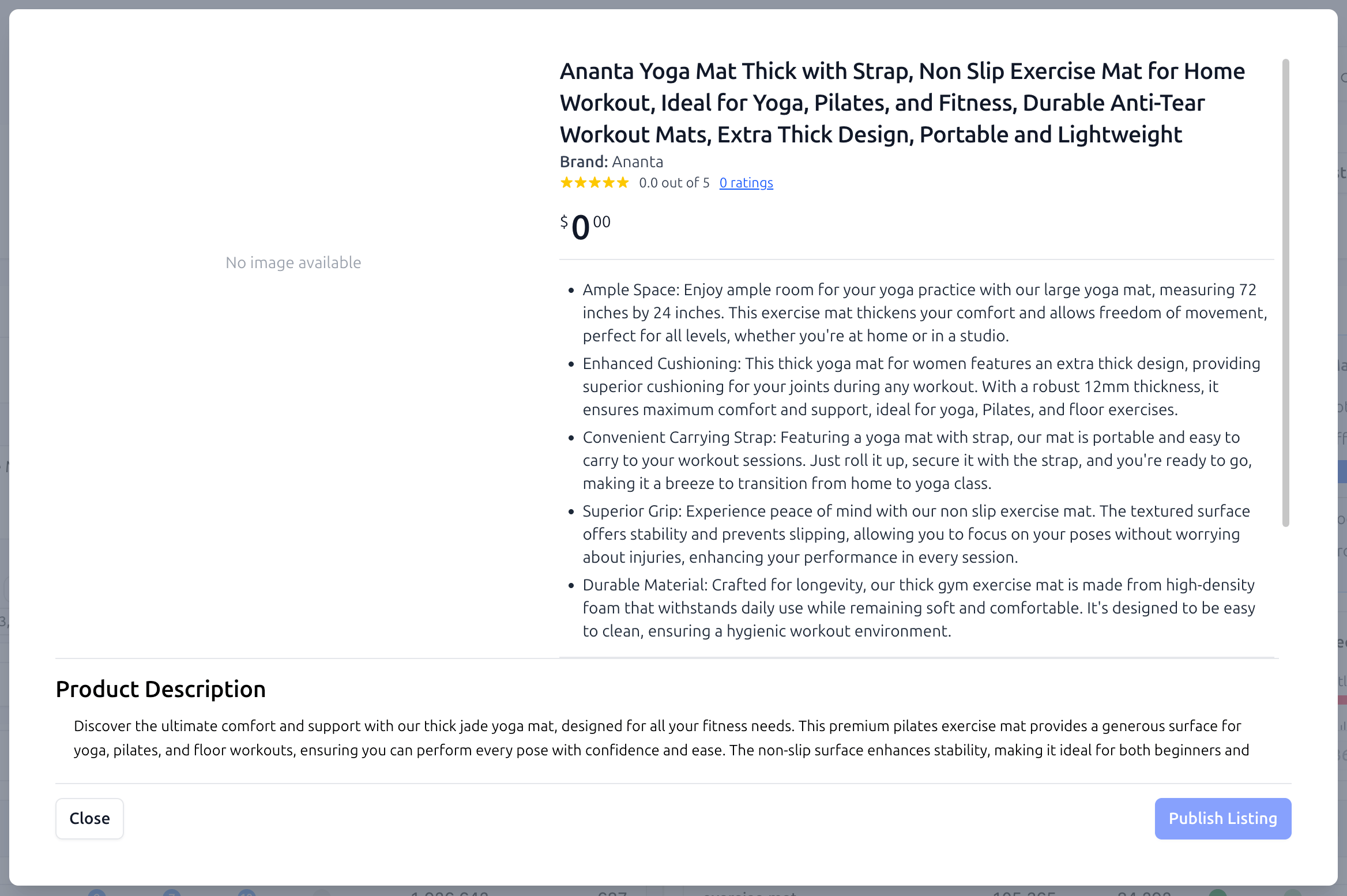
Before your content goes live, you can view a preview designed to mirror the actual Amazon layout, giving you a realistic look at how your listing will appear to customers.
Accessing the Preview: Click the Preview & Publish button in the top navigation bar.
The Mock-up View: This opens a preview window that displays your Title, Bullet Points, and Product Description in an Amazon-style layout. This is the best time to check for readability and visual flow.
Direct-to-Amazon Publishing: If your listing is linked to a Seller Account, the Publish Listing button will be active. Clicking this will push your content directly to your Amazon listing via API, eliminating the need for manual data entry.
Version History and Auto-Save
Never worry about losing your work or making a mistake you can’t undo. SoldScope features a robust, automated tracking system.
Seamless Auto-Save: As you work, your changes are automatically saved every few seconds. You can always see the timestamp of the last save in the top right corner of the editor.
Version Creation: Every time you open a listing for a new editing session, the system automatically creates a new version.
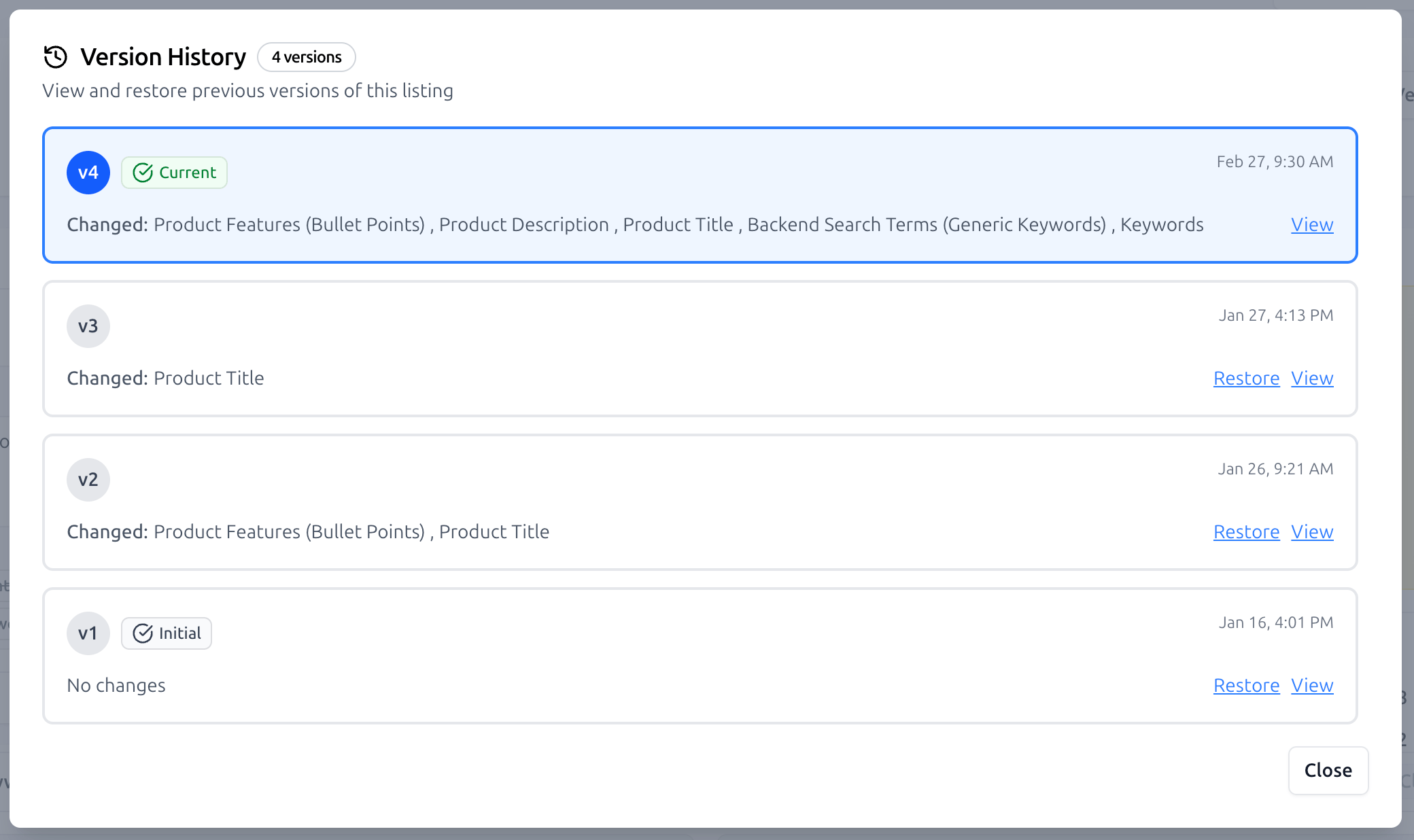
The Version Log: Click the Version History button to view a complete timeline of your listing’s evolution. The log shows the version number, status (e.g., "Current" or "Initial"), the date modified, and exactly which fields were changed.
Comparing and Restoring Versions
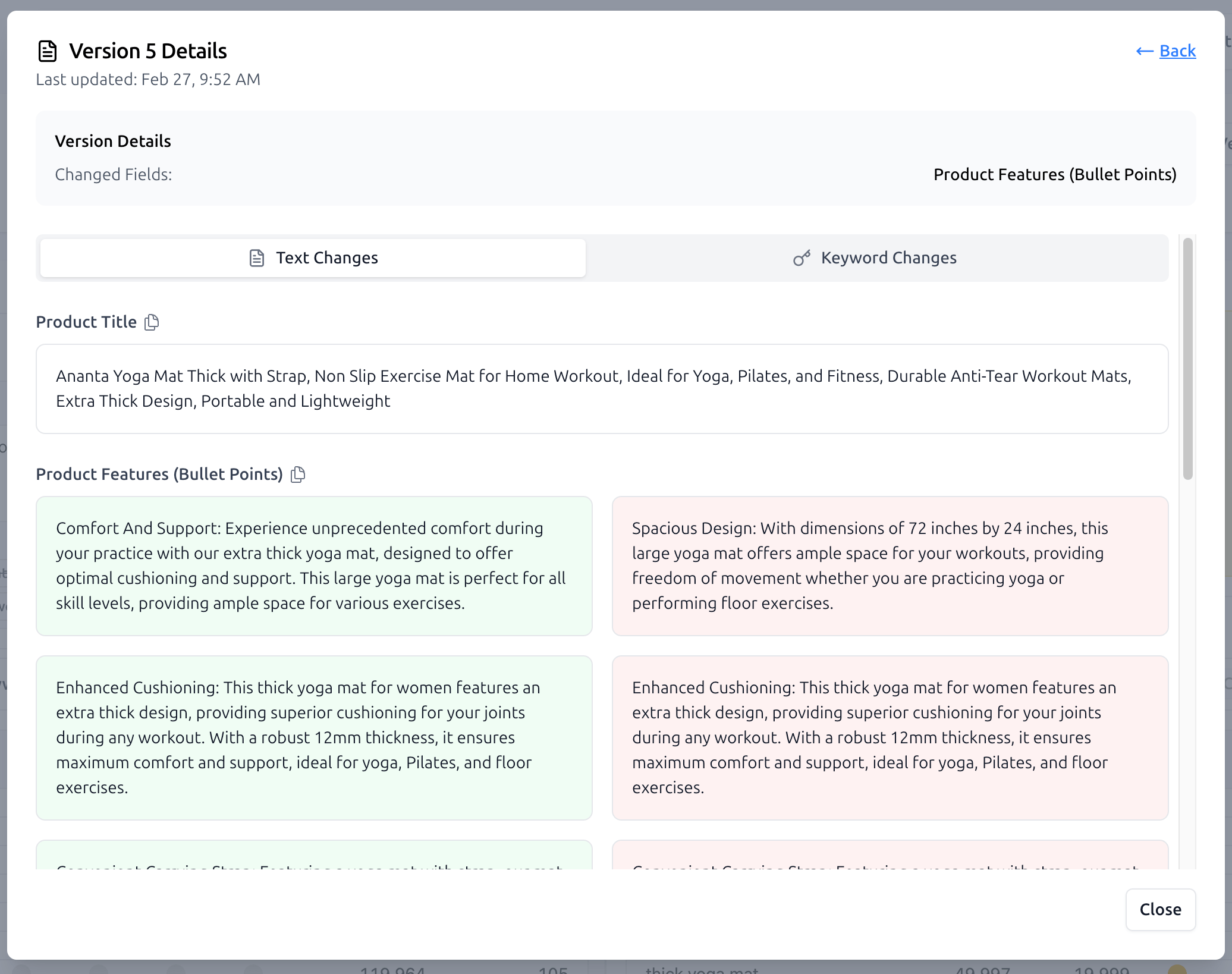
If you need to analyze your optimization progress or roll back to a previous strategy, use the Version Details view.
Text and Keyword Changes: Clicking "View" on any version allows you to see side-by-side comparisons of Text Changes and Keyword Changes. The system highlights exactly what was added or removed in each section.
Restore with One Click: If you decide a previous version performed better or was more accurate, simply click Restore to immediately set that version as your current draft.