How to Start Tracking Ranks: Adding Your First Product Group

Olivia Reyes
Objective: Learn how to set up a new tracking group, add your main product, and assign keywords to monitor.
Prerequisites: You must have an active SoldScope subscription with available Keyword Quota.
Step 1: Navigate to the Rank Tracker
Open the Rank Tracker from the main navigation menu.
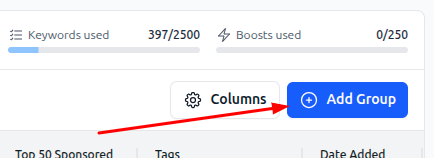
In the top right corner of the dashboard, you will see your current usage limits (Keywords used / Boosts used). Click the blue + Add Group button to start the wizard.
Step 2: Define Your Primary Product
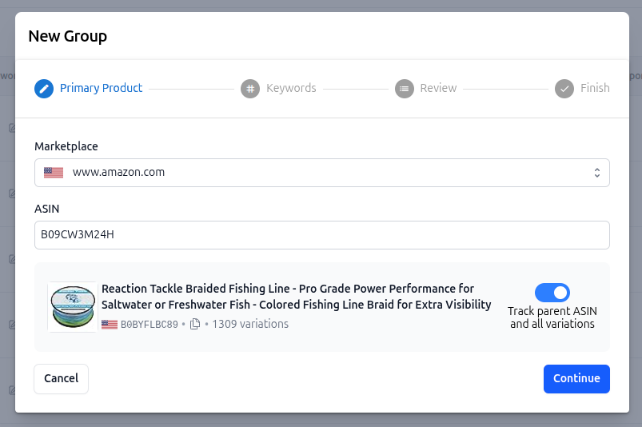
The first step is to identify the main product you want to track. This is usually your own product, but it can also be a competitor you want to monitor closely.
Marketplace: Select the Amazon region (e.g.,
www.amazon.com) where the product is listed.ASIN: Paste the product's ASIN or URL.
Variations: If the product has variations (size, color), toggle the switch "Track parent ASIN and all variations" to
ONif you want to track the whole family.Click Continue.
Step 3: Choose Your Keywords
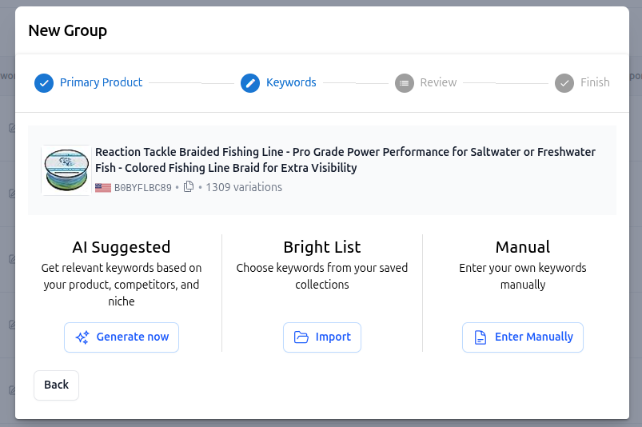
Now, tell SoldScope which search terms you want to track for this group. You have three powerful options:
✨ AI Suggested: The fastest way to start. Our system analyzes your product and niche to automatically generate high-relevance keywords.
📂 Bright List: Import a saved list of keywords you previously organized in the Bright List tool.
📄 Manual: Type or paste your own list of keywords (e.g., from an Excel file).
Select the method that works best for you to proceed.
Step 4: Review Your Selection
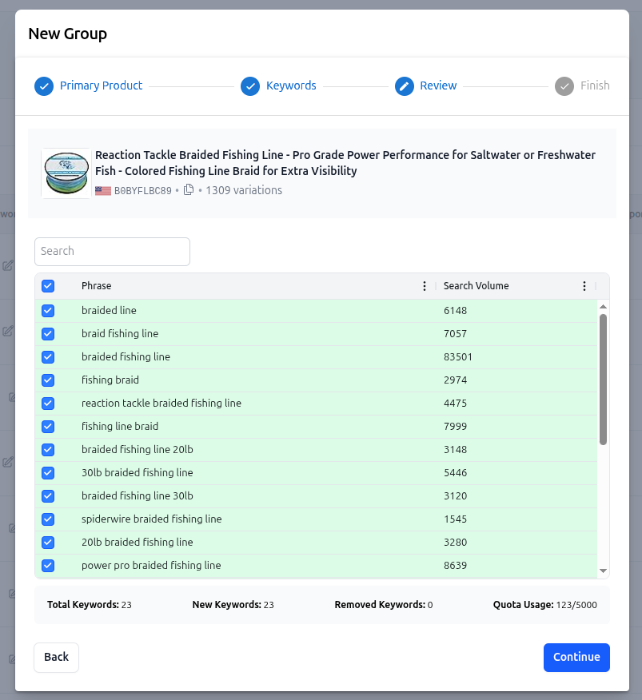
Before finishing, review the list of keywords you are about to add.
Check the Search Volume column to ensure you are targeting high-value terms.
Pay attention to the Quota Usage at the bottom right to see how many credits this group will consume.
If everything looks correct, click Continue.
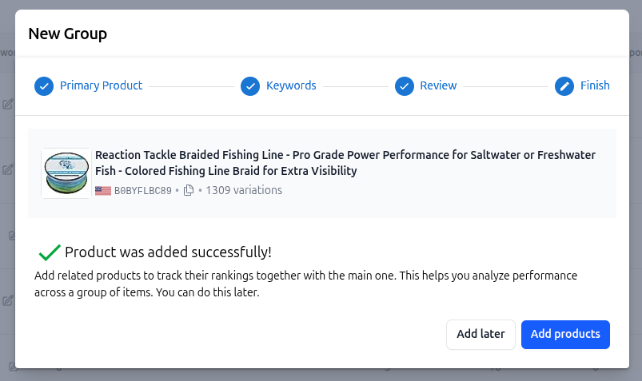
Step 5: Finish and Next Steps
Congratulations! Your product group is successfully created, and SoldScope has started scraping data for your primary product.
On the final screen, you have two options:
Add products: Click this if you immediately want to add competitor ASINs to this group to track them against the keywords you just selected.
Add later: Click this to finish the wizard and go to the dashboard. You can always add competitors later.
What's Next? To get the most out of Product Groups, you should add competitor products for direct rank comparison. Read our guide on How to Add More Products to an Existing Group to learn more.