Tag Management: Keywords, Groups, and Products

Olivia Reyes
As your account grows, the amount of data you track increases exponentially. A single Product Group can have hundreds of keywords, and your main dashboard might hold dozens of different products.
Tags in SoldScope are a universal labeling tool designed to help you organize this data. They allow you to segment your lists and focus only on what matters right now.
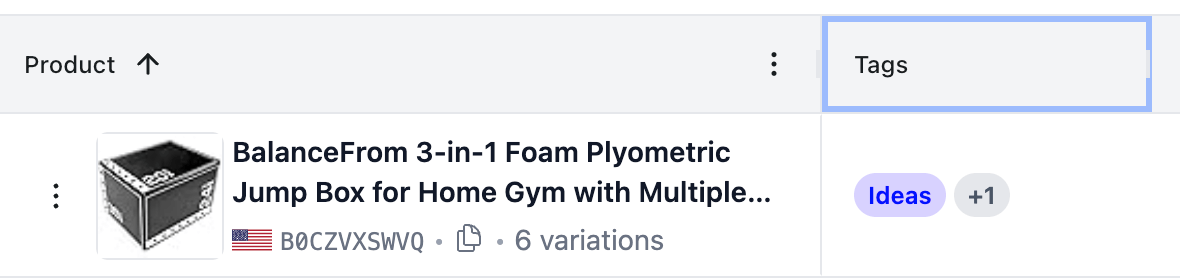
Note: The tagging system works identically across three levels:
Keywords - inside a Group.
Groups - on the main Rank Tracker dashboard.
Products - on the "Products" tab within a Group.
In this article, we will explain how tags work using Keywords as an example, but remember that these steps apply equally to Groups and Products.
Why Tag Keywords?
Without tags, a table of 100+ keywords can become an unmanageable list. Tags allow you to break this list down into meaningful clusters.
Popular Use Cases:
By Query Type:
Branded,Generic,Competitor.By Priority:
Top 10 Target,Low Priority.By Attributes:
Size Related,Color Related.
1. How to Add and Manage Tags
You can manage tags for any item via the "Manage Tags" modal window. This single interface allows you to create, edit, delete, and assign tags at the same time.
Open your Group and navigate to the Keywords tab.
Locate the Tags column.
Click the + Add Tags button next to the keyword (or select Manage Tags from the three-dot context menu).
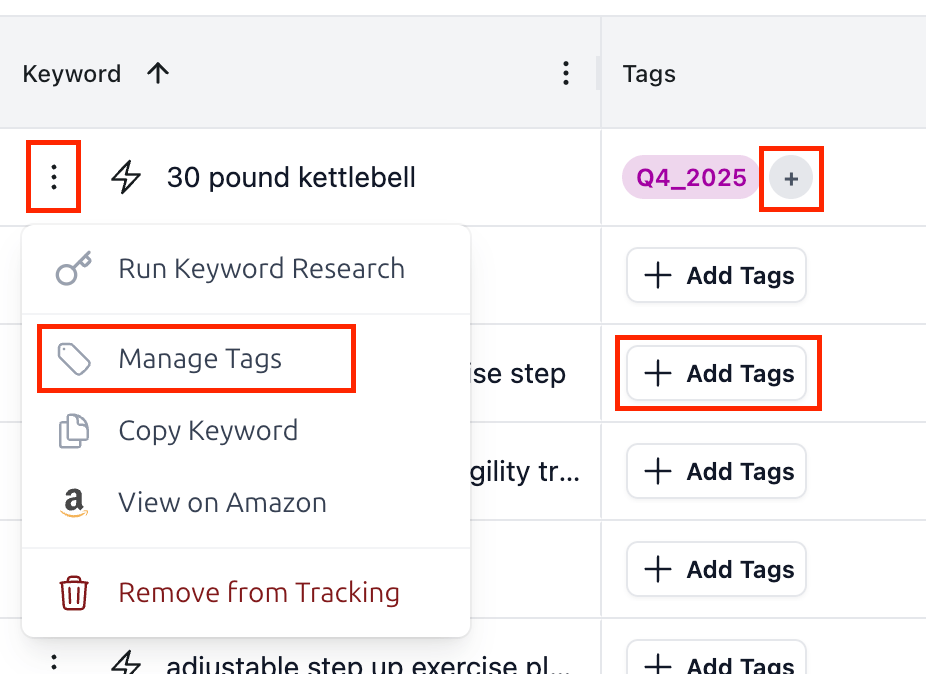
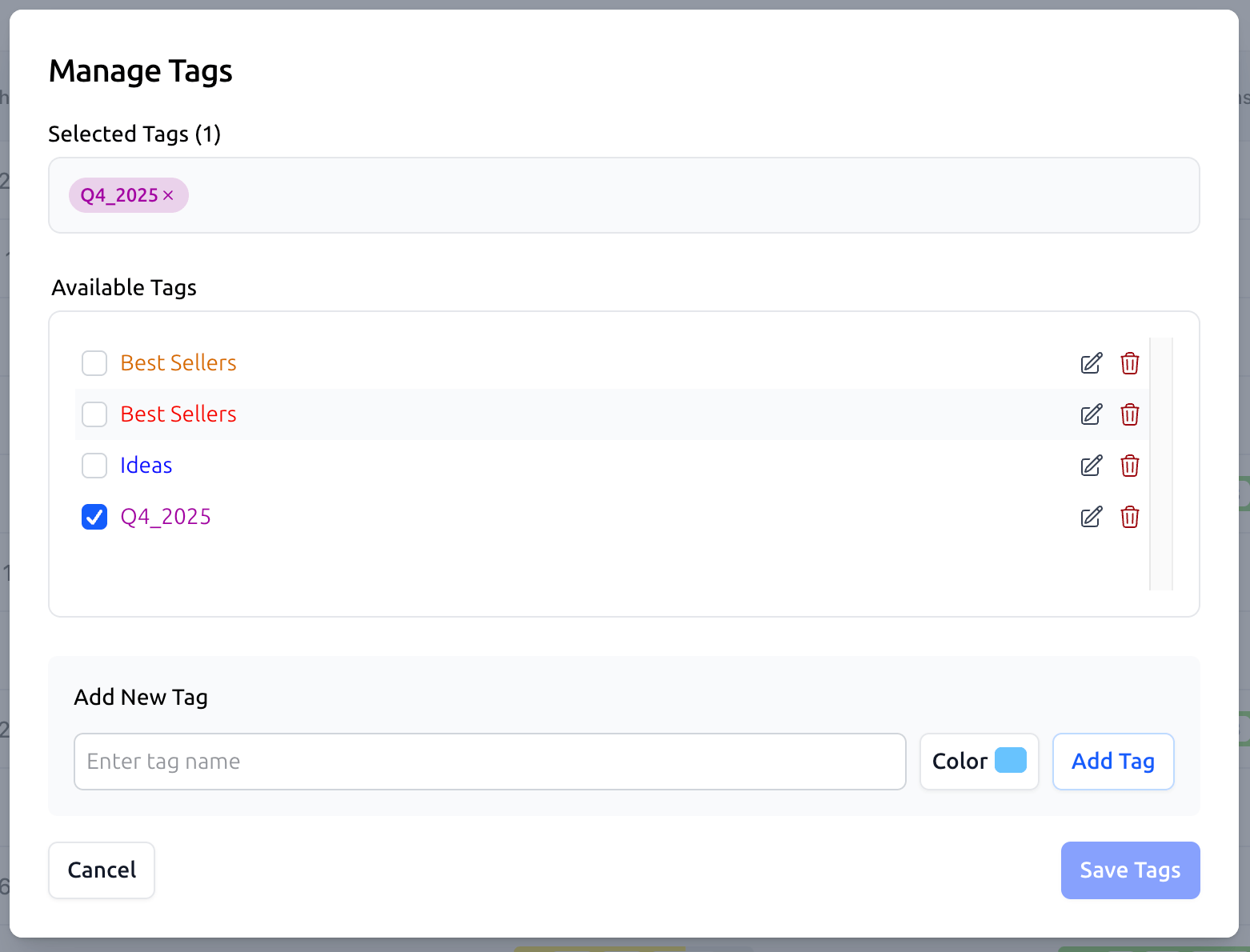
The Manage Tags modal will open. Here you can perform several actions:
Apply Tags: Simply check the boxes next to the tags you want to assign to this keyword. Selected tags will appear at the top under "Selected Tags".
Create New: At the bottom, enter a new name in the "Add New Tag" field, choose a color, and click Add Tag to create it immediately.
Edit or Delete: Use the Pencil icon to rename a tag or change its color, and the Trash icon to delete a tag permanently from your account.
Click Save Tags to confirm your changes.
2. Tag Uniqueness & Colors
In SoldScope, a tag is defined by the combination of its Name + Color.
This means uniqueness is checked at the pair level. You can create multiple tags with the same name as long as they have different colors.
Example:
Tag
Target(Red) 🔴 — could be used for aggressive/missed targets.Tag
Target(Green) 🟢 — could be used for achieved targets.
The system treats these as two distinct tags. This gives you extra flexibility in visually organizing your data.
3. Filtering by Tags
Once you have labeled your keywords (or groups), you can use tags as a powerful filter.
Example: You want to see the ranking performance of only your Branded keywords.
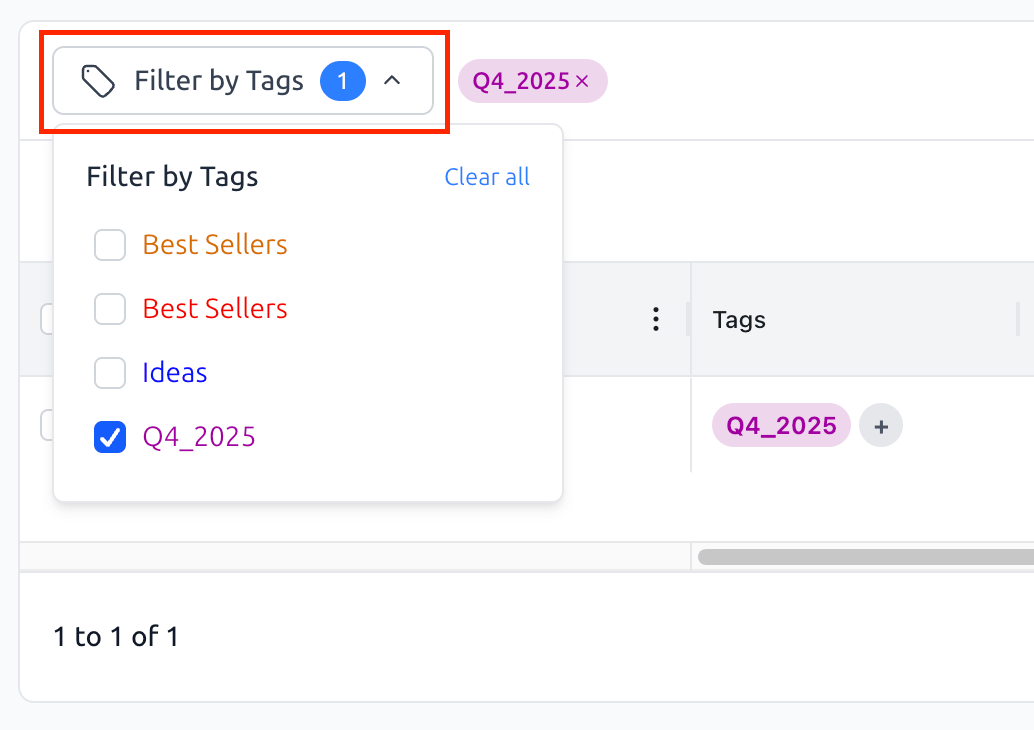
At the top of the table (or dashboard), click on the Tags filter.
Select the desired tag (e.g.,
Branded).The table will update instantly: all other items will be hidden, and you will see statistics only for that specific segment.
4. Using Tags on Different Levels
Don't forget that this tool is available throughout the Rank Tracker:
For Groups: On the main Rank Tracker dashboard, use tags to categorize projects by status (
Launch,Stable) or by the team member responsible (John,Maria).For Products: On the Products tab, tag your competitors (
Direct Competitor,Substitute) to quickly distinguish them in the list.