Mastering the Group Detail View

Olivia Reyes
Objective: Learn how to read the detailed performance metrics for specific products, navigate between views, and analyze keyword rankings.
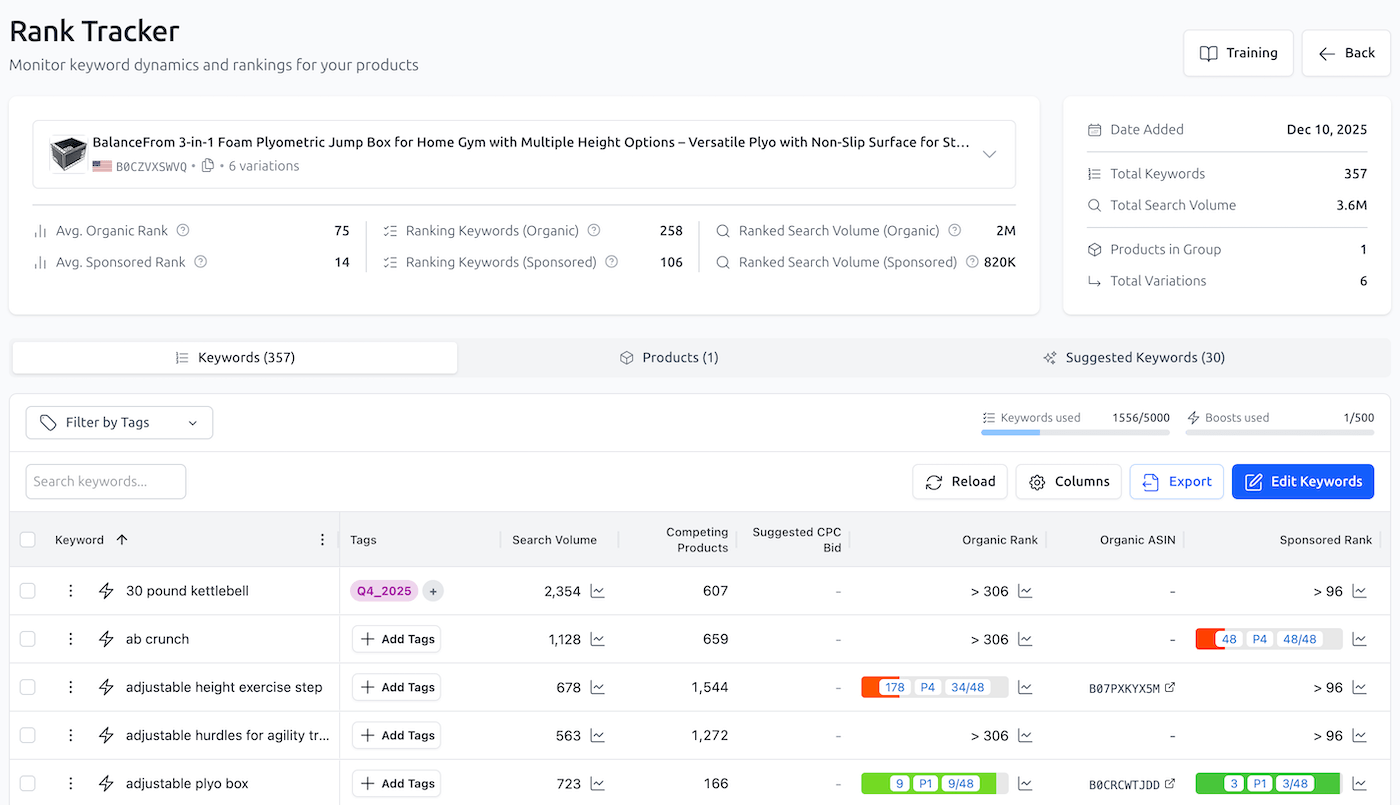
The Performance Summary (Header)
At the top of the page, you see a high-level snapshot of the currently selected product. By default, this shows your Primary Product, but you can switch views to analyze any product in the group.
Product Selector: Displays the active product's title, ASIN, and variation count.
How to switch: Click the arrow icon
von the right to open the dropdown list. Select any competitor from the list to instantly refresh the header stats for that specific product.
Average Ranks:
Avg. Organic Rank: The average organic search position of the selected product across all keywords it ranks for.
Avg. Sponsored Rank: Average sponsored ad position of the selected product across all keywords targeted or ranked in ads.
Ranking Keywords: Shows how many of the tracked keywords are actually indexed and visible for the selected product.
Ranked Search Volume: The total monthly search volume of the keywords where this specific product ranks.
Group Tabs & Navigation
Just below the header statistics, the interface is divided into three main tabs that allow you to switch between different data views:
Keywords: The default view. This table lists every specific search term you are currently tracking for this group.
Products: This tab lists every product included in the group. Go here to manage your primary product or add/remove additional products.
Suggested Keywords: This section lists new keywords automatically suggested by the Rank Tracker. The system analyzes your products and recommends high-potential terms you might have missed.
The Keyword Data Table
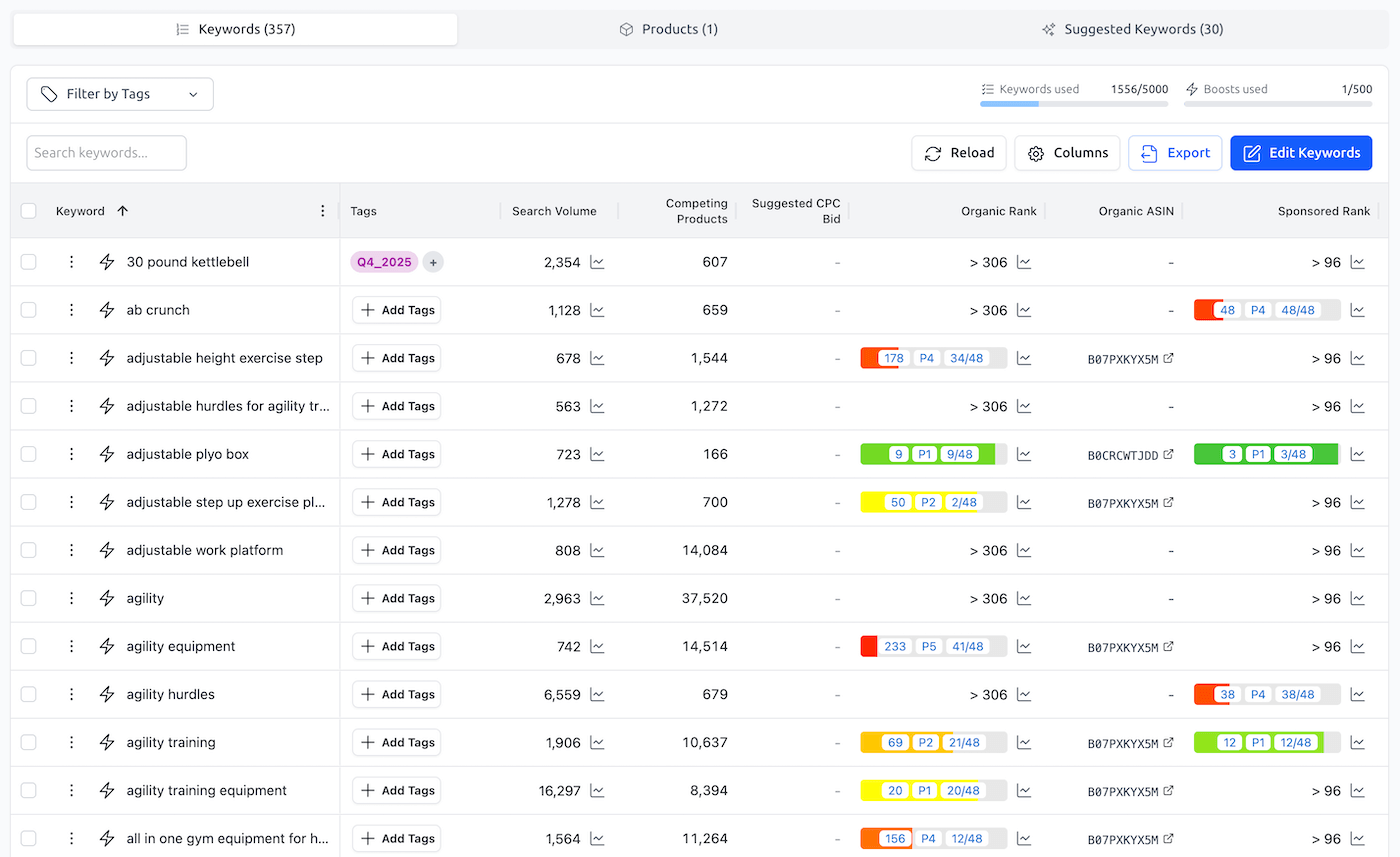
When the Keywords tab is active, you will see the detailed tracking table. Here is a breakdown of every column and what the data represents:
Keyword: The search term being tracked.
Controls: Contains a Checkbox (to select multiple rows for bulk deletion or copying), the Three Dots (⋮) menu (for individual keyword actions), and the Lightning Bolt (⚡) icon (to temporarily enable/disable Boost Mode).
Tags: Custom labels assigned to the keyword for filtering and organization.
Search Volume: The estimated number of customer searches for this keyword over the past 30 days.
Competing Products: The approximate number of products found in Amazon's index for this keyword.
Note: While Amazon typically only displays the first ~306 results (7 pages) to customers, this number reflects the total count of competing listings found for the query.
Suggested CPC Bid: The estimated cost-per-click bid for sponsored ads targeting this keyword.
Note: This is an estimated value based on our internal models. It should be treated as directional data to guide your strategy, not as an exact recommended bid.
Organic Rank: The current position of the product in organic (non-sponsored) results. The badge provides three layers of detail to help you visualize visibility instantly:
Absolute Position: (e.g.,
60)Page Number: (e.g.,
P2)Position on Page: (e.g.,
12/48- 12th result out of 48 on that page).Color Coding: Green badges indicate high rankings.
Organic ASIN: The specific ASIN that appeared in the organic results.
Why this matters: For products with variations (e.g., sizes/colors), this tells you exactly which specific variation is ranking.
Sponsored Rank: The position of your product in paid ad slots. It uses the same detailed visualization (Position / Page / Slot) as the Organic Rank column.
Sponsored ASIN: The specific ASIN that appeared in the sponsored ad slot.
ABA Rank: The popularity ranking based on Amazon Brand Analytics.
How to read: Lower values indicate higher search frequency (e.g., Rank #1 is more popular than Rank #100,000).
Requirement: Amazon Brand Registry enrollment is required. This information can be displayed only after your seller account token is connected.
Last Updated: The date and time when this keyword’s ranking and metrics were last refreshed.
Visualizing Rank History
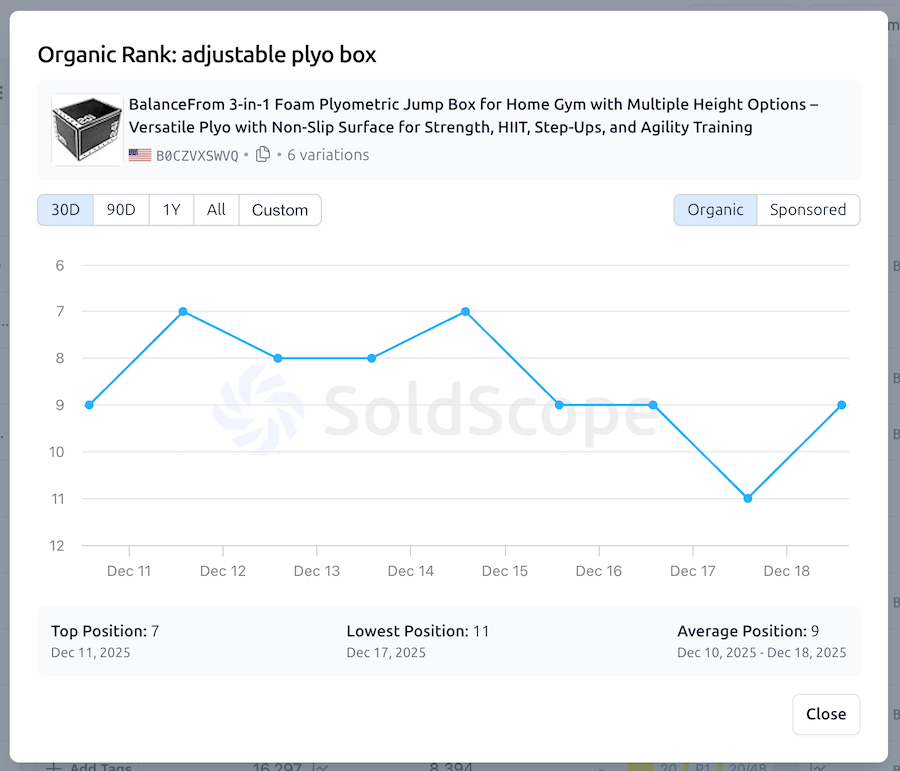
Don't just look at today's number - look at the trend.
How to view: Click on the graph icon next to any rank number in the Organic or Sponsored columns.
The Popup Graph: A modal will open showing the position history for the selected product on that keyword.
Timeline: See how the rank moved over the last week or month.
Toggle: Switch between different periods to spot long-term trends.
Keyword Actions & Management
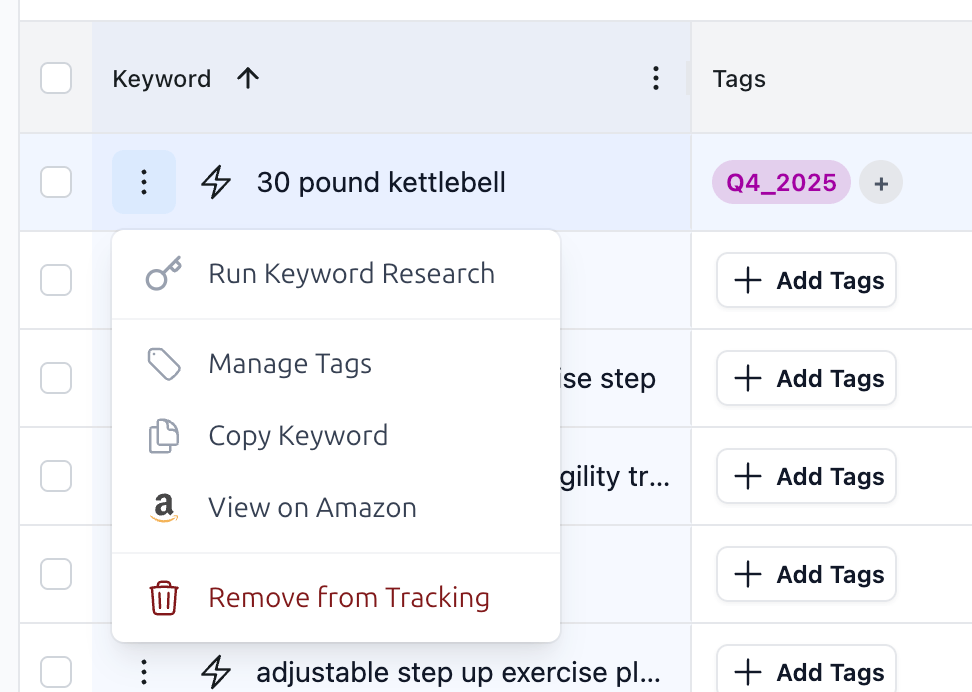
You have full control over individual keywords directly from the table.
The Context Menu: Click the three dots (⋮) at the start of any keyword row to open the action menu:
Run Keyword Lookup: Find more keywords related to this specific term.
View on Amazon: Instantly opens a new tab with the actual Amazon search results for this keyword.
Copy Keyword: Copies the text to your clipboard.
Remove from Tracking: Deletes the keyword from this group.
Bulk Actions: Use the buttons above the table to:
Delete selected keywords
Copy selected keywords
Edit Keywords: Add or paste a batch of new keywords to the group.
Reload: Force a refresh of the data displayed in the table.
Export: Download the current table as a CSV/Excel file for reporting.
Managing Products (The Products Tab)
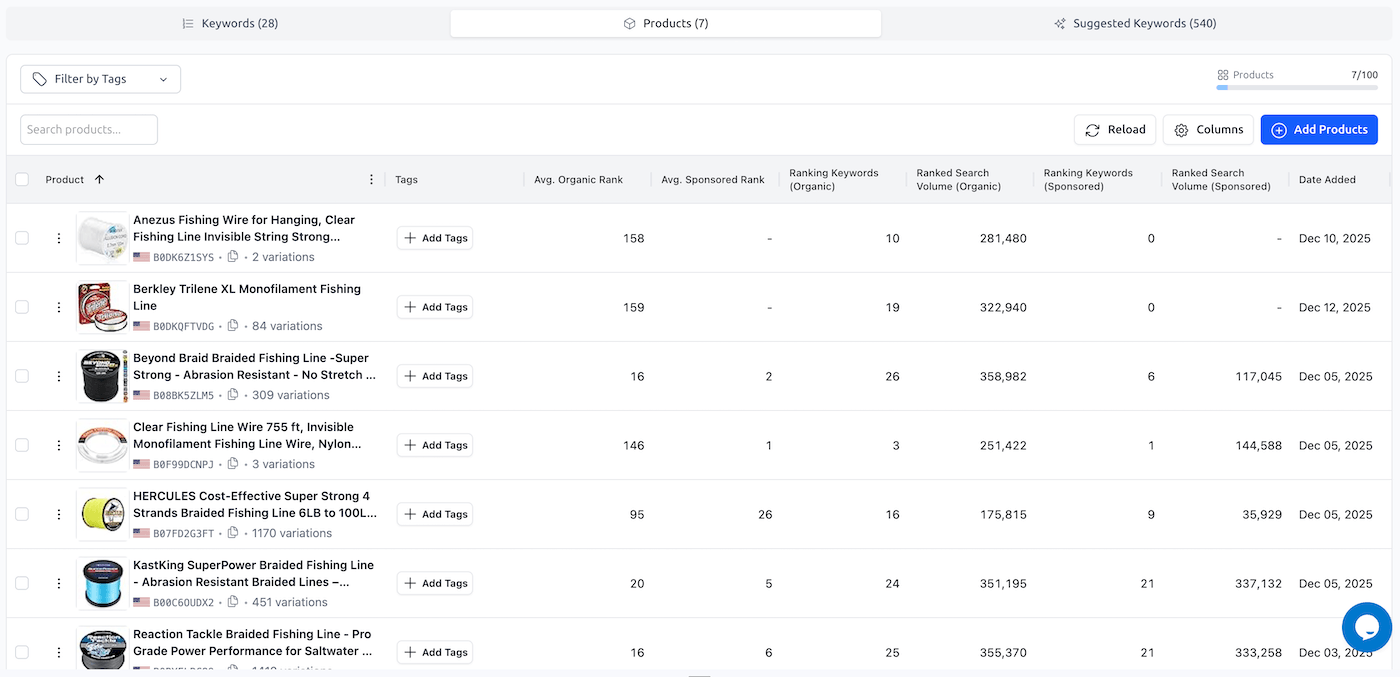
Click on the Products tab to see a high-level comparison of all ASINs in this group. This is your "Command Center" for competitive analysis.
Why use this view? This table allows you to compare your product directly against competitors. You can instantly see who has better visibility (Average Rank) and who is capturing more traffic (Ranked Search Volume) across your tracked keyword list.
Table Columns Explained:
Product: Displays the product's main image, title, and marketplace flag.
Details: Shows the ASIN (clickable link) and the number of variations (e.g.,
1309 variations).Context Menu (⋮): Use the three dots to remove the product or manage its settings.
Tags: Custom labels assigned to specific products for easier filtering.
Avg. Organic Rank: The arithmetic mean of this product's position across all keywords where it currently ranks organically. A lower number is better.
Avg. Sponsored Rank: The average position of this product's ads across all tracked keywords.
Ranking Keywords (Organic): The count of tracked keywords where this product was found in the organic search results. This shows how broad the product's visibility is.
Ranked Search Volume (Organic): The total monthly search volume of all keywords where this product ranks organically.
Insight: This is a "Share of Voice" metric. A high number means the product is ranking for high-traffic, popular keywords.
Ranking Keywords (Sponsored): The count of tracked keywords where this product was found running ads.
Ranked Search Volume (Sponsored): The total monthly search volume of the keywords where this product is advertising.
Date Added: The date this product was added to the tracking group.
Last Updated: The last time the system successfully updated the ranking data for this specific product.
Key Actions:
+ Add Products: Click the blue button in the top right to add more competitors to this group. They will be tracked against the exact same keywords.
Reload: Forces a refresh of the table data.
Columns: Customize which columns are visible in the table to focus on the metrics that matter most to you.
Discovering New Terms (The Suggested Keywords Tab)
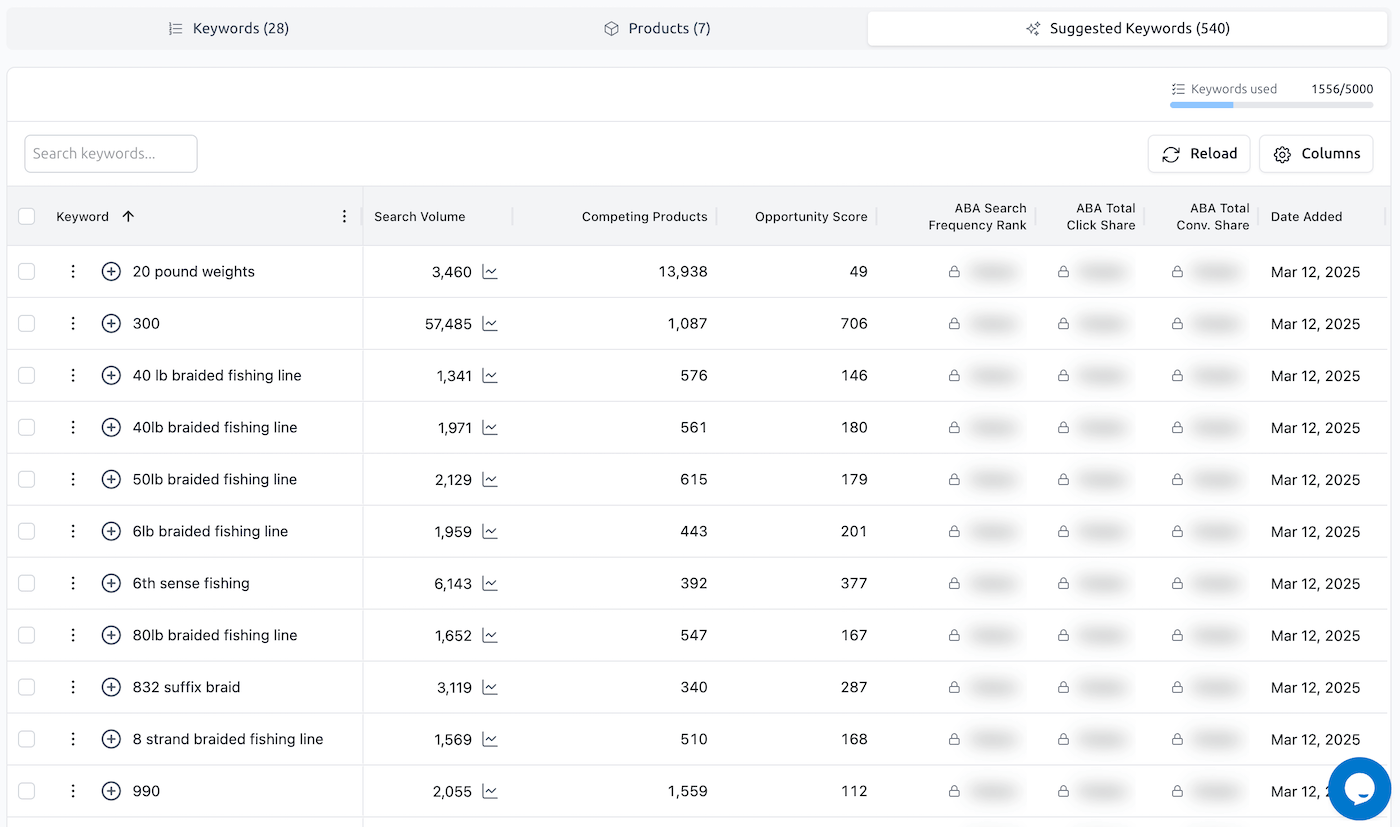
The Suggested Keywords tab lists high-potential search terms that SoldScope's AI has identified for your niche but you aren't tracking yet.
Table Columns:
Keyword: The suggested search term. Click the (+) icon next to it to start tracking immediately.
Search Volume: Estimated monthly searches.
Competing Products: The number of competitor listings indexed for this term.
Opportunity Score: A calculated score identifying "low hanging fruit" (high volume, low competition opportunities).
ABA Metrics: Includes Search Frequency Rank, Click Share, and Conv. Share.
Note: These columns show a lock icon 🔒 if you have not connected a Brand Registry-enabled Amazon account.
Key Actions:
(+) Track: Select keywords and click Track to move them to your main list.
Ignore: Select irrelevant keywords and click the red Ignore button to hide them.
Copy: Copy selected keywords to your clipboard for use in PPC campaigns.