How to Add More Products to an Existing Group

Olivia Reyes
Objective: Learn how to expand your tracking group by adding more products - whether they are your own listings or competitors - to compare their performance side-by-side.
Why do this? By adding multiple products to a single group, you track them against the exact same keywords. This is useful for two main strategies:
Competitor Analysis: Compare your product directly against rivals to see who is winning the "Share of Voice."
Multi-Product Tracking: If you sell several distinct products in the same category (e.g., a "Premium Model" and a "Standard Model"), you can track them together. This allows you to compare performance using a single set of keywords, significantly saving your keyword quota compared to creating separate groups for each item.
Step 1: Navigate to the Products Tab
Open the specific Product Group you want to edit.
Click on the Products tab in the navigation bar.
Click the blue + Add Products button on the right side.

Step 2: Enter the ASIN
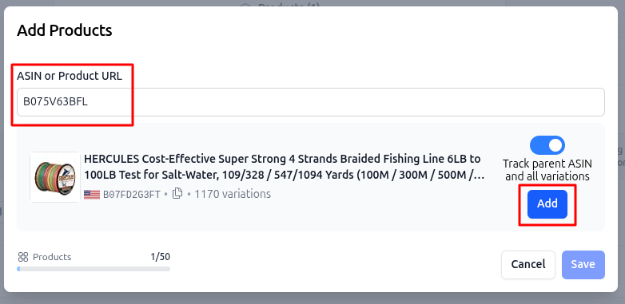
A modal window will appear.
Input: Paste the ASIN or Amazon Product URL into the field. This can be a competitor's product or another one of your own listings.
Variations: If you want to track the entire family (e.g., all colors/sizes) for this specific product, toggle the switch "Track parent ASIN and all variations" to ON.
Action: Click the small blue Add button to validate the product.
Step 3: Review and Save
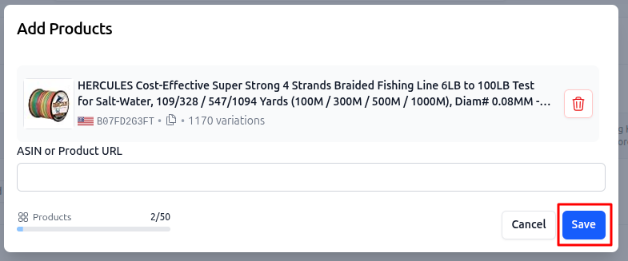
The product will be moved to the staging list below.
Batch Adding: You can continue adding more ASINs until you reach your plan's limit (e.g., 50 products per group).
Finalize: Once you have listed all the products you want to add, click the Save button at the bottom right.
Success! The system will now begin scraping data for these new products. Within a few minutes, you will see their ranking data populate in the "Products" table, allowing for instant comparison against your keyword list.