Amazon Advertising Filters for PPC Diagnostics

Olivia Reyes

Amazon Advertising Filters: How to Find and Fix Low-Performing Amazon PPC Campaigns

Are you reviewing ACOS every week but still unsure where your budget is actually leaking?
Most sellers look at top-line metrics inside Seller Central advertising reports and assume they are managing campaigns. In reality, they are reacting to surface symptoms. Amazon advertising filters, especially inside Amazon Campaign Manager filters, let you isolate structural problems: Amazon ads not showing, ads spending with no sales, SKUs losing the Buy Box, or keywords quietly draining budget. Used correctly, filters turn Amazon PPC campaigns management from guesswork into controlled diagnostics.
This guide breaks down how to use Amazon advertising filters to find wasted Amazon ad spend, fix low-performing Amazon ads, and diagnose edge cases like Amazon lost Buy Box ads or FBA and FBM SKU mismatch issues that can reduce eligibility and delivery.
What Amazon Advertising Filters Actually Do (and What They Don’t)

At a basic level, Amazon advertising filters are rule-based views inside Campaign Manager. You define performance conditions such as spend above a threshold with zero orders, and Amazon shows only the campaigns, ad groups, ads, or targeting that match.
Filters can be applied at multiple levels:
Campaign level
Ad group level
Keyword or targeting level
Product ad level
Each level answers a different question. Filtering campaigns by ACOS can show which buckets are inefficient. Filtering keywords or targets by spend with zero sales can show where the leak is happening. Filtering product ads by impressions can reveal Amazon ads low impressions, including situations where eligibility is limited due to offer status.
Important distinction: filters show conditions, not root causes. They surface patterns. You still need to confirm why those patterns exist, using account data, listing status, and offer diagnostics.
Seller insight: A filter is most powerful when it isolates one hypothesis at a time. If you stack too many conditions, you can end up with a tiny list of problems without clarity on which variable is driving the outcome.
The Real Reasons Campaigns Underperform
Before applying filters, it helps to define what low-performing means in practice. Sellers often default to high ACOS as the only signal. That is incomplete.
Underperformance commonly shows up in five patterns:
Amazon ads low impressions (ads barely entering auctions)
High impressions with low click-through rate (creative, price, or relevance issues)
Good CTR with low conversion rate (offer or listing issues)
High spend with no orders (targeting mismatch, weak offer, or low-intent queries)
Ads that do not deliver (eligibility, Buy Box, inventory, or suppressed listing issues)
Each pattern requires a different fix. Filters let you segment these patterns instead of reviewing campaigns one by one.
How to Use Amazon Campaign Manager Filters as a Diagnostic System
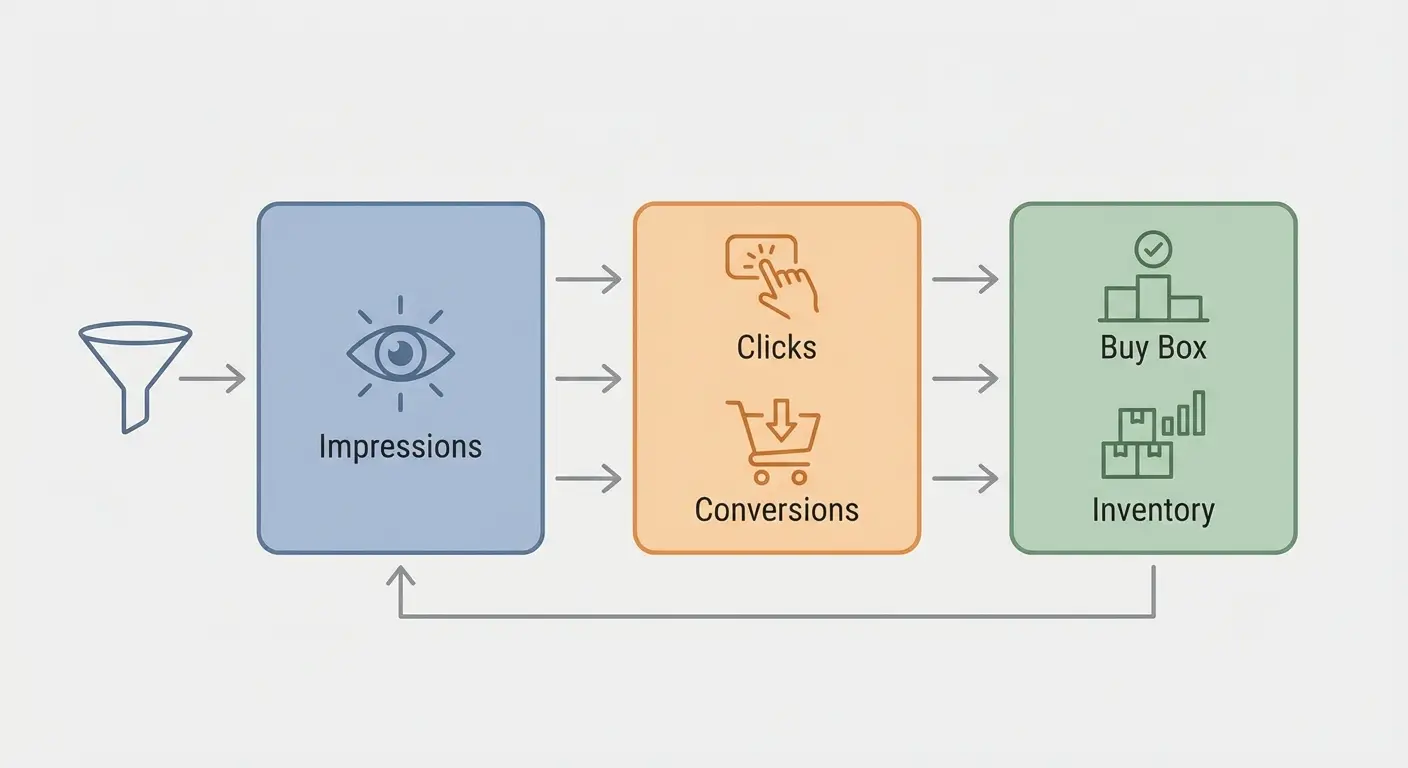
Think of filters as a triage workflow rather than a sorting feature.
Step 1: Identify Ads That Aren’t Showing
Start with the simplest condition:
Impressions near zero over a meaningful time frame
If you see Amazon ads not showing, do not immediately increase bids. First confirm eligibility factors that commonly block or reduce delivery:
Does the advertised product have a featured offer, often referred to as the Buy Box?
Is inventory in stock for the offer you are advertising?
Is the advertised ASIN suppressed, inactive, or otherwise not purchasable?
Is there an FBA and FBM SKU mismatch that is pointing ads to an offer that is not the one you intend to sell?
A common operational issue is advertising an FBA offer, going out of stock, and switching to FBM while the campaign still points at the original product ad selection. Product ad filtering helps you identify which advertised items are receiving near-zero impressions so you can verify offer and inventory status.
Expectation: low impressions means bids are too low. Reality: low impressions often means your offer is not competitive or not eligible to win enough auctions.
Step 2: Find Wasted Amazon Ad Spend
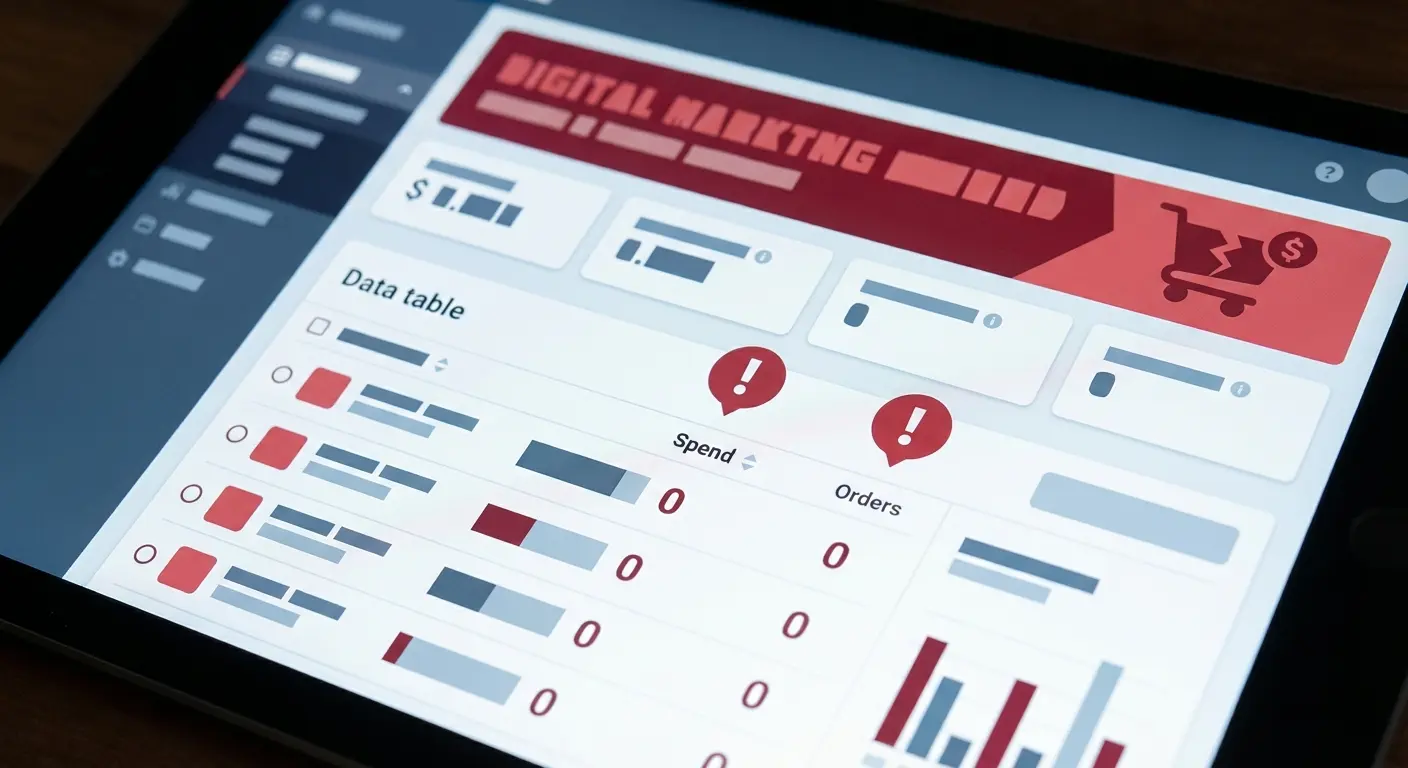
Next, isolate clear inefficiencies:
Spend above a threshold
Orders equals zero
This is the fastest way to find wasted Amazon ad spend.
Do not automatically negate every target with spend and no orders. Add context:
How many clicks drove that spend?
What is your typical conversion rate on similar products?
Is the targeting new and still gathering statistically meaningful data?
If a target has a handful of clicks and no orders, that can be normal variance. If it has sustained spend with a high click count and no orders, you likely have a mismatch between search intent and your offer, or you are paying for low-intent traffic.
For an Amazon PPC high ACOS fix, go one layer deeper:
ACOS above target
Orders at least one
Here you are dealing with inefficient performance, not total failure. Instead of pausing, consider:
Bid reductions
Moving from broad to phrase or exact
Adding negative keywords or negative product targets
Reviewing placement settings and modifiers
Filters help you separate pure waste from performance that is salvageable.
Step 3: Diagnose Low Click-Through Rate
Use a filter like:
Impressions above a threshold
CTR below your account or campaign baseline
If you want to improve Amazon ad click-through rate, start here.
Low CTR often ties to one or more of the following:
Main image not competitive for the search results page
Targeting that is not closely aligned with shopper intent
Price, rating, or review count that makes the offer less compelling in the auction context
CTR is influenced by both relevance and competitiveness. If impressions are high but clicks are low, it can indicate that your ad is entering auctions but losing shopper attention.
Action plan:
Review search term data for mismatch queries and add negatives where appropriate
Audit the main image for clarity, compliance, and differentiation
Compare price, couponing, rating, and review count against top-of-search competitors
Do not try to fix CTR by only raising bids. Higher bids can buy more impressions, but they do not make the offer more attractive.
Step 4: Address Amazon PPC Low Conversion Rate

Now filter for:
Clicks above a threshold
Conversion rate below your benchmark
When Amazon PPC low conversion rate patterns show up, the root cause is often outside the ad console. It is commonly the product detail page, the offer, or expectations created by the targeting.
Check:
Review quality and volume relative to the category
Price positioning, coupons, and perceived value
Variation structure and whether shoppers land on the intended child ASIN
Shipping speed and availability compared to competitors
Whether the listing communicates the key use case clearly
A useful diagnostic contrast:
High CTR with low conversion often points to listing or offer issues.
Low CTR with decent conversion often points to targeting or creative issues.
Filters help you avoid treating conversion problems as a bid-only problem.
Step 5: Catch Buy Box and Offer Eligibility Problems
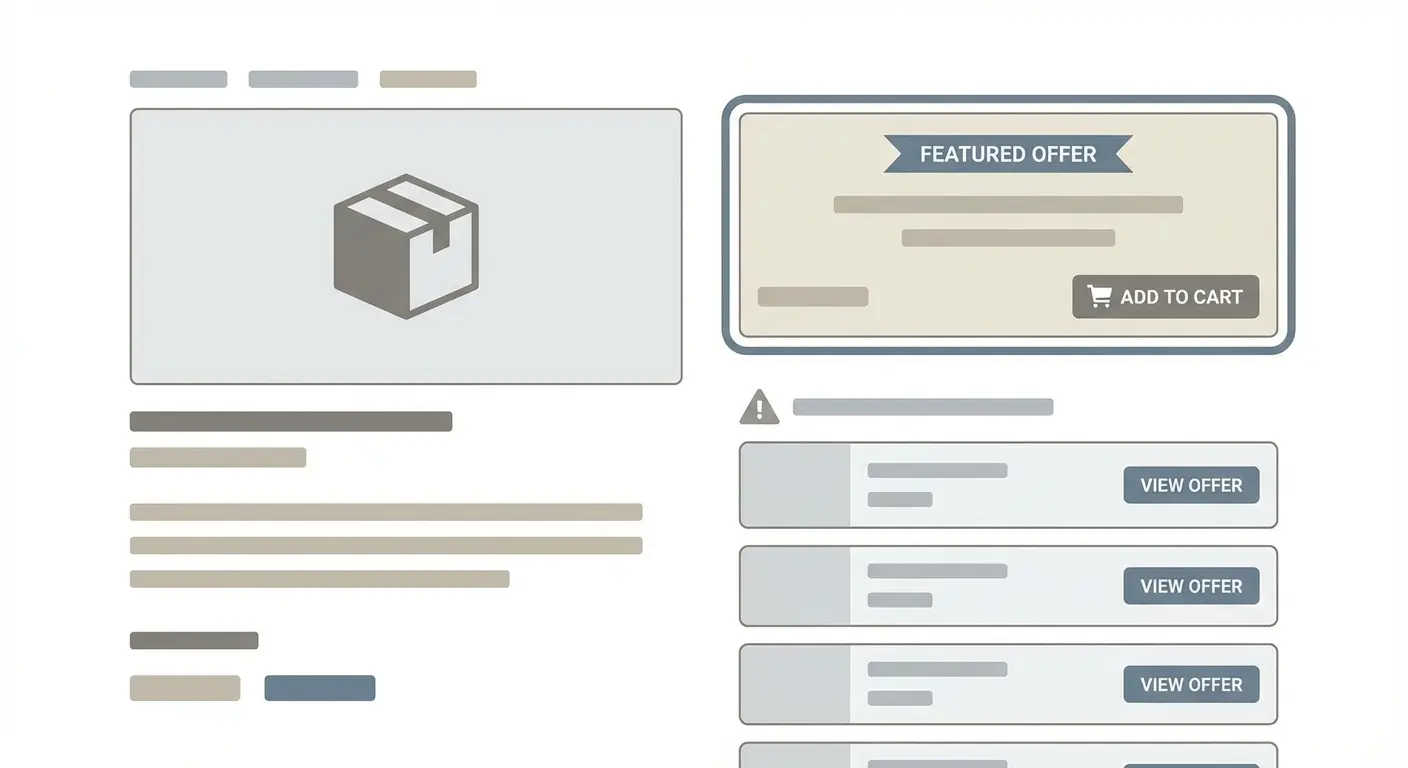
One of the most overlooked uses of Amazon Campaign Manager filters is identifying Amazon lost Buy Box ads.
If impressions and spend drop suddenly and nothing material changed in bids, budgets, or targeting, confirm offer status. Ads for products without a featured offer can have limited delivery, especially in competitive listings with multiple sellers.
This is common in:
Hybrid FBA and FBM setups
Listings with multiple sellers
Aggressive repricing and price competition
Increasing bids will not reliably solve eligibility problems. Fix the offer first, then reevaluate advertising.
Short Case Examples
Case 1: “High ACOS” That Wasn’t a Bid Problem
Scenario: A seller filters for campaigns with ACOS above target. One campaign stands out at 75 percent ACOS.
Drilling down with filters:
Keyword-level condition: spend above a threshold with one order
CTR is healthy
Conversion rate is stable
The issue is placement efficiency. Most spend is coming from Top of Search due to an aggressive placement modifier.
Fix: reduce the placement modifier before cutting base bids. ACOS improves without unnecessarily shrinking reach.
Lesson: filters help isolate which lever to adjust.
Case 2: Ads Not Showing After Inventory Shift
Scenario: A brand switches from FBA to FBM temporarily due to stock constraints. Ads then show near-zero impressions.
Filtering reveals:
Product ads with near-zero impressions
Affected items align to the prior fulfillment setup
Root cause: FBA and FBM SKU mismatch, or a campaign configuration that is no longer aligned with the active offer.
Fix: update product ad selection and confirm that the currently sellable offer is in stock and competitive.
Lesson: not all Amazon ads not showing are bid-related.
Case 3: Strong Traffic, Weak Sales
Filter:
Clicks above 40
Conversion rate below 5 percent
Search term data shows broad targeting pulling in informational or research queries. Shoppers click, browse, and leave.
Fix:
Add negative keywords
Shift spend toward converting search terms or targets
Improve on-page clarity so the first screen answers the primary buying question
Lesson: filters reduce the time between “something feels off” and “this is the exact target causing it.”
Common Misinterpretations When Using Filters
Mistake 1: treating filters as a one-time cleanup tool Filters work best as part of recurring Amazon PPC campaigns management, not as a quarterly purge.
Mistake 2: over-filtering Stacking too many conditions can hide useful data. You can filter yourself into an empty view even though problems exist elsewhere.
Mistake 3: confusing symptoms with root causes High ACOS is an outcome. Causes can include low conversion, poor targeting, aggressive placements, pricing shifts, or offer competitiveness.
Mistake 4: ignoring time ranges Always confirm the date range before making structural decisions. Seller Central advertising reports can look very different over 7, 14, or 30 days.
Mistake 5: fixing everything with bid changes Bids are only one lever. Filters often reveal offer, inventory, or structural issues outside PPC.
Where Filters Reach Their Limits
Amazon advertising filters are powerful, but they cannot answer everything.
They do not directly prove:
Incrementality
Organic rank impact
External traffic influence
Seasonality context without comparison periods
They also struggle with low-data SKUs. If a product has limited clicks, filtering for conversion issues can lead to over-optimization.
Edge case to consider: new launches can produce misleading early signals. Filters may show low CTR, low conversion, or high ACOS because the listing is still building trust signals like reviews and sales history. In those cases, a controlled testing budget can be more appropriate than aggressive cuts.
Another limit: portfolio-level views can hide SKU-level problems. A campaign can look acceptable overall while one child ASIN drags performance down. Product ad filtering is often required to catch that.
Building a Repeatable Filter Workflow
For experienced sellers, the goal is consistency, not occasional audits.
A practical weekly flow:
Filter for zero-impression or very low-impression product ads
Filter for spend with zero orders
Filter for high ACOS with orders
Filter for low CTR at meaningful impression volume
Filter for low conversion at meaningful click volume
Run this in order. It prioritizes eligibility and delivery first, then waste, then efficiency.
What This Means for Serious Sellers
Amazon advertising filters are not only for cleaning up obvious mistakes. They shorten the feedback loop between problem and correction.
Used properly, they help you:
Find wasted Amazon ad spend before it compounds
Identify Amazon ads low impressions caused by eligibility or competitiveness issues
Handle Amazon PPC high ACOS fix scenarios without blindly cutting bids
Improve Amazon ad click-through rate by isolating relevance and competitiveness issues
Resolve Amazon PPC low conversion rate problems tied to listing and offer quality
Catch Amazon lost Buy Box ads and FBA and FBM SKU mismatch risks early
Turn Seller Central advertising reports into actionable decisions
Advanced sellers win by asking precise questions and using Amazon advertising filters to extract precise answers. If your results feel unpredictable, it is often because you are looking at aggregates. Filters let you zoom in to the level where specific actions become clear, including when you need to fix low-performing Amazon ads by improving eligibility and the offer, not just adjusting bids.