Navigating the Rank Tracker Dashboard

Olivia Reyes
Objective: Understand how to monitor all your product groups at a glance and manage your tracking projects.
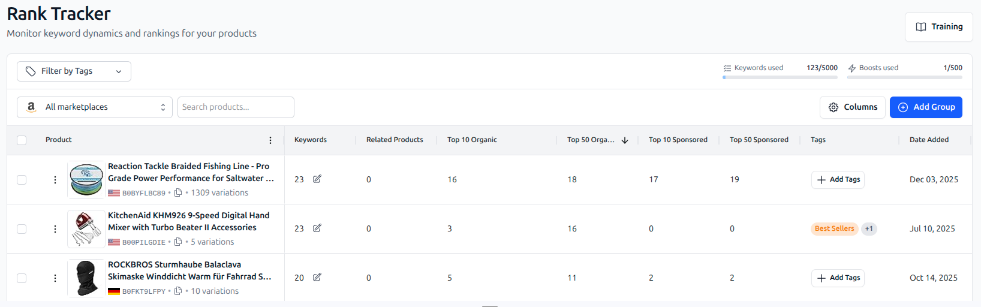
The Dashboard Overview
When you open the Rank Tracker, you are greeted by the main dashboard. This is your "Command Center" where every tracking group is listed as a row.
Top Bar Controls:
Usage Limits: In the top right, you can see your current subscription usage: Keywords used vs. your total limit, and Boosts used.
Filter by Tags: Use the dropdown on the left to filter the list. For example, select "Q4 Launch" to hide everything else and focus on specific products.
Search: Quickly find a group by typing the product name or ASIN in the search bar.
Understanding the Table Columns
Each row in the table represents a Product Group. Here is what the data tells you:
Product: Displays the primary product's image, title, ASIN, and the marketplace flag (e.g., USA). If the product has variations, you will see a small icon indicating the count (e.g., "44 variations").
Keywords: Shows the total number of keywords being tracked for this group. You can click the pencil icon next to the number to quickly edit the list.
Related Products: The number of products added to this group for comparison.
Organic / Sponsored Stats: These columns give you a quick health check without opening the group:
Top 10 / Top 50: How many of your tracked keywords are currently ranking in the top 10 or top 50 search results.
Tags: Shows assigned tags. You can click + Add Tags directly in this column to organize your groups.
Date Added: The date when this tracking group was created. Click the column header to sort your groups by newest or oldest.
Tip: Click on any row to open the detailed Group Page, where you can see specific keyword rankings and historical graphs.
Managing Groups (The Action Menu)
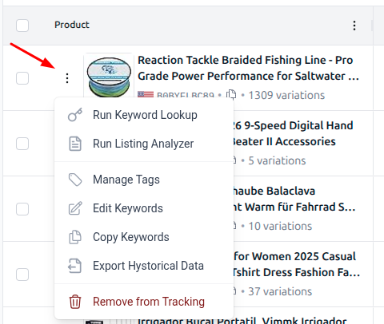
For quick actions, click the three dots icon (⋮) located next to the product image. This opens a context menu with powerful shortcuts:
Run Keyword Lookup: Instantly sends this product's ASIN to the Keyword Lookup tool to find new ranking opportunities.
Run Listing Analyzer: Sends the product to the Listing Analyzer to audit its content quality.
Manage Tags: Add or remove organizational tags for this group.
Edit Keywords: Add or delete keywords from the tracking list.
Copy Keywords: Copies all tracked keywords to your clipboard (useful for PPC campaigns).
Export Historical Data: Downloads the ranking history for this group.
Remove from Tracking: Deletes the group and frees up your keyword quota.