How to Use SoldScope API and MCP with Multiple Accounts

Olivia Reyes
If you've been invited to another SoldScope account as a team member, you can use the SoldScope API and MCP integrations with that account without sharing passwords or using the account owner's API token.
When creating a new API token or setting up an MCP connection, you can choose which SoldScope account to use. By default, your personal (primary) account is selected, even if you've been invited to other accounts.
Each API token is associated with a specific SoldScope account. This determines which account's subscription, permissions, and usage limits apply to your API and MCP requests.
You can change the account associated with your API token at any time. Simply go to API Access and use Change Account to select another account you have API access to.
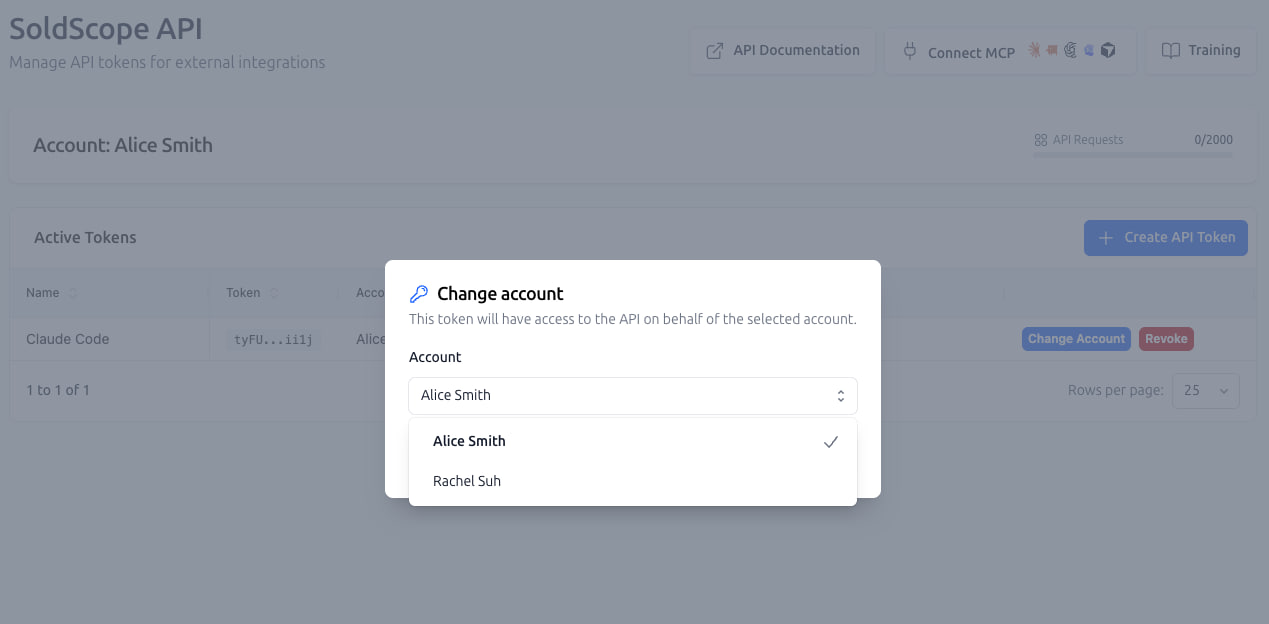
There's no need to create a new token or reconnect your integration when switching accounts. However, if you want to run two separate integrations under different accounts simultaneously, you'll need a separate API token for each integration.
This guide explains how account selection works, how MCP uses API tokens, and how to switch between accounts whenever you need to.
How API Tokens Work with Multiple Accounts
In SoldScope, you can have access to multiple accounts under a single login.
For example:
Personal Account: Your own SoldScope account on the Free plan.
Company Account: A team account you've been invited to, which has an active paid subscription.
Although you can access both accounts in the SoldScope dashboard, your API and MCP integrations operate under the account associated with their API token.
The selected account determines:
Which account your API and MCP requests run under.
Which subscription features and usage limits apply.
Which account's available credits are consumed.
Which account's data your integrations can access, subject to your permissions.
Example: Personal Free Account vs. Team Account with a Paid Subscription
Let's say you have a personal Free account and have also been invited to your company's account, which has a paid subscription.
You create an API token or connect SoldScope MCP to Claude.
During setup, your personal Free account is selected by default.
If you keep this selection, your API and MCP requests will use your personal Free account's limits, even though you also have access to the company's paid account.
If you've already exhausted your personal account's available searches, additional research requests may fail.
Having access to a paid team account doesn't automatically mean your API or MCP integration is using that account.
You can select the team account during initial setup or switch to it at any time later, even if you've already been using the integration for a while.
How MCP and the SoldScope API Work Together
SoldScope MCP works on top of the SoldScope API.
When you connect SoldScope to an AI assistant such as Claude, the MCP integration uses a SoldScope API token to authenticate and execute requests through the API.
This means that MCP and direct API integrations follow the same account selection, permissions, and usage limits.
For example:
If your API token is associated with your personal Free account, MCP requests use that account's limits.
If your API token is associated with an invited team account, MCP requests use the selected team's limits.
Searches performed through MCP consume credits from the selected account, just like requests made directly through the API.
MCP does not have a separate subscription or credit balance. It uses the subscription and available credits of the SoldScope account associated with its API token.
Because MCP uses the SoldScope API token system, changing the account associated with your MCP token automatically changes which account your MCP requests use.
You don't need to reconnect your AI assistant or configure a new MCP integration.
You Can Change Your API Token's Account at Any Time
The account associated with an API token is not permanent.
You can switch it whenever you need to, as long as you have API access to the account you want to select.
For example, you might want to:
Switch from your personal Free account to a company's paid account.
Switch between different client accounts you manage.
Move your integration back to your personal account.
Change which team's subscription and credits your MCP integration uses.
You can do all of this using the same API token.
What Happens When You Change the Account?
Your existing API token remains valid.
You don't need to generate a new token.
You don't need to update your API or MCP connection settings.
All subsequent requests using that token operate under the newly selected account.
Credits and usage limits are applied to the newly selected account.
You can repeat this process as often as needed.
To switch accounts, open API Access and use Change Account next to the relevant token.
When Do You Need Separate API Tokens?
Each API token can be associated with one account at a time.
If you want to use two different accounts simultaneously through separate API or MCP integrations, you should create a separate token for each one.
For example:
Token A: Used by an integration connected to your personal account.
Token B: Used by another integration connected to a company's account.
Each integration will operate independently under its selected account.
Changing the account associated with an existing token affects all integrations using that token. If you need multiple integrations to continue working under different accounts at the same time, use separate tokens.
Step 1: Check Which Account Your API Token Is Using
If you're creating a new API token or setting up an MCP connection, you can select the account you want to use during setup.
Your personal account is selected by default, but you can choose an invited team account if you have the necessary API permissions.
If you've already configured your API or MCP integration, you can check or change its account at any time.
Sign in to SoldScope.
Open API Access.
Find the API token you're using with your API or MCP integration.
Click Change Account next to that token.
Check the list of available accounts.
If the Team Account Is Listed
You already have permission to select that account.
Simply choose the team account you want to use.
Once selected, all subsequent API and MCP requests using that token will operate under the chosen account.
The change takes effect without creating a new token or reconnecting your integration.
You can return to this page and select a different account whenever you need to.
If the Team Account Is Not Listed
You may not have the required API permission for that account.
Follow Step 2 below to check your access with the account owner or administrator.
Step 2: Request API Access (If Needed)
If the invited team account doesn't appear in the available accounts list, ask its owner or administrator to check your API permissions.
The account owner or administrator can:
Open Team Management.
Find your user in the team members list.
Open your permissions.
Enable the API permission.
Save the changes.
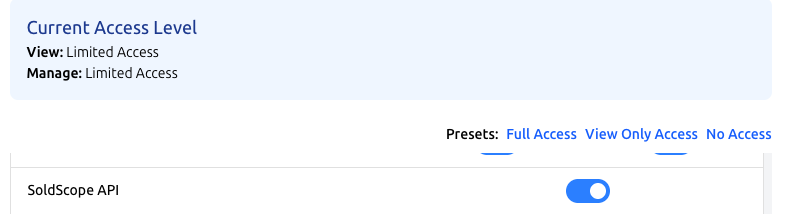
If you haven't joined the team yet, you'll need to accept the invitation first.
Important: Being invited to a team account doesn't automatically mean you have permission to use its API.
The account owner controls whether team members can access the API.
Once the permission has been granted, return to API Access, click Change Account for your existing token, and select the team account.
There's no need to generate another token just because you've been granted access to a new account.
Step 3: Verify Which Account Your API or MCP Is Using
After selecting or changing the account associated with your API token, you can verify that your integration is using the correct account.
To do this, use the SoldScope API authentication check endpoint:
GET https://www.soldscope.com/api/auth/check
Authenticate the request using your API token.
A successful response (200 OK) includes two important objects:
user: Information about the SoldScope user who owns the API token, including their ID, name, and email.account: Information about the SoldScope account currently associated with the token, including its ID and name.
These can be different.
For example, your API token may belong to your personal user profile while being configured to use a company's account.
Understanding the Authentication Response
The authentication response contains information such as:
User information:
user.id: The ID of the user who owns the token.user.name: The name of the token owner.user.email: The email address of the token owner.
Account information:
account.id: The ID of the account the token is currently using.account.name: The name of the selected account.
If account.name and account.id match the team account you intended to use, your API token is configured correctly.
What Happens When You Change the Account?
When you change the token's account using Change Account, the account information returned by /auth/check reflects the newly selected account.
The user information remains the same because you still own the API token.
This allows you to verify that your integration is using a different account without creating a new token.
If the response still shows your personal account, go to API Access, find the token, and select the appropriate team account.
Using MCP? The same account association applies to your MCP integration because MCP uses the SoldScope API token. You can also run the available connection-check tool in your MCP client.
Note: A successful authentication check confirms that your token is valid and identifies the account it uses. It does not guarantee that the account has available search credits or access to every feature.
Does Switching Accounts in the Dashboard Also Switch My API or MCP Account?
No. These are two separate settings.
Switch Account (Profile Menu)
Changes the account you're currently viewing in the SoldScope web dashboard.
This lets you work with different accounts without logging out.
Change Account (API Access)
Changes the account associated with a specific API token.
This determines the account used by API requests and MCP integrations that rely on that token.
For example, you can be viewing your personal account in the SoldScope dashboard while your MCP integration runs under a company account.
Switching accounts in the dashboard does not automatically change the account associated with your API or MCP connection.
To change the account used by your integration, go to API Access and use Change Account for the appropriate token.
You can do this at any time without reconfiguring your integration.
Frequently Asked Questions
Can I change the account associated with my API token at any time?
Yes. You can change it whenever you want.
Go to API Access, find your token, and click Change Account.
Select any account you have API access to.
Your existing token will continue working, but subsequent API and MCP requests will use the newly selected account.
You don't need to generate a new token, update your credentials, or reconnect your integration.
You can switch accounts again whenever necessary.
Why is my MCP integration using my Free account instead of a paid team account?
When setting up an MCP connection, your personal account is selected by default.
If you didn't change this selection during setup, your MCP integration will continue using your personal account, even if you have access to a paid team account.
Open API Access, find the token used by your MCP connection, and select the team account using Change Account.
You can make this change at any time.
Do I need to create a new API token when switching accounts?
No.
You can use Change Account to update the account associated with your existing token.
There's no need to generate a new token or reconnect your API or MCP integration.
All subsequent requests using that token will use the newly selected account.
Exception: If you need two separate integrations to operate under different accounts simultaneously, use a separate API token for each integration.
Can I use two different SoldScope accounts simultaneously through API or MCP?
Yes.
Each API token has its own account association, so you can create separate tokens for different accounts.
For example:
Token A: Associated with your personal account.
Token B: Associated with Company Account A.
Token C: Associated with Company Account B.
Each integration uses the subscription, credits, and permissions of the account associated with its token.
You can also change any of these account associations at any time, provided you have API access to the account you want to select.
This is particularly useful for agencies and service providers managing multiple client accounts.
I can't find the team account in Change Account. What should I do?
First, make sure you've accepted the invitation to the team account.
If you're already a member but the account doesn't appear, ask its owner or administrator to check whether you have API permission.
The administrator can manage this permission on the Team Management page.
Once access is enabled, return to API Access and try again.
My API or MCP connection works, but Keyword Research searches fail. Why?
Your API token may be associated with an account that has exhausted its available search credits.
Authentication can succeed even when the selected account no longer has credits available for certain research operations.
For example, if your MCP integration is using your personal Free account and you've already consumed its available searches, additional Keyword Research requests may return a "Search failed" error.
To resolve this:
Open API Access.
Check which account is associated with your API token.
If necessary, use Change Account to select an account with available credits and the appropriate permissions.
Try your search again.
You can switch the account associated with your existing token without changing your MCP or API integration settings.
If the issue continues after verifying your account and available credits, contact SoldScope Support.
Does MCP use the same API tokens as the SoldScope API?
Yes.
SoldScope MCP operates on top of the SoldScope API and uses the same API token system.
When you set up an MCP connection, it uses an API token to authenticate requests through the SoldScope API.
The selected account determines which subscription, credits, permissions, and usage limits apply to MCP requests.
You can manage the account associated with that token on the API Access page.
Which account's credits are consumed by API and MCP requests?
API and MCP requests consume credits and usage allowances from the account associated with the token used for those requests.
For example, if you've selected a team account, its available credits will be used instead of your personal account's credits.
If you later change the token back to your personal account, subsequent requests will use your personal account's credits and limits.
Does switching accounts in the SoldScope dashboard also switch my API or MCP account?
No.
Switch Account in the profile menu only changes the account you're viewing in the SoldScope dashboard.
To change the account used by API and MCP integrations, open API Access and use Change Account for the relevant token.
These settings work independently.
How can I verify which SoldScope account my API token is using?
Send an authenticated GET request to:
https://www.soldscope.com/api/auth/check
The response includes:
user: The user who owns the API token.account: The account currently associated with the token.
Check account.name and account.id to confirm that your token is using the correct account.
Changing the account associated with the token updates the account information while keeping the same token owner.
Managing API Access Securely
When working with clients, agencies, or external team members, we recommend using individual SoldScope accounts rather than sharing credentials.
Each team member should:
Use their own SoldScope login.
Join the relevant team accounts through invitations.
Make sure they have API permission for the accounts they need.
Manage their API tokens through their own API Access page.
Select the appropriate account for each API token.
Change the associated account whenever their work requires access to a different team or client.
Use separate tokens when multiple integrations need to operate under different accounts simultaneously.
This allows account owners to control access while keeping their login credentials and API tokens private.