How to Get Started with Review Automation

Olivia Reyes
Overview
To start using Review Automation, you first need to connect your Amazon account.
Once connected, you can configure automation for your products and monitor how review requests are sent.
The interface is built around two main areas:
products — where you configure automation
orders — where you track results
Connecting Your Amazon Account
Before you can use Review Automation, you need to connect your Amazon account.
Once connected, your products and orders will be automatically synced and available in the interface.
Understanding the Dashboard
At the top of the page, you’ll see a chart and several summary cards.
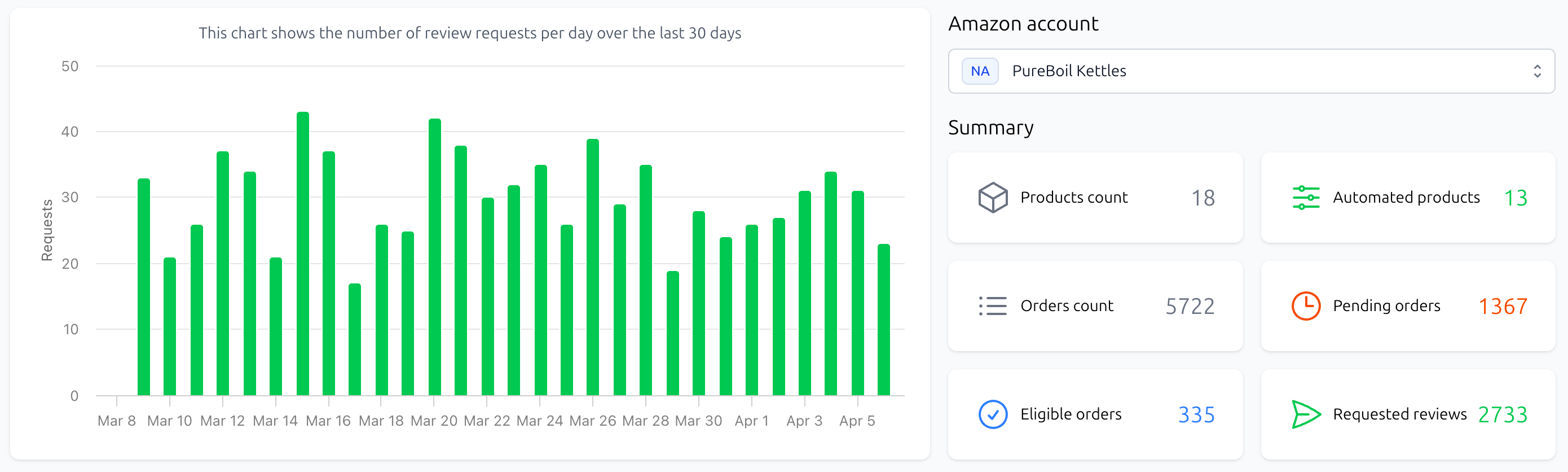
The chart shows how many review requests were sent per day over the last 30 days.
The summary cards give you a quick overview of your products, orders, and request activity.
This section helps you quickly understand how your automation is performing.
Configuring Automation for Products
Automation is configured at the product level.
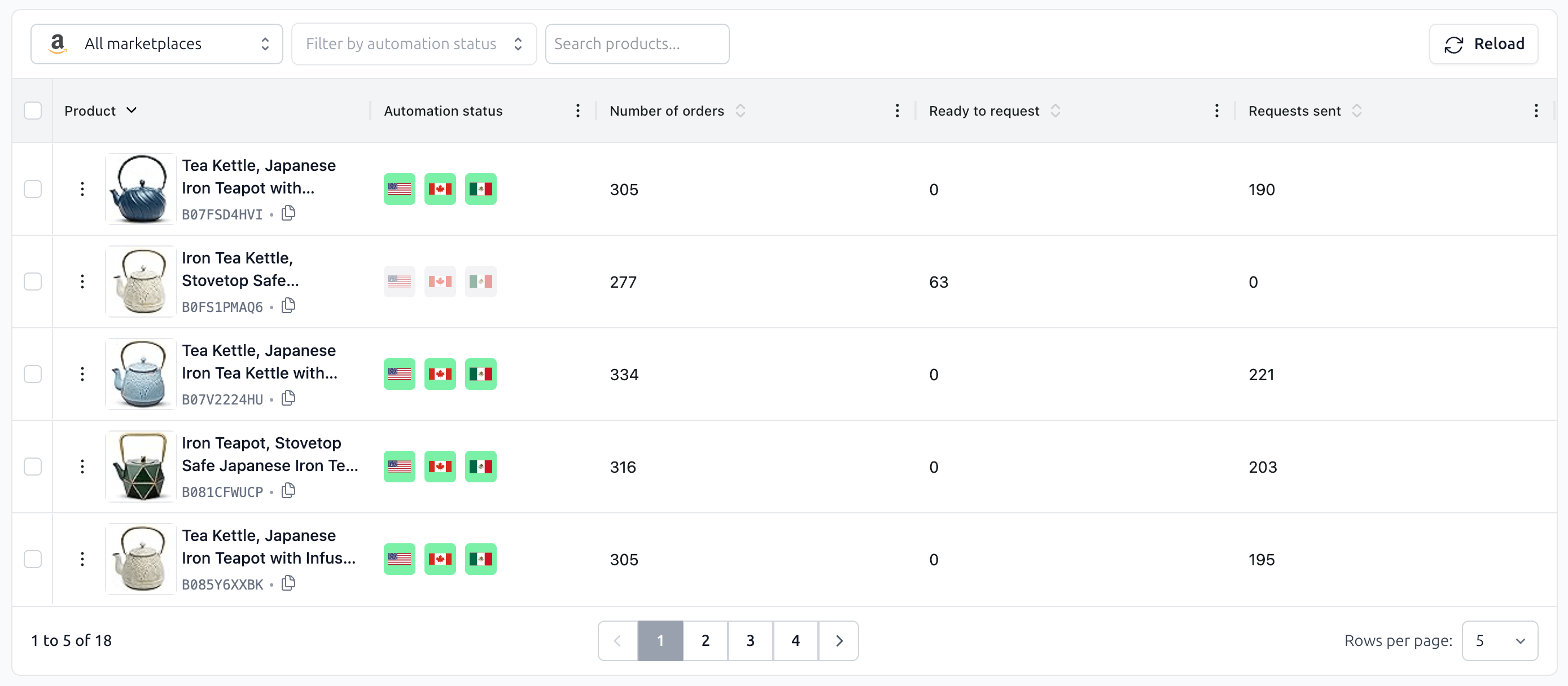
In the products table, you can:
search by ASIN or title
filter by marketplace
filter by automation status
Each row represents a product and shows:
automation status across marketplaces
order count
review request stats
To configure automation, simply click on a product (or use the menu).
Want Review Automation to apply automatically to all current and future products?
Learn how to enable Global Automation for new products.
Setting Up Automation
Inside the settings modal, you control how automation works.
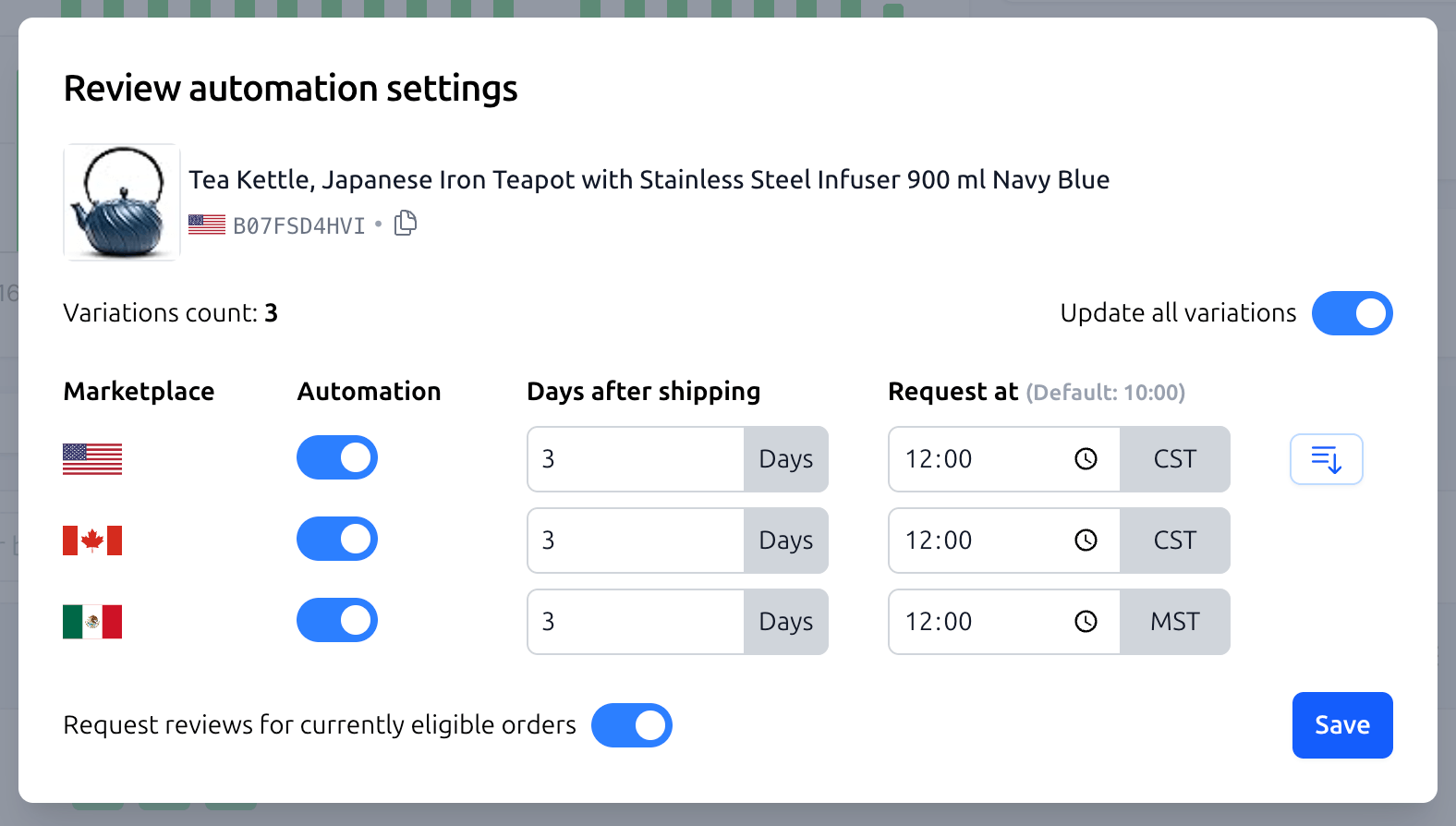
You can:
enable or disable automation per marketplace
choose how many days to wait after shipping
set the time of day when requests are sent
If a product is sold in multiple marketplaces, you can quickly apply the same settings to all of them.
If the product has multiple variations, you can apply settings to all variations at once.
You can also request reviews for all currently eligible orders directly from this screen.
Working with Multiple Products
If you’re managing a large catalog, you don’t have to configure products one by one.
You can select multiple products and apply automation settings to all of them at once.
Tracking Orders
The orders table shows how automation is working in practice.
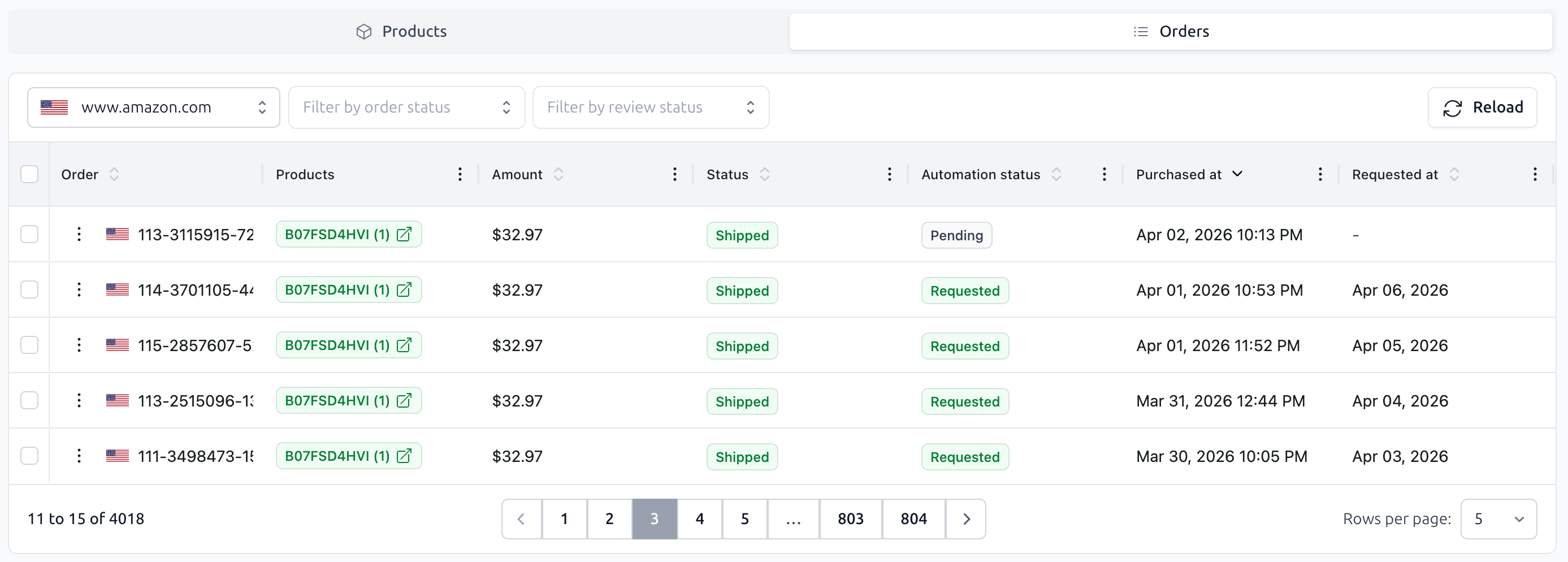
Here you’ll find:
order details
products included in the order
automation status
request status
purchase and request dates
You can filter orders, inspect specific cases, and quickly access product settings.
Manual Actions
In some cases, you may want to trigger a review request manually.
If a request is available, you can do this directly from the orders table.
The request will be scheduled and sent according to your automation settings.
Final Notes
Once automation is set up, everything else happens automatically.
New orders are processed daily, eligibility is checked, and review requests are sent at the right time — without any manual effort.