Understanding Access Levels and Permissions

Olivia Reyes
This article explains how SoldScope’s permission system works, ensuring your account remains secure while allowing your team to collaborate effectively.
The Security-First Model
In SoldScope, the Account Owner has absolute control over data visibility. To protect your business information, the system follows a "Zero-Trust" default:
No Access by Default: When a new member joins your team, they are automatically granted No Access to all tools. They will see a blank dashboard until you manually assign their permissions.
Owner Privacy: Team members can never see your billing information, subscription details, or the master account settings.
View vs. Manage: Understanding the Levels
Permissions are assigned per tool, allowing you to give a user full control over one feature while restricting them to "read-only" for another.
1. View Access
This level is ideal for analysts or stakeholders who need to monitor performance without making changes.
Capabilities: Can see all dashboards, charts, and generated reports.
Restrictions: Cannot add new keywords, delete products, change tracking settings, or trigger new AI generations.
2. Manage Access
This level is designed for active managers, VAs, or SEO specialists who need to perform daily tasks.
Capabilities: Full operational control over the specific tool. They can add/remove data, adjust settings, and use AI features.
Restrictions: Still limited to the specific tool assigned; they cannot manage the overall team or access owner-level settings.
Granular Control & Presets
SoldScope allows you to fine-tune access for every module in our suite, including:
Rank Tracker
Keyword Research
Product Research
Listing Builder
Buy Box Map
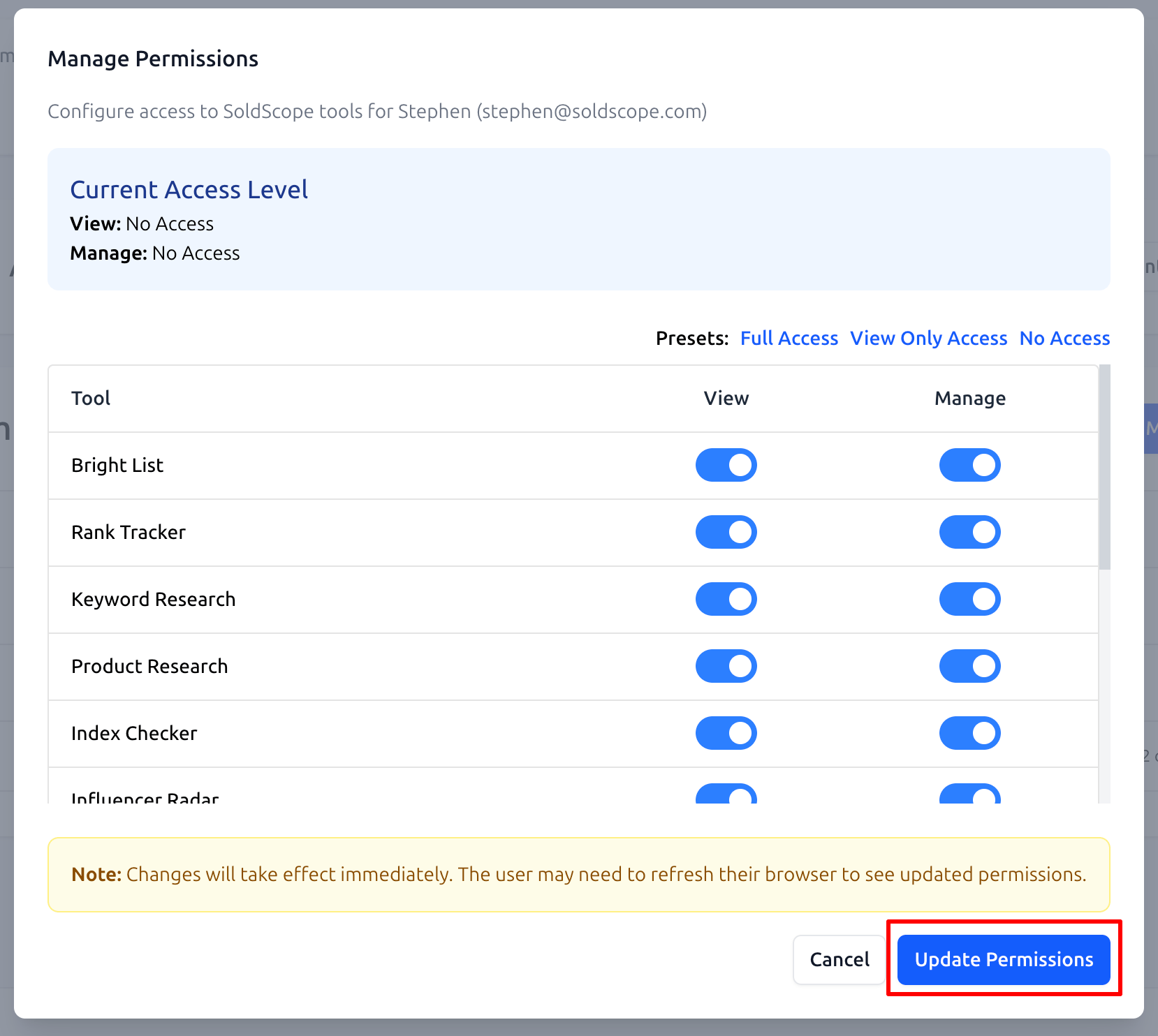
To save time, you can use Presets at the top of the permissions modal. These buttons allow you to instantly toggle all tools to Full Access, View Only, or No Access with a single click.
Requesting Access to Tools
Because SoldScope uses a security-first model where access is restricted by default, team members may occasionally encounter features they cannot yet use. Instead of a hard block, the platform facilitates a simple request workflow to help teams stay productive.
The Access Denied Screen: If a user tries to open a tool without the required permissions, they will see an Access Denied page. This screen explains that their current role does not grant access to that specific page.
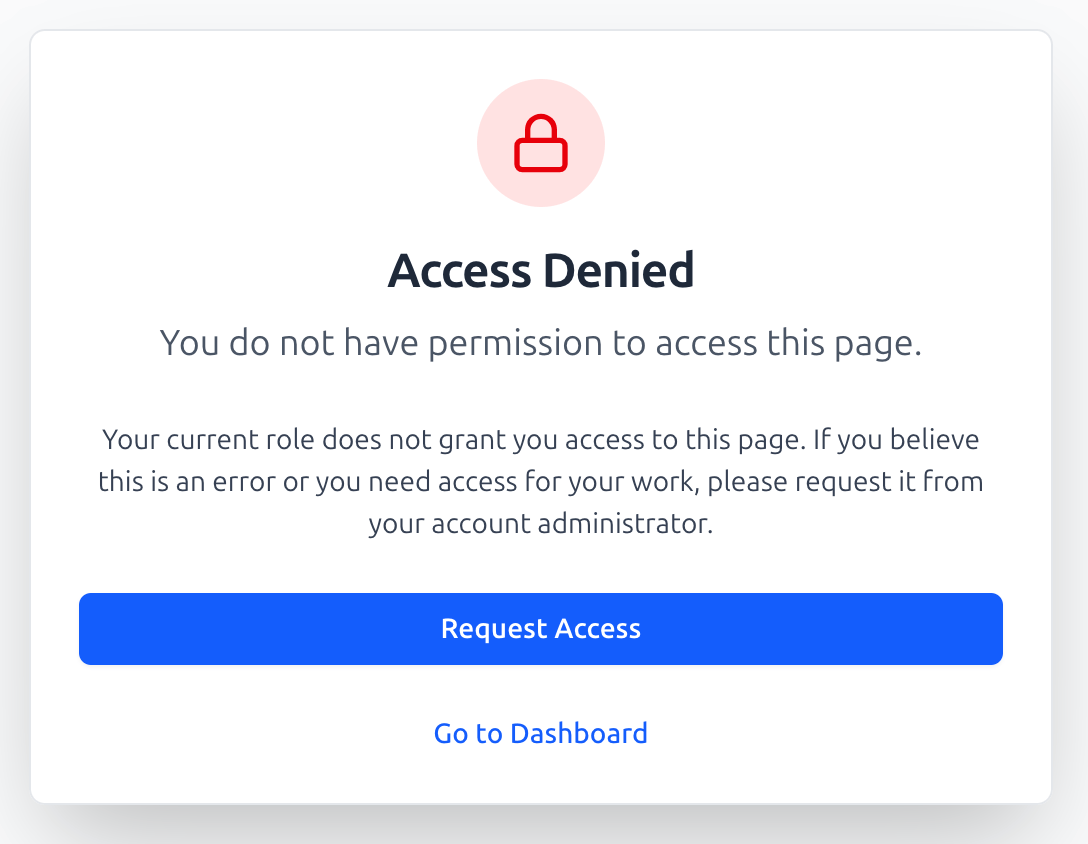
Submitting a Request: From this screen, the user can click the blue Request Access button to notify the account administrator.
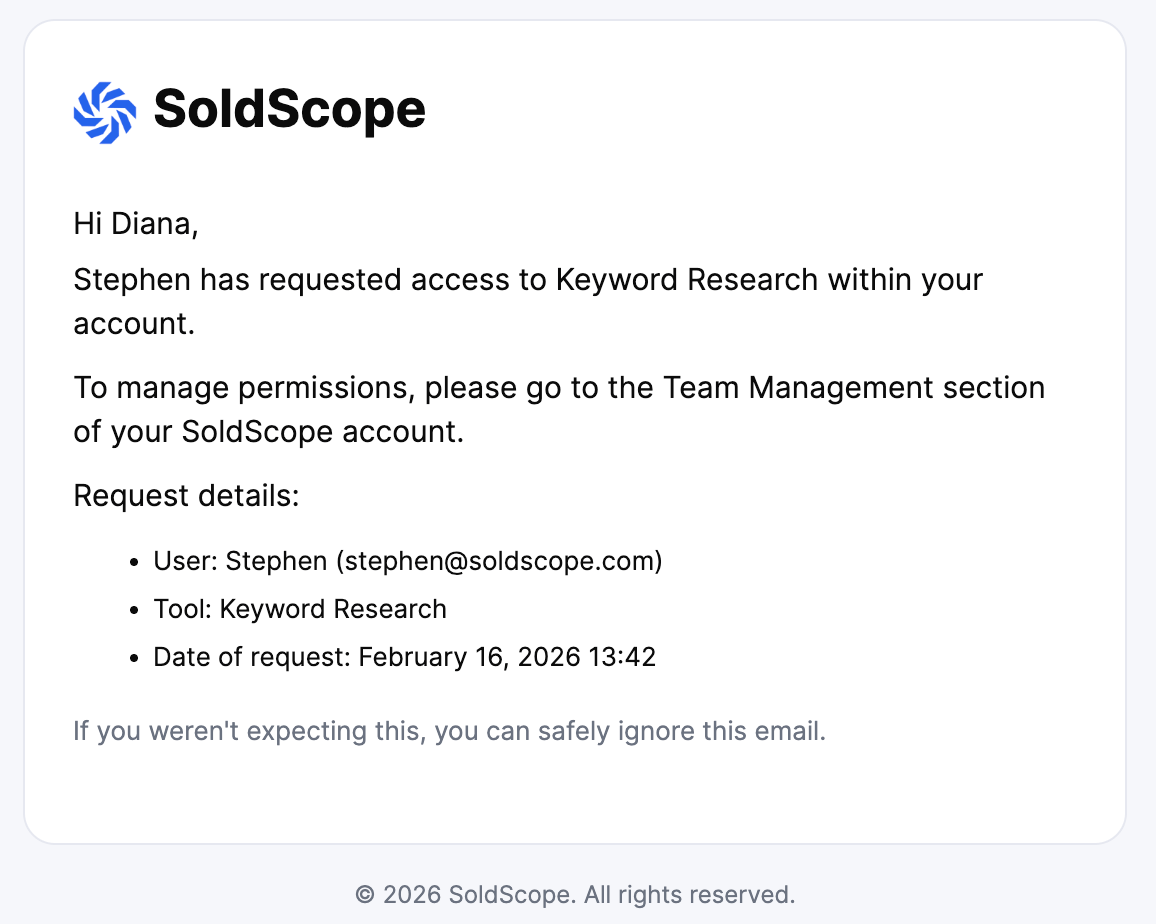
Owner Notification: Once clicked, the account owner receives an automated email detailing the request. This email specifies the user’s name, the specific tool they are requesting, and the date and time of the request.
How to Update Permissions
Access levels can be modified at any time as your team members' roles evolve.
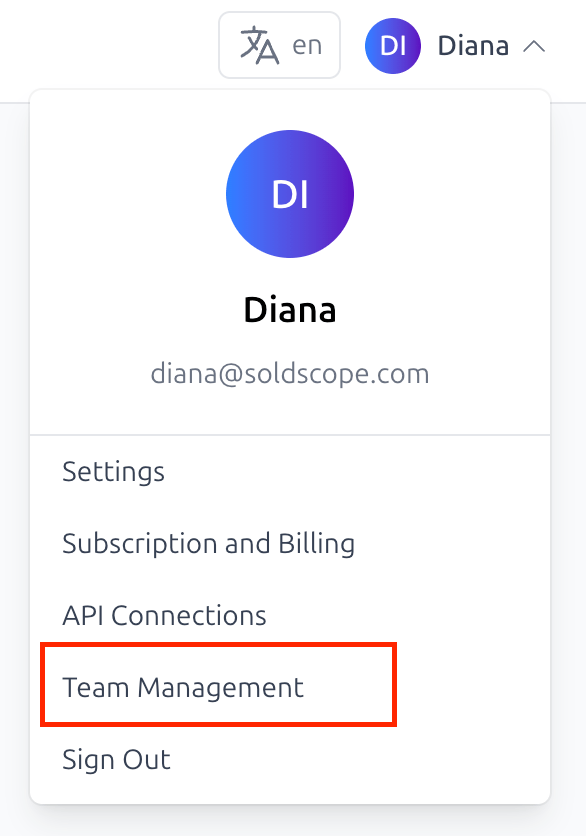
Go to Team Management via your profile menu.
In the Team Members table, find the user and click the three dots (Actions menu).
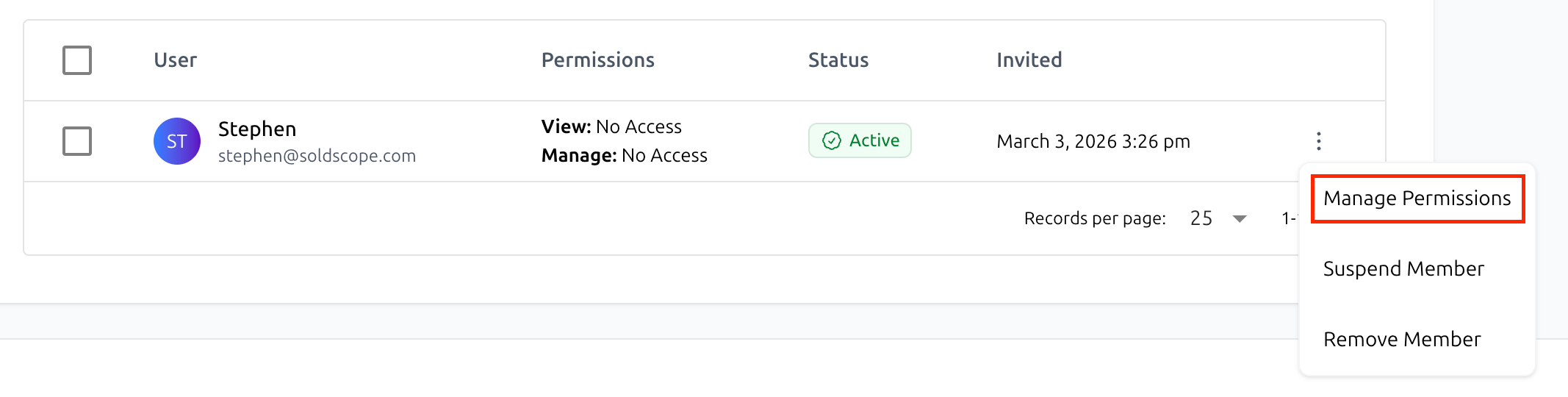
Select Manage Permissions.
Adjust the toggles for each tool or use a Preset.
Important: Click Update Permissions to save.
Note on Instant Updates: Permission changes are applied in real-time. If a team member is currently working in the dashboard, they simply need to refresh their browser to see the new tools or restrictions.