Managing and Monitoring Your API Connections

Olivia Reyes
Once your Amazon store is connected, the API Connections dashboard serves as your health monitor. Because the Amazon SP API is a live link, it requires occasional maintenance to ensure your data remains accurate and uninterrupted.
Understanding Connection Statuses
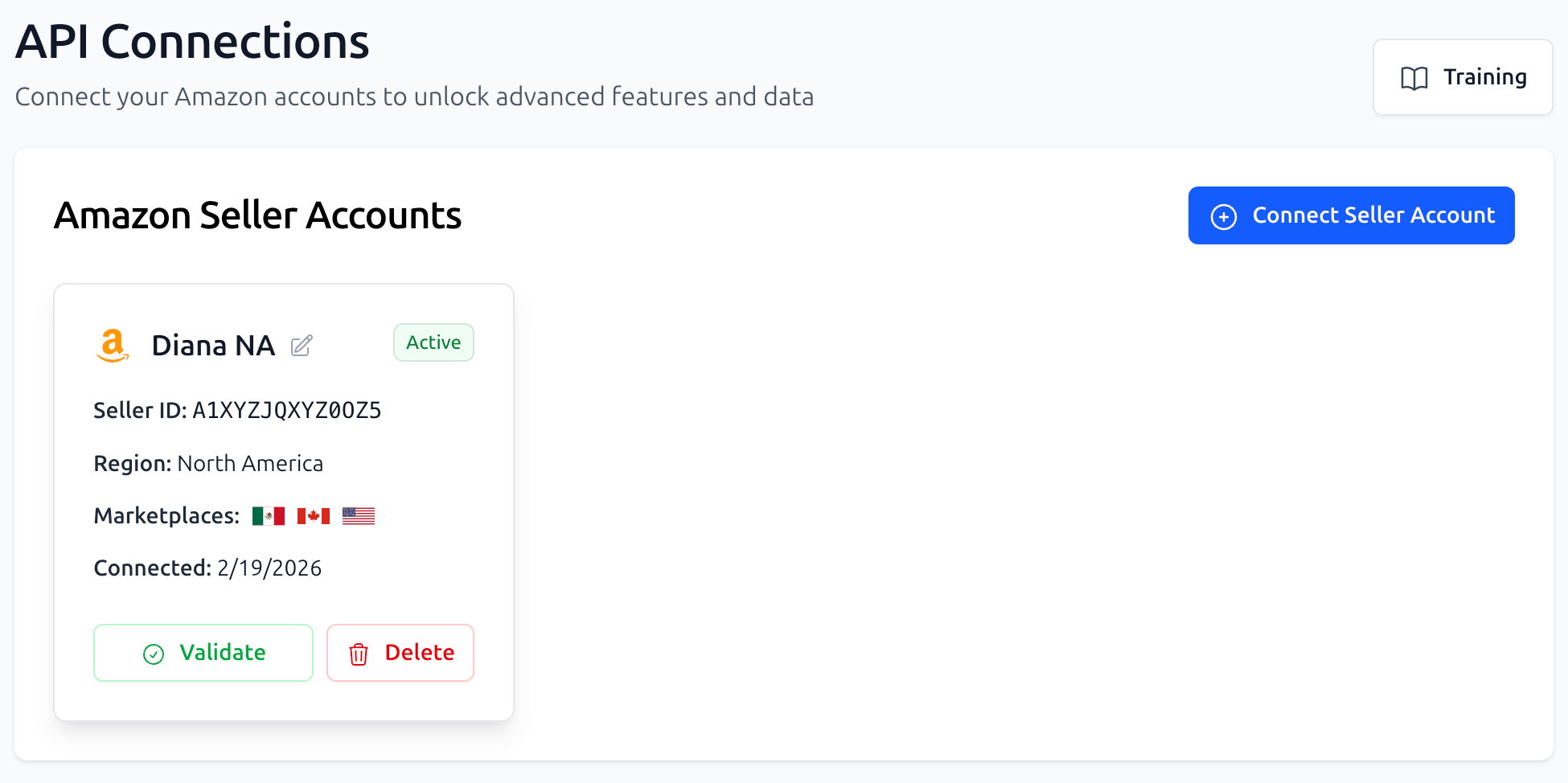
In your API Connections table, each store will display one of three primary statuses. Monitoring these ensures you never lose a day of critical data.
🟢 Active: Your API link is healthy. SoldScope is successfully pulling Brand Analytics, financial reports, and inventory data.
🔴 Error: The connection has been broken. This can happen if permissions were changed in Seller Central or if there is a marketplace mismatch. You will need to click Validate to resolve this.
🟡 Expired: This is a scheduled maintenance status. Amazon requires all third-party app authorizations to be manually renewed once per year (see the 365-Day Rule below).
The 365-Day Re-authorization Rule
For security reasons, Amazon’s SP API "Refresh Tokens" expire every 365 days. To prevent your data sync from stopping:
Watch for Notifications: Amazon will send an email to your primary Seller Central address 30 days before the token expires. SoldScope will also flag the connection as "Expiring Soon."
Renew the Handshake: You do not need to delete and re-add the store. Simply click the Validate button in SoldScope.
Confirm on Amazon: You will be taken to Seller Central to confirm you still trust SoldScope. Once you click "Confirm," your 365-day timer resets.
Managing Marketplace Regions
SoldScope supports Amazon’s Unified Account structure. This means if you sell in multiple countries within the same region (e.g., USA, Canada, and Mexico), you typically only need one active connection to sync data for all of them.
Regional Sync: Authorizing your US store often automatically grants SoldScope access to your North American Unified accounts.
Adding New Regions: If you expand from North America to Europe, you will need to create a separate connection for the European region, as Amazon treats these as different security zones.
How to Safely Disconnect an Account
If you stop selling on a specific marketplace or want to move to a different Amazon account, you can disconnect at any time.
Option A: Disconnect via SoldScope
Go to API Connections, find the store, and click the Delete button. This stops all data pulls and removes the store from your SoldScope dashboard.
Option B: Revoke via Seller Central (The "Kill Switch")
If you want to ensure SoldScope has zero access to your data immediately:
Log into Amazon Seller Central.
Go to Partner Appstore > Manage Your Apps.
Find SoldScope in the list and click Revoke.
Note: If you revoke access in Seller Central, your SoldScope dashboard will immediately show an "Error" status for that store.