Getting started with Organization Management

Olivia Reyes
Organization Management lets you run several SoldScope accounts and a team of users from one place. It is available on the Professional and Enterprise plans.
Plans and limits
Plan | Users | Accounts | Billing type |
|---|---|---|---|
Professional | 10 | 25 | Shared subscription |
Enterprise | Set individually | Set individually | Shared subscription or per-account subscription (on request) |
For Enterprise limits, contact SoldScope Support.
Billing types
Shared subscription. All users and accounts in the organization share the organization's quotas and limits. Available on the Professional plan.
Per-account subscription. Each account in the organization has its own plan. Available on the Enterprise plan; to get it, contact SoldScope Support.
Create an organization with a shared subscription
Sign up the user who will be the organization owner.
Subscribe to the Professional plan.
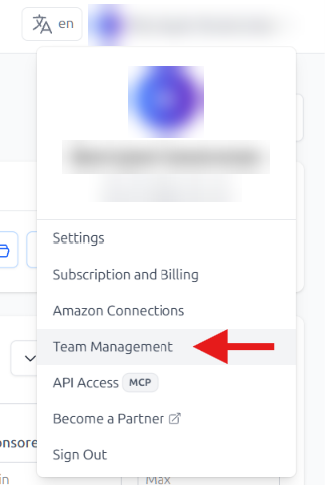
Open the user menu in the top-right corner and select Team Management.
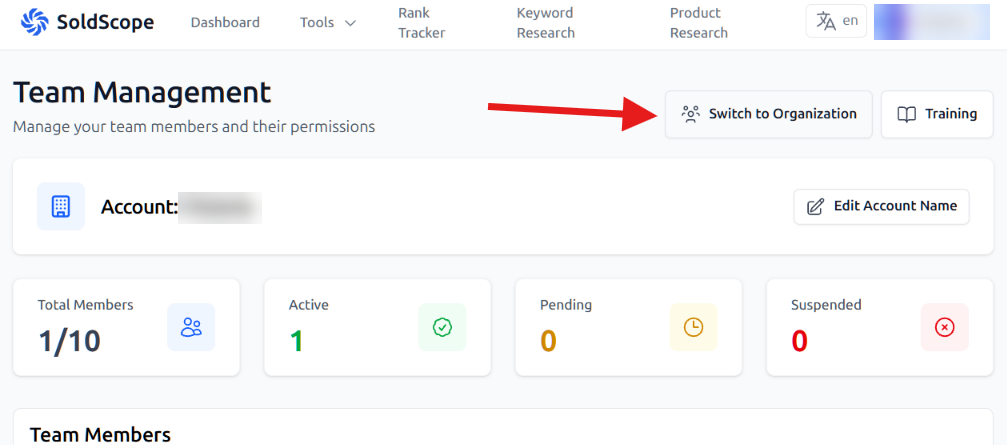
Click Switch to Organization.
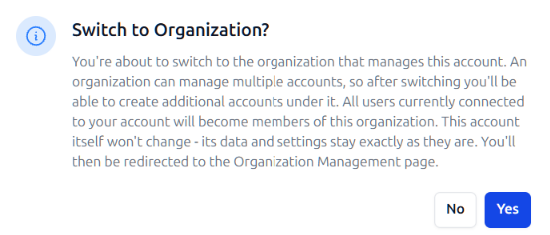
Confirm the switch by clicking Yes. All users connected to your account become members of the organization. The account itself doesn't change: its data and settings stay as they are.
You will be redirected to the Organization Management page.
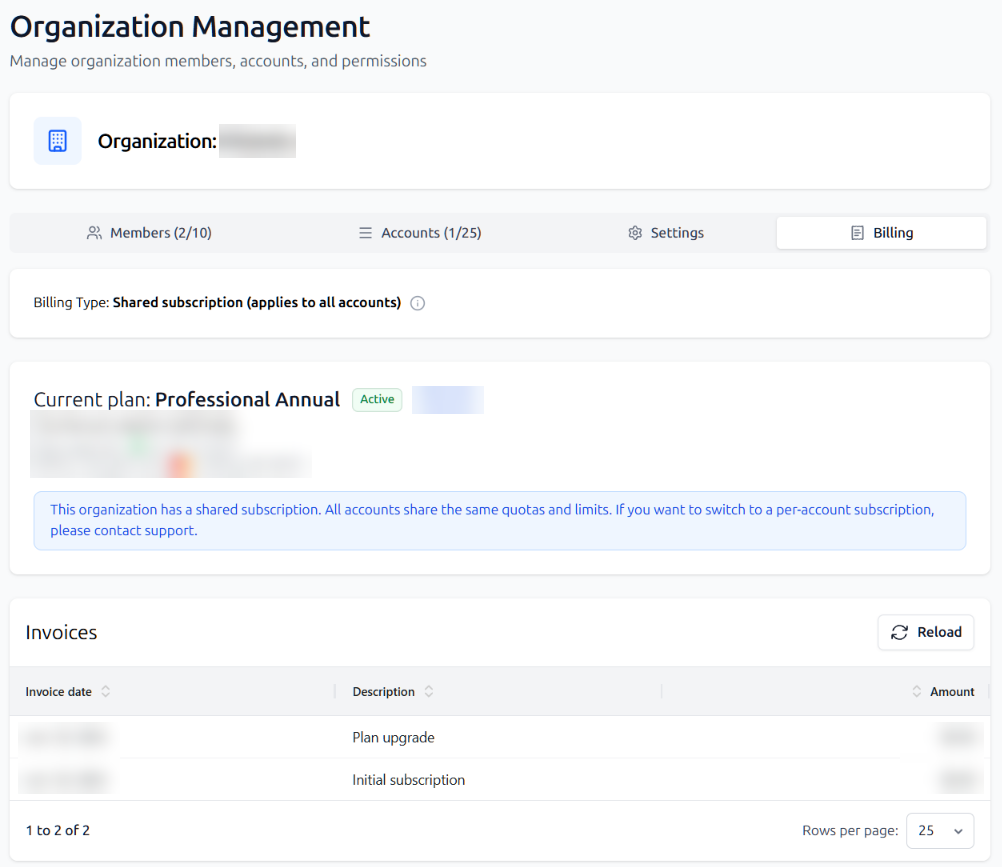
Your account is now the owner of the organization. You and the admins you invite get access to the organization management panel by default. For members, you set access separately (see Managing members and accounts).
To switch your organization to per-account billing, contact SoldScope Support.