Organization settings and billing

Olivia Reyes
The Settings tab controls your organization's name, logo and security; the Billing tab shows your subscription and invoices.
Settings tab
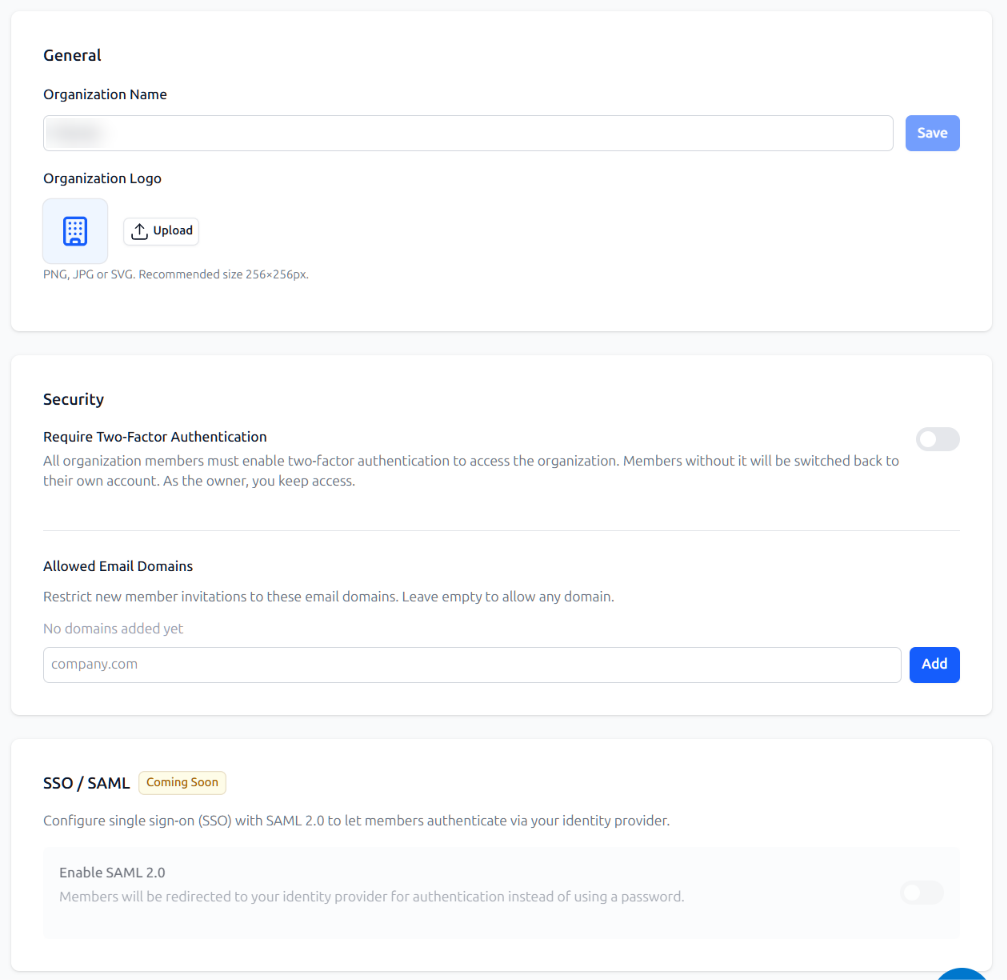
General
Organization Name — change the name and click Save.
Organization Logo — upload a PNG, JPG or SVG file; recommended size 256×256 px.
Security
Require Two-Factor Authentication — all organization members must enable two-factor authentication to access the organization. Members without it are switched back to their own account. The owner always keeps access.
Allowed Email Domains — restrict new member invitations to the email domains you add (for example, company.com). Leave the list empty to allow any domain.
SSO / SAML (coming soon) — single sign-on with SAML 2.0, so members sign in through your identity provider instead of a password.
Billing tab
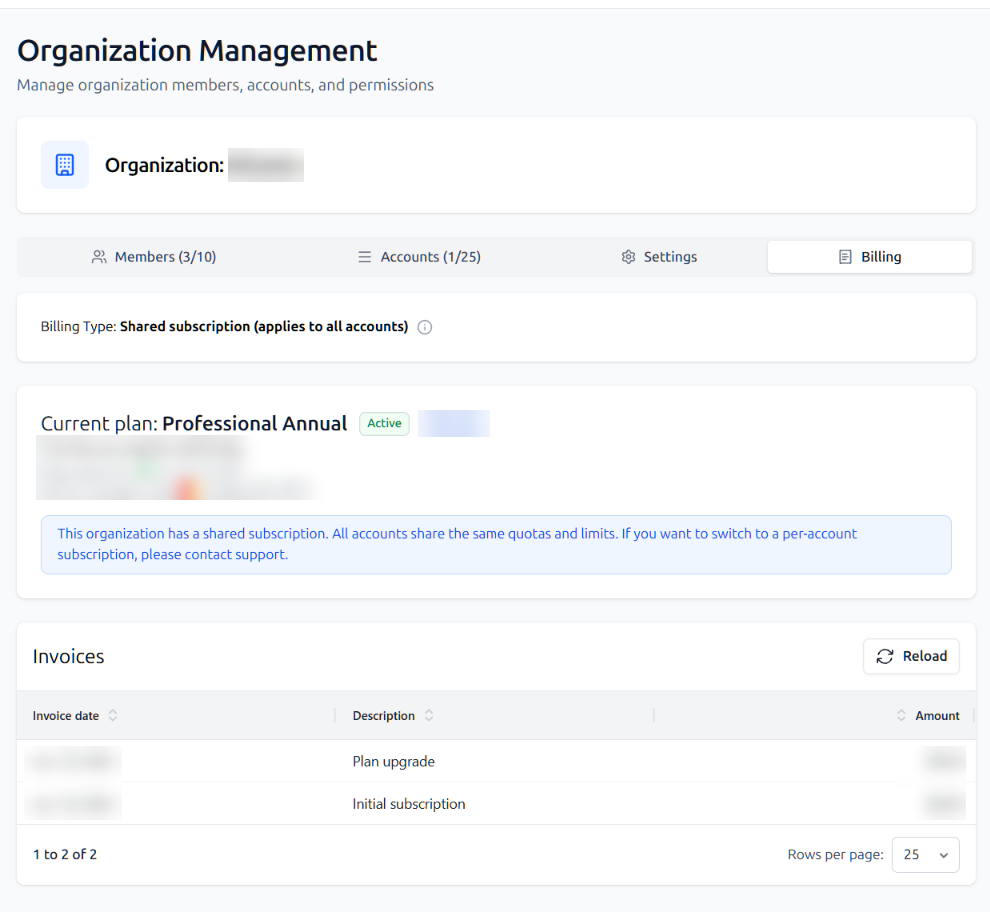
The Billing tab shows your billing type, current plan, next payment and payment method, and the history of invoices and payments.
Per-account subscription (Enterprise)
With a per-account subscription, each account in the organization has its own plan. This option is available on the Enterprise plan; to get it, contact SoldScope Support.
How it differs from a shared subscription:
Shared subscription | Per-account subscription | |
|---|---|---|
Plan | One plan for the whole organization | Each account has its own plan |
Quotas and limits | Shared by all users and accounts in the organization | Members of an account share that account's plan limits and workspace |
Members' access | Set per account | Set per account |
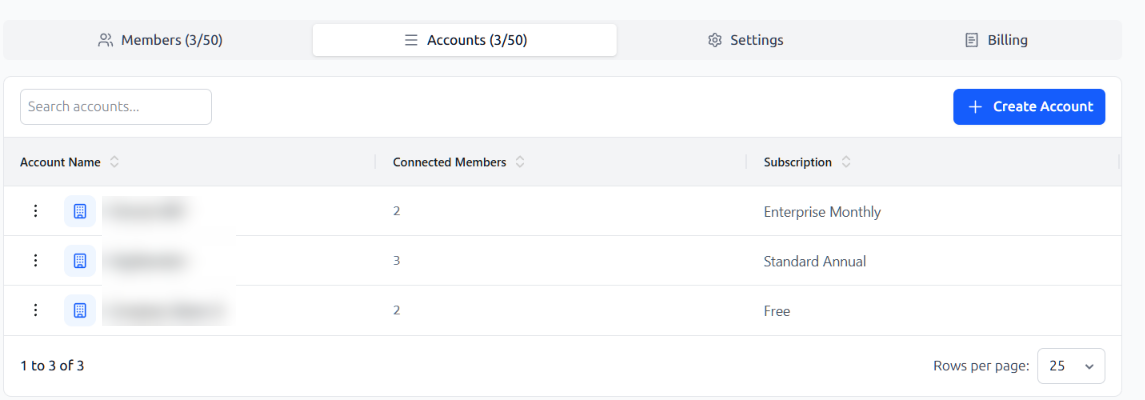
Where plans are shown | Billing tab | Organization plan in the Billing tab; each account's plan in the Accounts tab |