How to Switch Between Multiple Accounts

Olivia Reyes
If you manage multiple brands or have been invited to join other teams, SoldScope makes it easy to jump between different accounts without needing to log out.
Accessing the Switch Menu
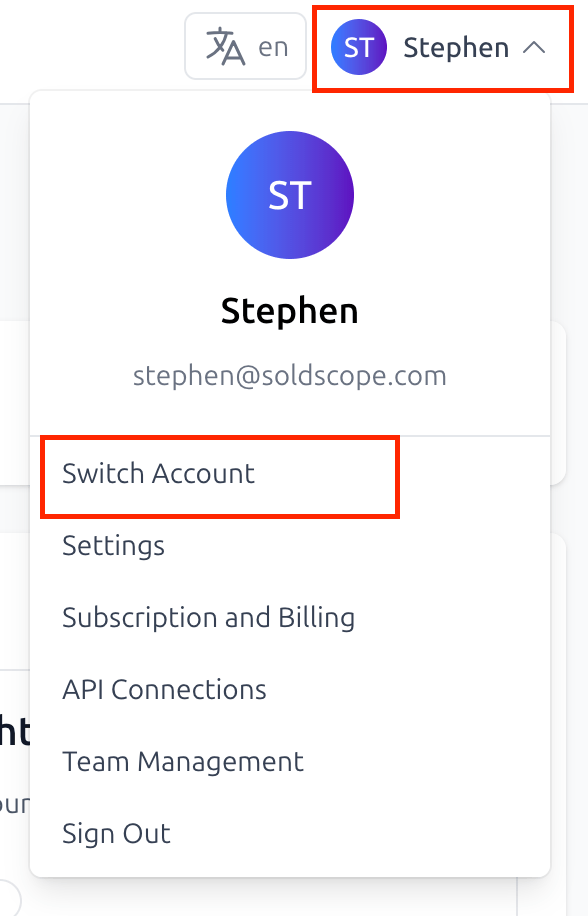
The option to switch will automatically appear in your profile menu once you have access to at least one other account.
Open Profile Menu: Click on your profile icon or name in the top right corner of the navbar.
Select Switch Account: Click the Switch Account option, which is located at the top of the dropdown list.
Using the Switch Account Modal
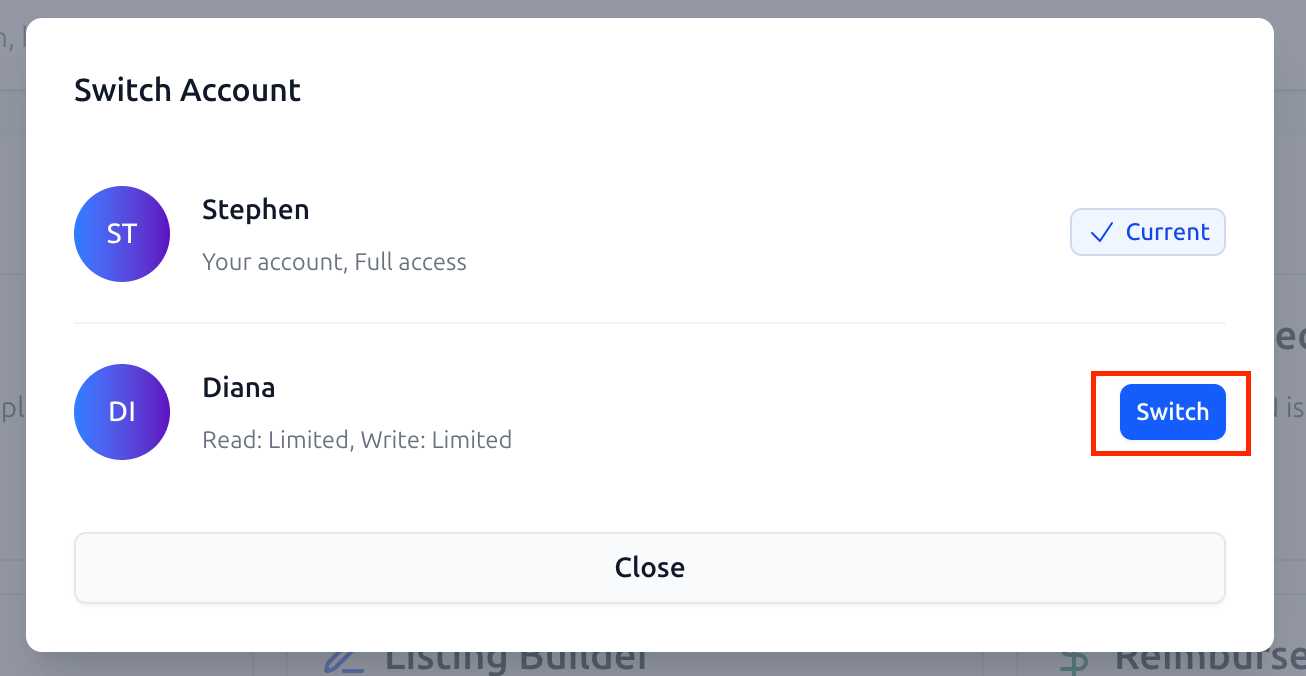
When you select this option, a modal window will open displaying all available accounts.
Account List: The modal lists every account you can access, along with your specific permission level for each (e.g., "Full access" or "Limited").
Current Account: Your active account is clearly marked with a Current badge.
Performing the Switch: To move to a different account, simply click the blue Switch button next to the account name.
Confirming the Change
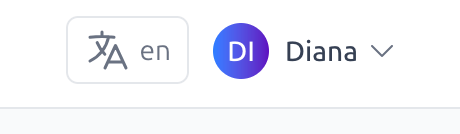
After you click switch, the platform will reload your dashboard with the data for that specific account. You can verify which account you are currently using by looking at the name displayed in the top navbar, which will update automatically to reflect the active account.