The Events Feed: Reading, Filtering and Exporting Changes

Olivia Reyes
What an event is
An event is one change of one monitored field on one product, or a change in your store's rating count for one star value. Smart Alerts records it when it notices the difference between its last snapshot and what Amazon shows now. Events are kept, so the feed is also the history of your listings.
Reading the feed
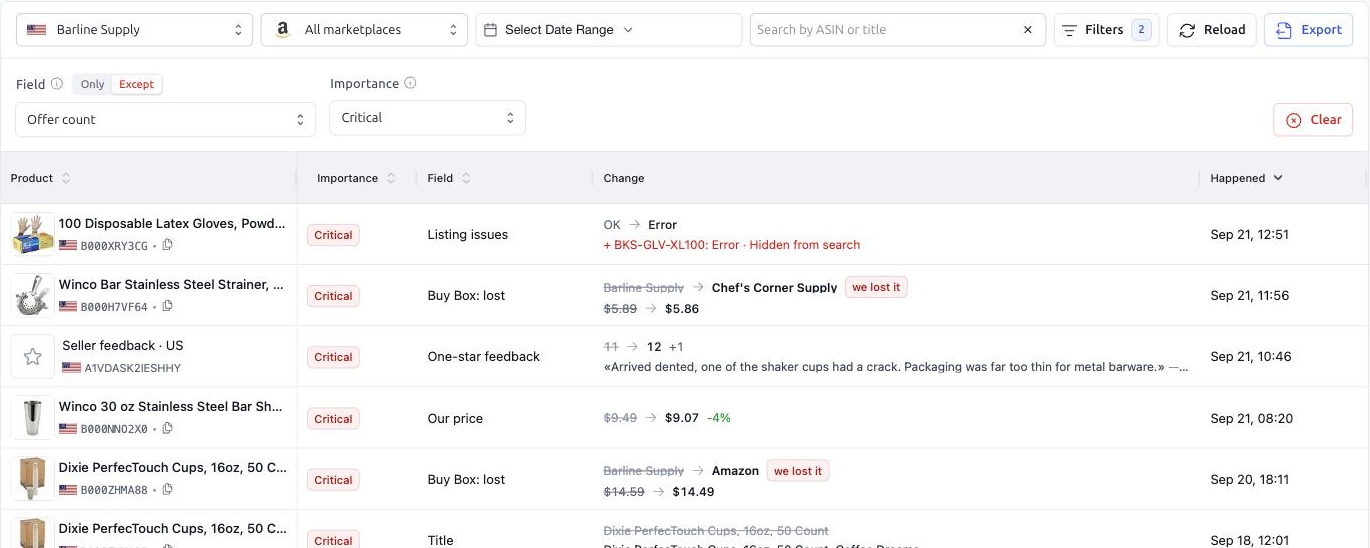
By default the Events tab shows the newest events first, one per row. You can also sort by product, importance or field.
Product — image, title, marketplace flag and ASIN. Seller feedback events show "Seller feedback" with the marketplace instead of a product.
Importance — Critical, Important or Unimportant, as it was set for this field on this product when the event happened.
Field — which field changed: Title, Buy Box: lost, Our price, Listing issues, Four-star feedback and so on.
Change — the value before and after:
text fields and rating show the old value struck through and the new value below it; bullet points show how many there were and are, plus the first changed point;
offer count and review count show an arrow with the difference, our price shows the difference in percent;
Buy Box events show who had it and who has it now;
a main image change shows the old and the new picture side by side, hover to zoom;
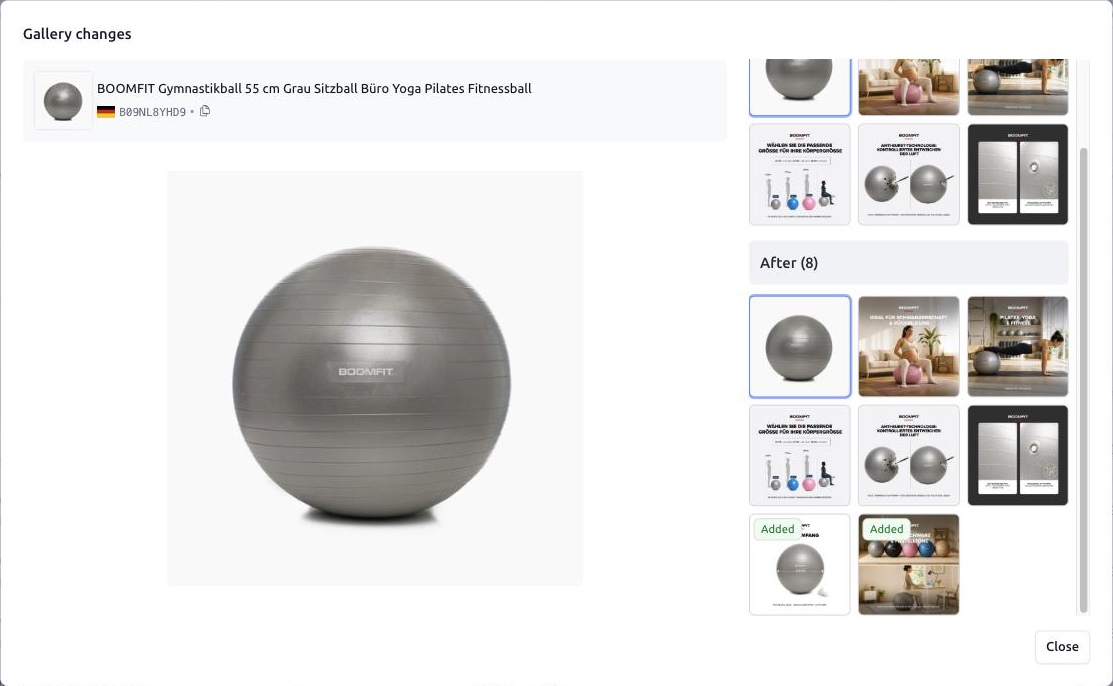
an image count change has an eye icon that opens the gallery before and after, with added and removed images marked;
feedback events show how the rating count changed and the text of the new ratings with the buyer's name and date.
Happened — when Smart Alerts noticed the change.
Note: importance is stored with the event. If you later change the importance of a field, old events keep their colour and new ones get the new importance.
Narrowing the feed down
The toolbar has a seller selector, a marketplace selector, a period picker with quick presets for the last 7, 14, 30 and 90 days, and a search by ASIN or title.
Filters opens two more controls:
Field — pick one or more fields. Only shows just those fields, Except hides them. Except is handy when one noisy field, say offer count, buries everything else.
Importance — show only Critical, Important or Unimportant events, in any combination.
Filters apply as you change them. The badge on the Filters button shows how many are active, and Clear removes them.
Jumping in from elsewhere
The Events widgets above the tabs count events for the last 24 hours, 7 days and 30 days. Click a widget, or the row of a seller account if you have several, to open the feed already filtered by that seller and period.
The Events column on the Products tab opens a product's own history in a dialog. It has its own Field, Importance and period filters and its own Export button.
Messages in Slack, Pumble, Discord, Microsoft Teams and Telegram include an Open events link next to each product that opens its event history in Smart Alerts.
Exporting events
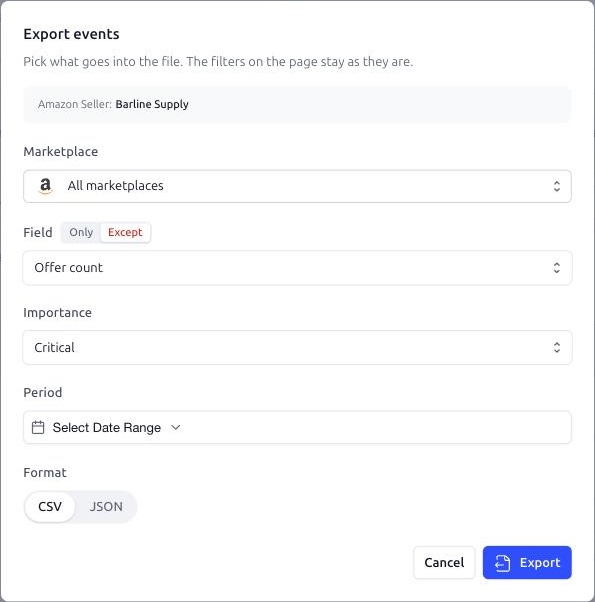
Press Export in the toolbar. The dialog is pre-filled with the marketplace, fields, importance and period that are currently applied to the feed; adjust them if needed and choose CSV or JSON. The seller and the search term are taken from the feed as they are. The file is generated on the spot and downloaded by the browser.
Both formats have the same columns: when it happened, ASIN, marketplace, title, importance, field, the value before and after, and details such as the text of new feedback.