The Products Tab: Adding and Managing Monitored Products

Olivia Reyes
Adding products
Press Add products in the toolbar. The dialog lists the listings of the seller selected in the toolbar, grouped by ASIN and marketplace. Search by ASIN or title, narrow the list by marketplace, tick the listings you need and press Add selected.
Products that are already monitored are not shown in the dialog. Look for them in the table; they may simply have monitoring turned off.
Listings marked Inactive can still be added, but Amazon may return no data for them until they are active again.
A listing created today may appear in the dialog a little later: listings are pulled from Amazon after you connect the seller account.
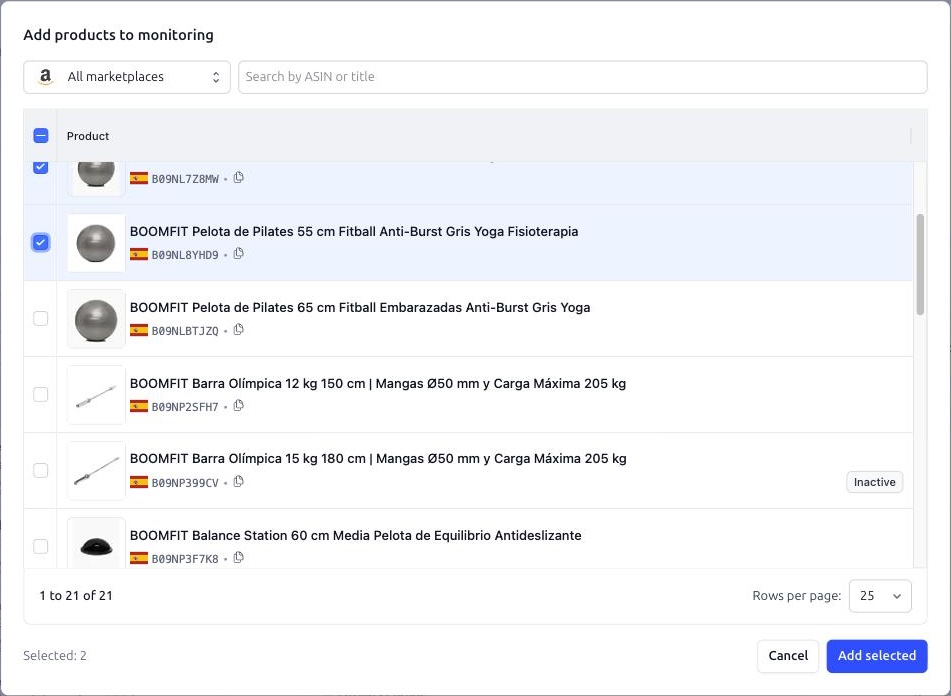
New products start with the default monitoring preset and go through a first snapshot. Until it is ready they show a Loading data badge next to the ASIN.
Reading the table
Every row is one product on one marketplace. The most useful columns:
Product — image, title, marketplace flag and ASIN. Click the ASIN to open the product on Amazon, or the copy icon next to it to copy the ASIN.
Events — how many events the product had in the last 24 hours and 7 days, by importance. Click it to open the product's own event history.
Buy Box — who holds the Buy Box and at what price. Amazon as the seller is shown as Amazon.
Our price — your offer price without shipping; with several offers on the same ASIN, the lowest one.
Offer count, Adult, Size, Brand, Images, Rating, Review count, Item Highlights, Parent ASIN, Listing Issues — the current value of each monitored field.
Monitoring enabled/disabled since — when monitoring was last switched on or off. The table is sorted by this column by default, so the products you touched last are on top.
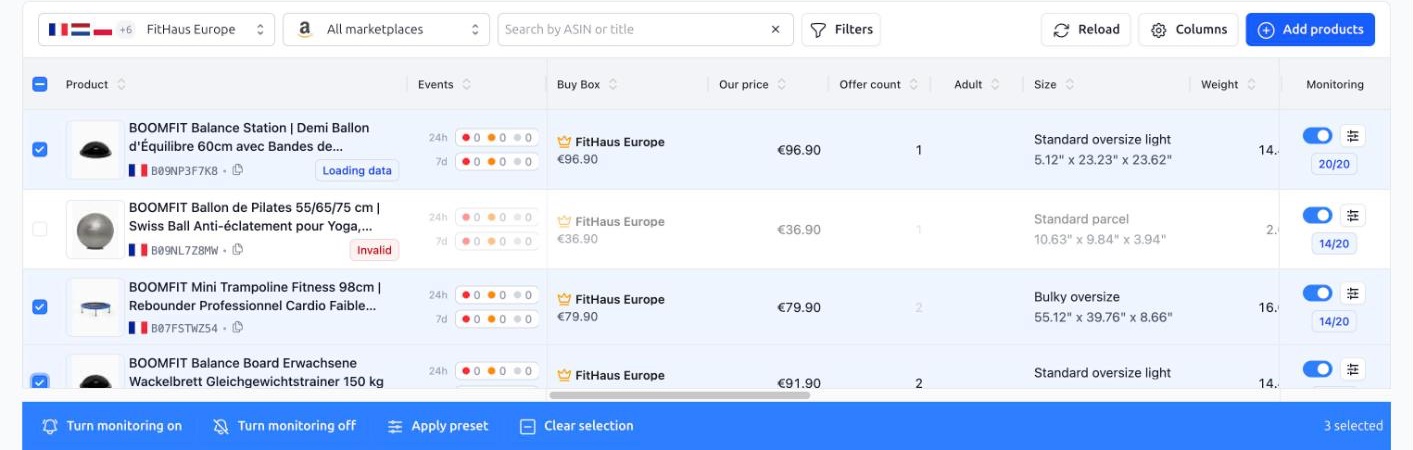
Monitoring — the on/off toggle, a button that opens the product settings, and a badge with the number of monitored fields, for example 18/20.
Use Columns to hide the columns you do not need; the layout is remembered. Hover a column header to see what exactly the column shows.
Greyed-out rows with an Invalid badge next to the ASIN are products that disappeared from the Amazon catalog: the listing was removed, suppressed or hidden. The Availability filter shows them separately. Smart Alerts keeps checking them and brings the row back as soon as the product is available again.
Turning monitoring on and off
The toggle in the Monitoring column switches one product. A product with monitoring turned off is not checked, creates no events and does not count towards your plan limit, but its event history stays and you can turn it back on at any time. There is no delete: turning monitoring off is the way to stop watching a product.
For many products at once, tick the checkboxes in the first column, or the checkbox in the header for the whole page, and use the bar at the bottom: Turn monitoring on, Turn monitoring off or Apply preset.
Product settings
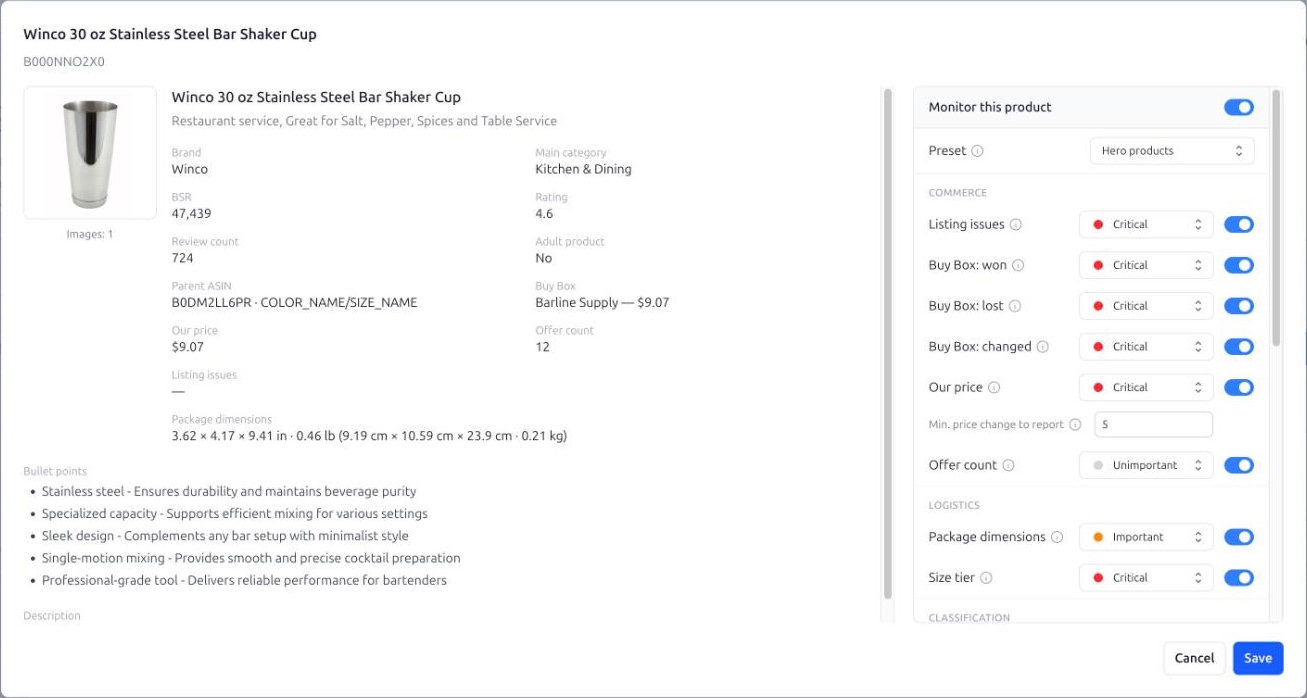
The settings button next to the toggle opens the product's own configuration: the Monitor this product toggle, the Preset selector and the full list of monitored fields with a switch and an importance for each. The dialog also shows the current values of the fields, so you can see what will be compared. Nothing changes until you press Save.
Pick a preset in the selector to put this product on it.
Change fields by hand so that they no longer match the preset, and the product switches to Custom: it keeps your choices and no longer follows a preset.
For Our price there is Min. price change to report, in the smallest unit of the marketplace currency: cents, pence, yen and so on. Price moves smaller than that do not create events, which keeps repricer noise out of your feed. Set it to 0 to record every change.
Finding products
The toolbar has a seller selector, a marketplace selector and a search by ASIN or title. Filters opens a panel with more options, grouped into:
Monitoring — monitoring status, whether a specific field or importance is enabled, the preset in use, availability on Amazon, and the number of events by importance in the last 24 hours or 7 days.
Product & Logistics — brand, title, adult flag, variation, size tier, weight, image count.
Price & Buy Box — price, offer count, Buy Box, number of Buy Box winners.
Reviews & Issues — rating, review count, listing issues.
Press Apply to filter and Reset to clear everything. The badge on the Filters button shows how many filters are active.