Smart Alerts Overview

Olivia Reyes
What is Smart Alerts?
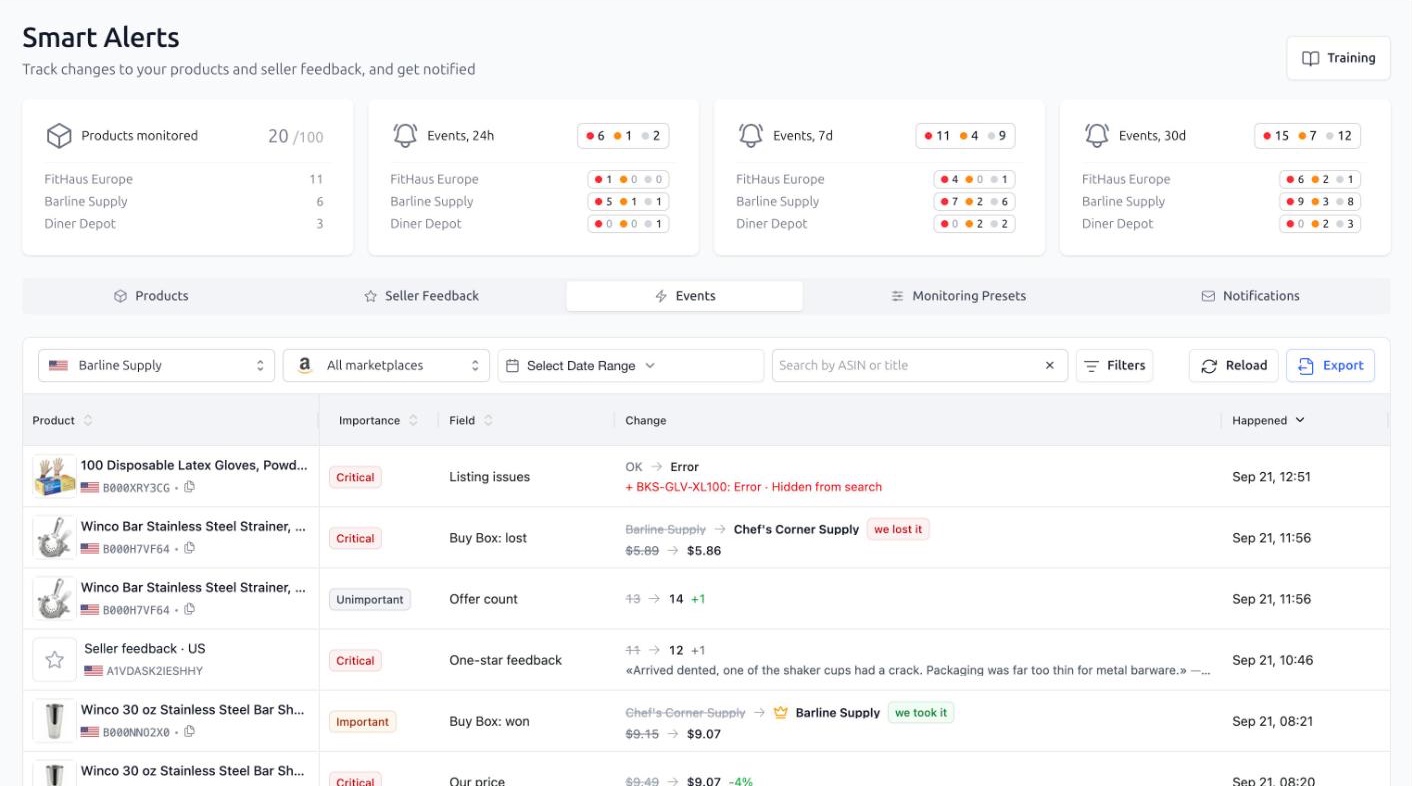
Think of Smart Alerts as a security camera pointed at your Amazon listings. It keeps a snapshot of every product you monitor and compares it with what Amazon shows now. As soon as it notices a difference, you get an event: a title that was edited without you, a Buy Box that went to another seller, a listing issue Amazon just flagged, package dimensions that changed and quietly raised your FBA fees.
You decide which changes matter, how important each one is, and where the news should go: a daily digest to your inbox, an instant message to your team chat, or just a record in the feed for the next time you look.
Why does it matter?
Most listing problems are silent. Nobody emails you when a competitor takes the Buy Box, when Amazon strips an image from your gallery, or when your listing gets suppressed. You find out from the sales chart, days later. Checking dozens of listings by hand every morning is not realistic either.
Smart Alerts turns that into a stream of events with the exact before and after values, so you can react the same day instead of reconstructing what happened last week.
What is monitored
Every monitored product is checked on 20 fields, in the same groups you will see in the preset editor:
Commerce: listing issues, Buy Box won, Buy Box lost, Buy Box changed hands, your offer price, the number of offers on the listing.
Logistics: package dimensions, size tier.
Classification: main category, parent ASIN, brand, adult flag, rating, review count.
Listing content: title, item highlights, description, bullet points.
Media: main image, image count.
On top of that, the Seller Feedback tab tracks new ratings buyers leave for your store, by star count, on each marketplace.
Note: Smart Alerts monitors the listings of your connected Amazon seller accounts only. Competitors show up indirectly: Buy Box events and the offer count on your own products tell you when someone else steps in.
Key concepts
Events and importance
An event is one change of one field on one product. Every field has an importance: Critical, Important or Unimportant. Importance colours the event in the feed and decides whether a notification setting picks it up. A good rule of thumb: Critical is what you would act on today, Important is worth reading in a digest, Unimportant is kept for reference.
Presets
A preset is a template of monitored fields and their importance. You start with one preset called Standard, and every new product gets it. Create your own presets for different product lines, or fine-tune a single product without touching the preset.
Notification settings and recipients
A notification setting decides who gets which events and when: instantly, every few hours, or once a day as a digest. Recipients are email addresses, Slack, Pumble, Discord and Microsoft Teams channels, Telegram chats, or your own webhook. One setting can send to many recipients, and one recipient can be used by many settings.
The five tabs
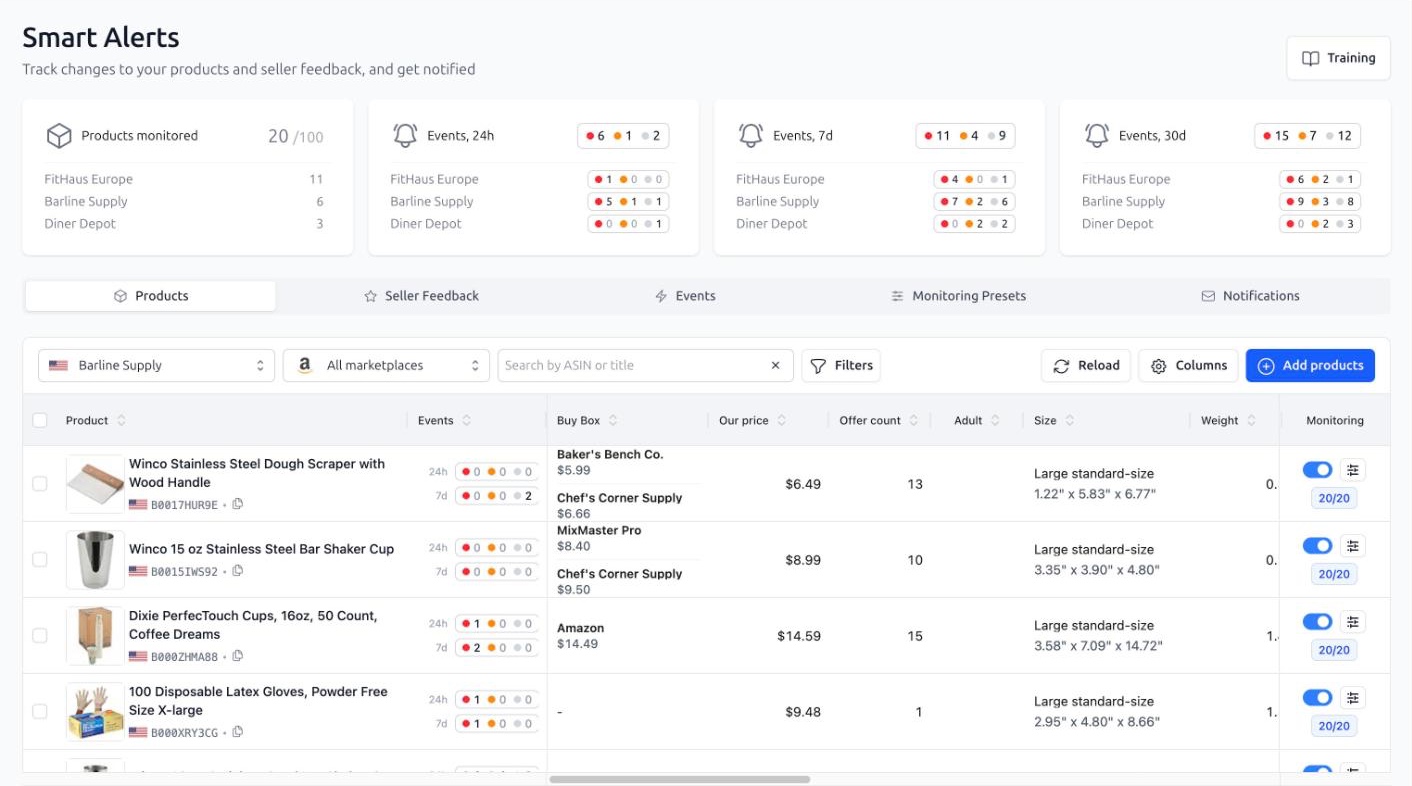
Products — the products you monitor, with the current values of every field and a toggle to turn monitoring on or off.
Seller Feedback — store ratings per marketplace and the importance of each star count.
Events — the feed of everything that changed, with filters, a period picker and export.
Monitoring Presets — your presets and the default one for new products.
Notifications — notification settings and recipients.
Above the tabs, the summary widgets show how many products are monitored and how many events arrived in the last 24 hours, 7 days and 30 days, by importance. Click a widget to jump straight to the matching view. If you have several seller accounts, the widgets are broken down by account, and you click the row of the account you need.
Getting started
On your first visit a short setup wizard offers to pick the products to monitor, switch on seller feedback and set up email alerts. It takes about a minute and everything it creates can be changed later. If you prefer to set things up by hand, press I'll set it up myself on the first step and use Add products on the Products tab.
Note on limits: the number of monitored products, recipients and notification settings depends on your plan. The Products monitored widget shows your products against the limit, and the Notifications tab shows "X of Y" for settings and recipients. Products with monitoring turned off do not count.