Monitoring Presets: What to Watch and How Important It Is

Olivia Reyes
What a preset is
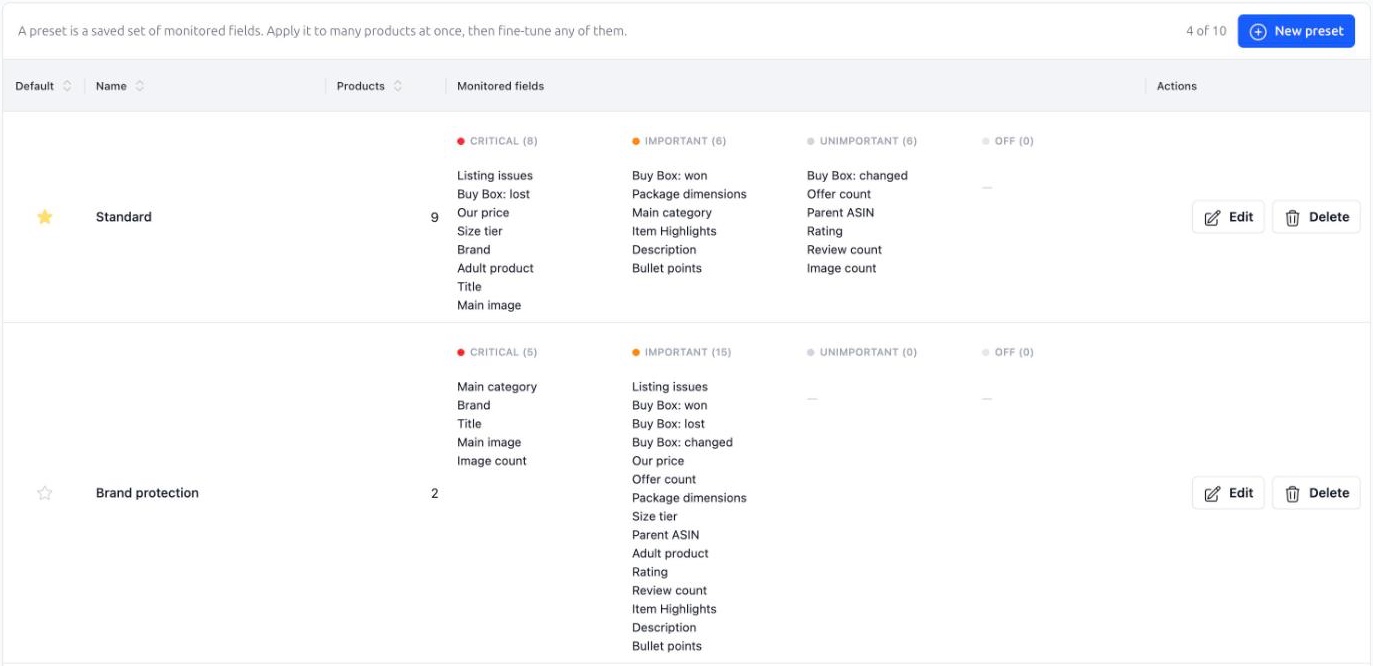
A preset answers two questions for a group of products: which of the 20 fields should be watched, and how important a change in each of them is. Instead of configuring every product separately, you configure a preset once and apply it to as many products as you like.
Every account starts with one preset called Standard. It is yours: rename it, change its fields, or replace it with your own. New products always get the default preset. You can have up to 10 presets; the tab shows how many you have.
The preset editor
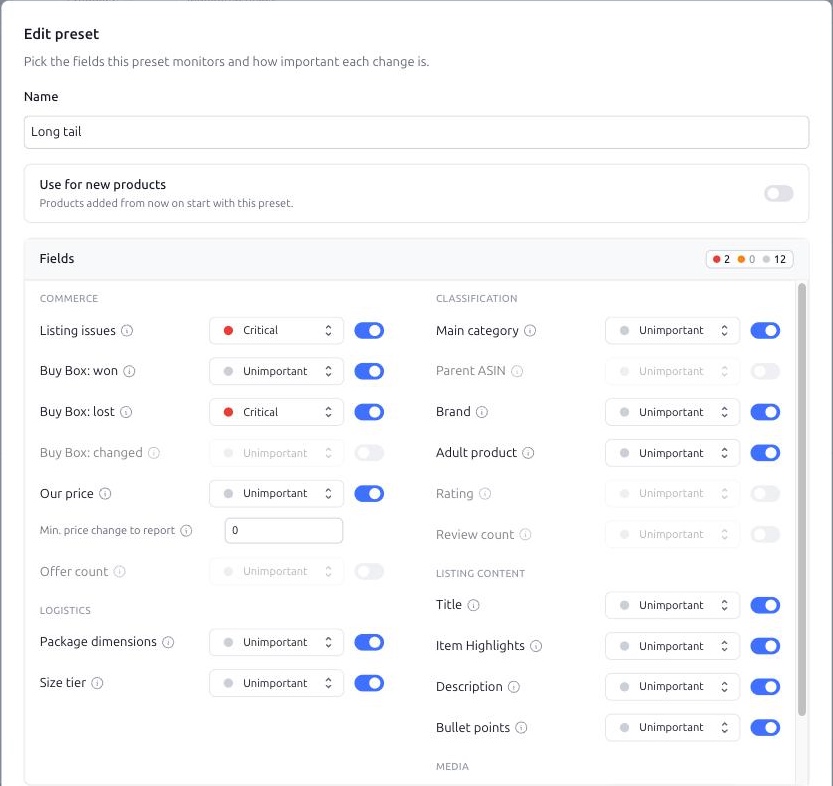
Open the Monitoring Presets tab and press New preset, or Edit on an existing one. The editor shows the fields in groups:
Commerce — listing issues, Buy Box: won, Buy Box: lost, Buy Box: changed, our price, offer count.
Logistics — package dimensions, size tier.
Classification — main category, parent ASIN, brand, adult product, rating, review count.
Listing content — title, item highlights, description, bullet points.
Media — main image, image count.
Each field has a switch and an importance: Critical, Important or Unimportant. Hover the info icon next to a field to see what exactly it tracks. For Our price you can also set Min. price change to report, in the smallest unit of the marketplace currency, so that tiny repricer moves do not create events.
Two switches at the top of the editor:
Use for new products makes this preset the default.
Apply to all monitored products, available when you create a preset, switches every product you monitor to it right away.
Note: importance is stored with each event at the moment it is recorded. Changing the importance of a field in a preset affects new events only; the feed and the digests you already received stay as they were.
Presets and product settings
A product follows its preset until you edit the product's own settings. Once your changes no longer match the preset, the product switches to Custom: it keeps your choices and stops following any preset. To put it back on a preset, pick one in the product settings dialog and save.
Editing a preset updates every product that still follows it. The Products column on the presets tab shows how many products that is.
Applying a preset to many products
On the Products tab tick the products, or the checkbox in the header for the whole page, and press Apply preset in the bar at the bottom. Pick the preset in the dialog and confirm. The products' own settings are replaced by the preset.
Default preset
The star in the Default column marks the preset that new products start with, including the products added by the setup wizard. Click the star of another preset, or turn on Use for new products in its editor, to make it the default.
Deleting a preset
Press Delete on a preset. If products use it, the dialog asks what should happen to them: Leave them as they are keeps their current fields as a custom setup, Hand them over to another preset moves them to the preset you choose. If the deleted preset was the default, the preset you handed the products over to becomes the default, otherwise the oldest remaining one. The last remaining preset cannot be deleted, because every account needs at least one.
Suggested setups
Hero products: everything on, Buy Box and price Critical, content Important. If you use a repricer, set Min. price change to report above zero, otherwise every small price step becomes a Critical event.
Long tail: Buy Box lost and listing issues Critical, everything else Unimportant or off.
Brand protection: title, images, brand and main category Critical, the rest Important.