Getting Started: The Setup Wizard

Olivia Reyes
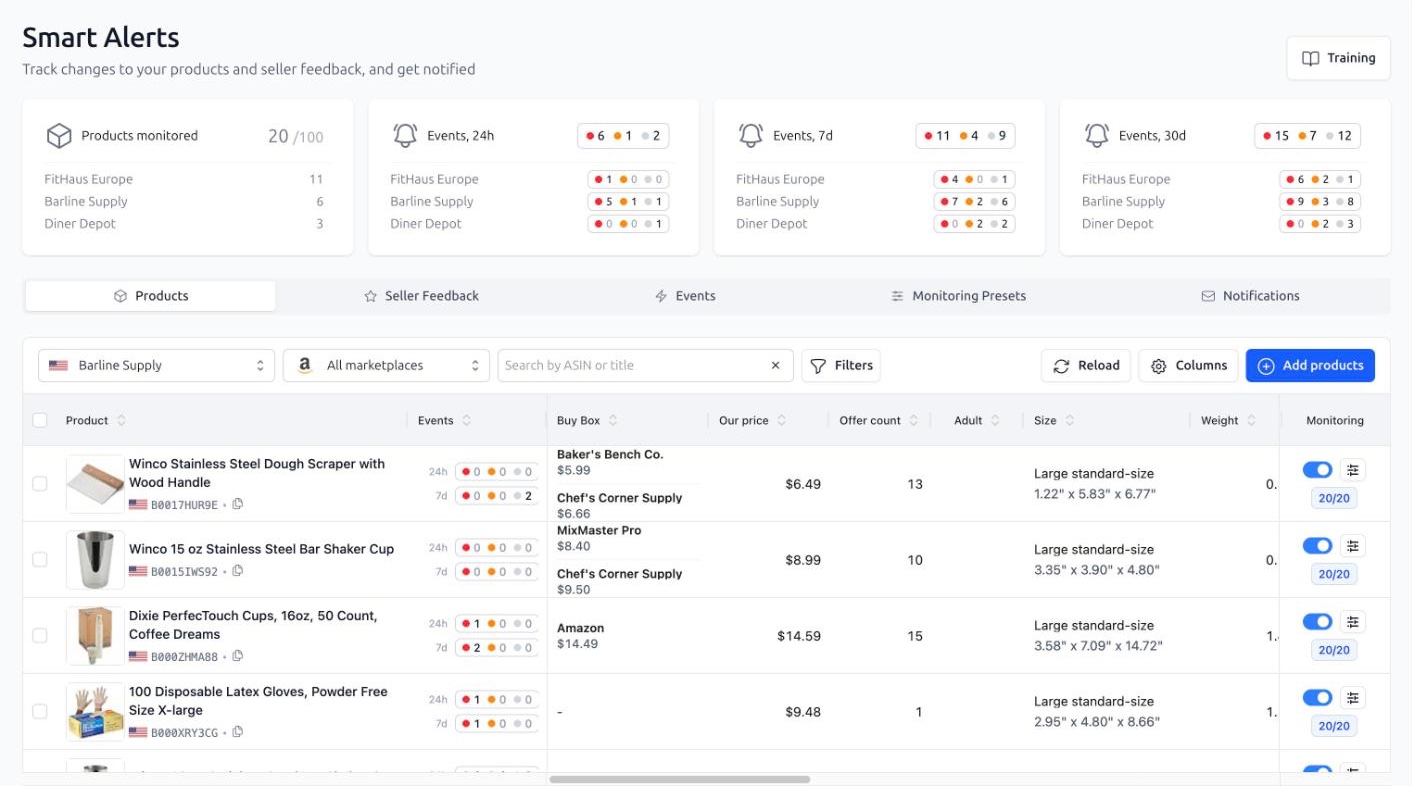
When the wizard appears
The wizard opens automatically when you visit Smart Alerts with at least one connected Amazon seller account and nothing set up yet: no products, no seller feedback monitoring and no notification settings. If you leave it halfway, it opens again on your next visit.
To skip it, press I'll set it up myself on the first step or close the wizard with the cross on any step. After that it no longer opens by itself, but as long as nothing is set up yet (no products, no seller feedback monitoring and no notification settings) you can start it again with Set up automatically on the Products tab.
Note: no products are added and no emails are sent until you confirm the last step. Every choice in the wizard can be changed later on the corresponding tab.
Step 1 — Welcome
A short overview of what Smart Alerts does. Press Let's go to start or I'll set it up myself to skip the wizard entirely.
Step 2 — Which sellers should we monitor?
The wizard lists your connected seller accounts with the number of active listings each one has that are not monitored yet, and shows how many products your plan allows. Tick the sellers whose listings you want to monitor.
If the selected listings fit into your plan limit, all of them are added.
If there are more listings than your plan allows, the limit is split evenly between the selected sellers, and for each seller the wizard picks the listings with the most units ordered over the last 30 days.
Below the sellers you see the Standard monitoring preset that every product will get: which fields are watched and how important each one is. Press Customize to adjust it right away, or leave it and fine-tune later on the Monitoring Presets tab. Changes made through Customize are saved to the preset immediately.
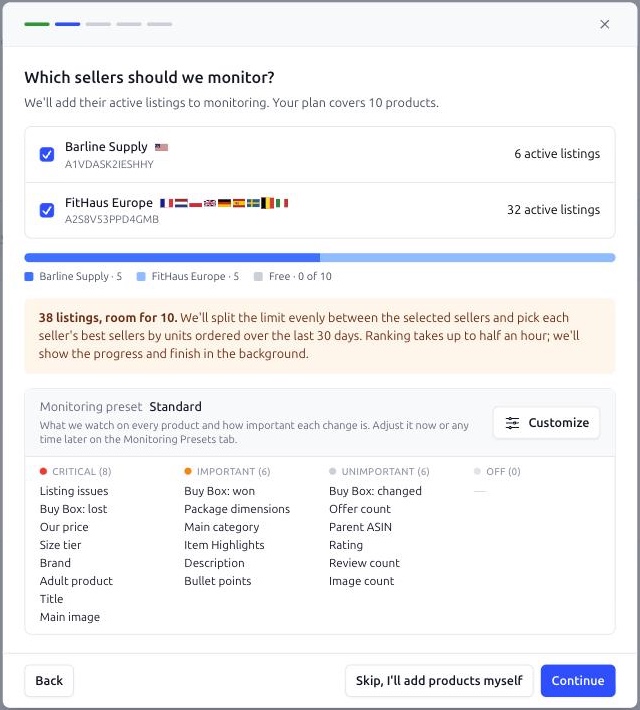
Skip, I'll add products myself leaves products for later; you can still finish the rest of the wizard.
Step 3 — Track seller feedback?
Choose the seller accounts whose store ratings should be tracked; the sellers from the previous step are ticked for you. For each star count pick the importance. The suggested setup is one and two stars Critical, three stars Important, four and five stars Unimportant. Press Skip if you do not want feedback events.
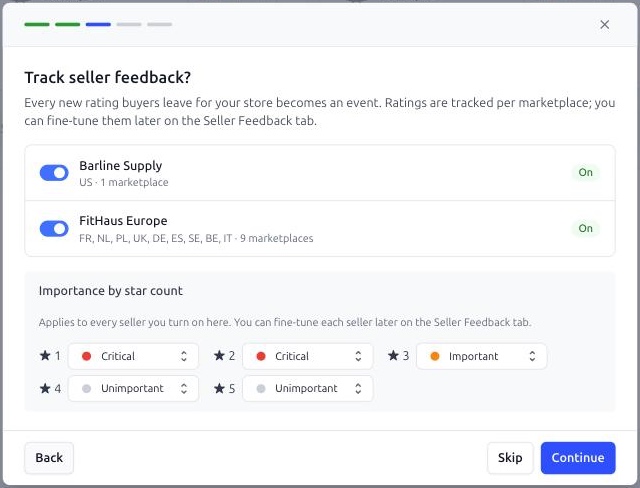
Step 4 — Where should we send alerts?
Enter the email for notifications and choose Daily digest or Instantly. The email field is pre-filled with the email of the account owner. If you enter an address that does not belong to a user of your account, a confirmation link is sent to it first, and alerts start once it is confirmed. The daily digest arrives at 09:00 in the timezone of your browser; you can change the time and the timezone later on the Notifications tab.
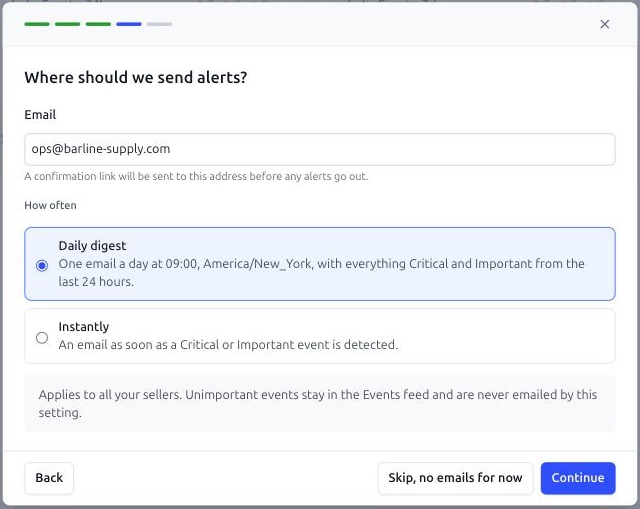
Note: a daily digest is the calmer choice. Instant alerts send Critical and Important events shortly after they are recorded, which can mean many emails a day for an active catalog. Most sellers start with the digest and add an instant setting for Critical events later.
Skip, no emails for now is allowed. In that case Smart Alerts still creates a Daily digest setting to the account owner's email so that nothing gets lost, as long as you have no other notification settings or recipients yet. You will see it on the Notifications tab and can edit or delete it.
Step 5 — Review
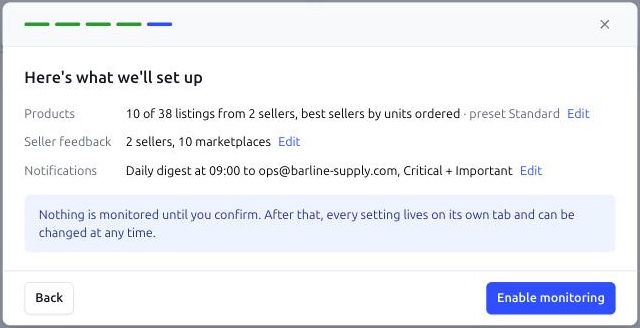
A summary of what will be set up: how many listings from how many sellers, which preset, how many sellers and marketplaces for seller feedback, and where and when the emails go. Press Edit next to any line or Back to return, or Enable monitoring to confirm.
After confirmation
If everything fits into the limit, the products are added immediately and you land on the Smart Alerts is on screen.
If the wizard has to pick the best-selling listings, it needs some time, usually up to half an hour. The wizard shows the progress as Picking your best sellers, and the same card appears in the page header. You can press Close and leave the page in the meantime; the Products tab becomes available as soon as the products are added.
Right after products are added, Smart Alerts takes their first snapshot. Until it is ready, products show a Loading data badge and no events appear. That is expected: a quiet feed for a stable listing is normal.
From here, take the Products tour or go straight to the Products tab.