Notifications: Settings, Recipients and Channels

Olivia Reyes
Two building blocks
The Notifications tab has two sides. On the right are recipients: where messages can go. On the left are notification settings: which events go to which recipients and on what schedule. A setting can send to many recipients, and a recipient can be used in many settings, so a typical account has a handful of each.
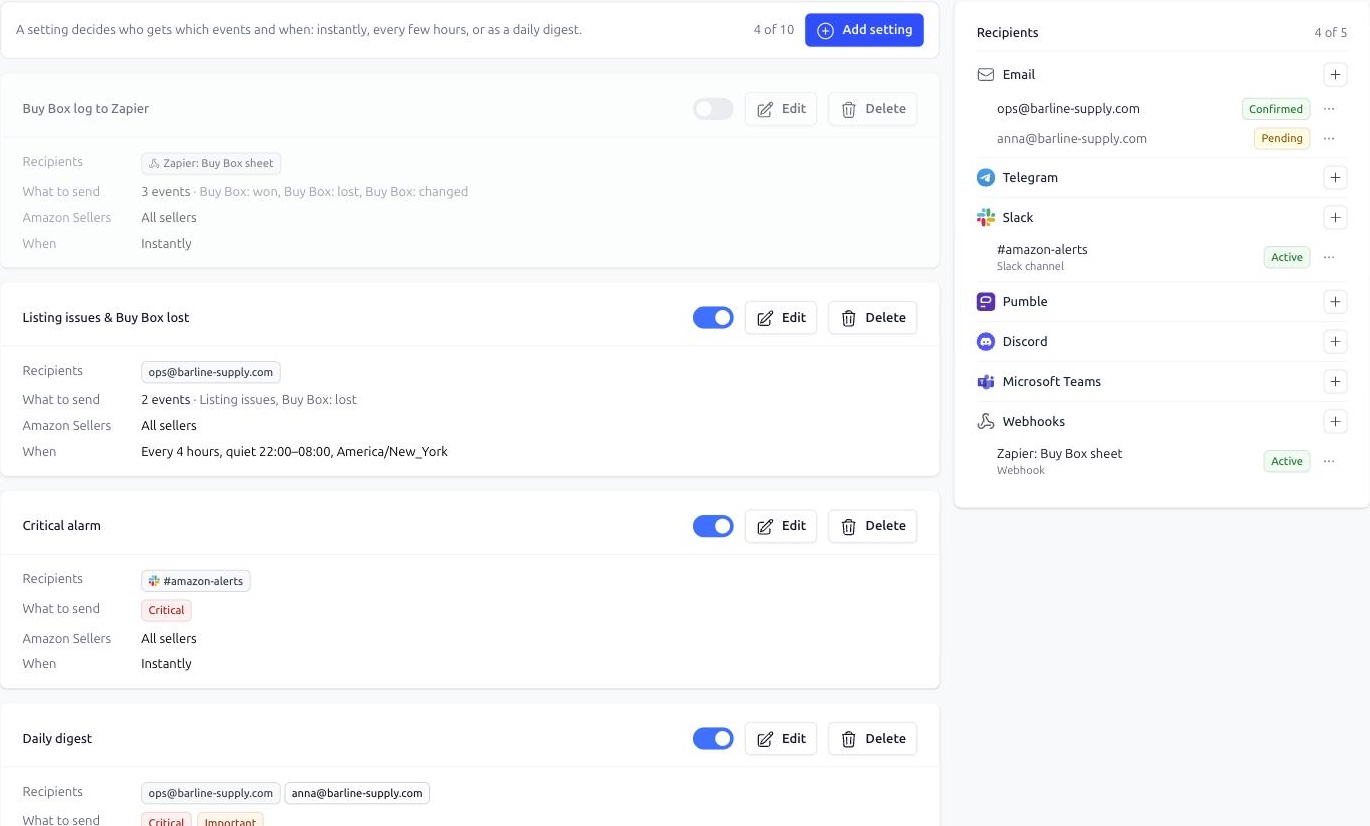
If you start monitoring without setting up notifications, Smart Alerts creates one setting called Daily digest to the account owner's email with Critical and Important events at 09:00 in the timezone of your browser, so nothing is lost while you decide how you want it. Edit or delete it freely.
Recipients
Press + next to a channel to add a recipient. The available channels:
Email. Addresses of users of your account are confirmed at once. Any other address gets a confirmation email and stays Pending, with no emails sent, until the link in it is clicked. Use Resend confirmation in the recipient's menu if the email got lost.
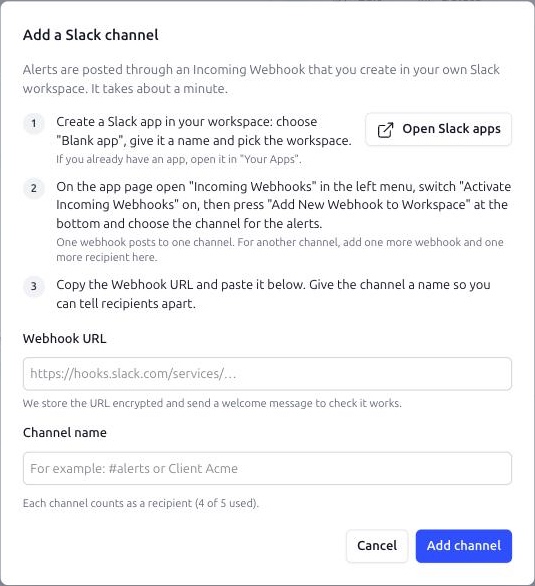
Slack, Pumble, Discord, Microsoft Teams. Each connects through an Incoming Webhook URL that you create in the messenger. The dialog walks you through it step by step. One webhook posts to one channel, so add one recipient per channel.
Telegram. Messages are sent by a bot you own. Create it with @BotFather, paste its token, then send alerts to yourself, to a group or to a channel; the dialog offers a button for each. Every chat that talked to the bot appears in the list, and you add it as a recipient. One bot serves all your Telegram chats. If the bot token stops working, the bot is marked Disconnected and its chats show Bot disconnected; replace the token to resume messages.
Webhooks. Your own URL for Zapier, Make, n8n or custom code. Smart Alerts sends a POST with a JSON body: the setting that fired and the list of events with the product, field, importance and the values before and after. Each request is signed with HMAC-SHA256 in the
X-SoldScope-Signatureheader, using the secret shown once when you create the recipient.
Each recipient has a status:
Confirmed or Active — messages are delivered.
Pending — an email address waits for confirmation.
Paused — you paused it, the address unsubscribed, or it went over the plan limit.
Bot disconnected — the Telegram bot token no longer works; replace the token to resume messages to its chats.
Unreachable — a chat or a webhook rejected the last delivery, for example the bot was removed from the chat or the webhook was deleted. Fix the cause and press Check in the recipient's menu.
For working recipients the menu has Send test email or Send test message, which delivers a sample message right away. Use it to tell a delivery problem from a settings problem.
Notification settings
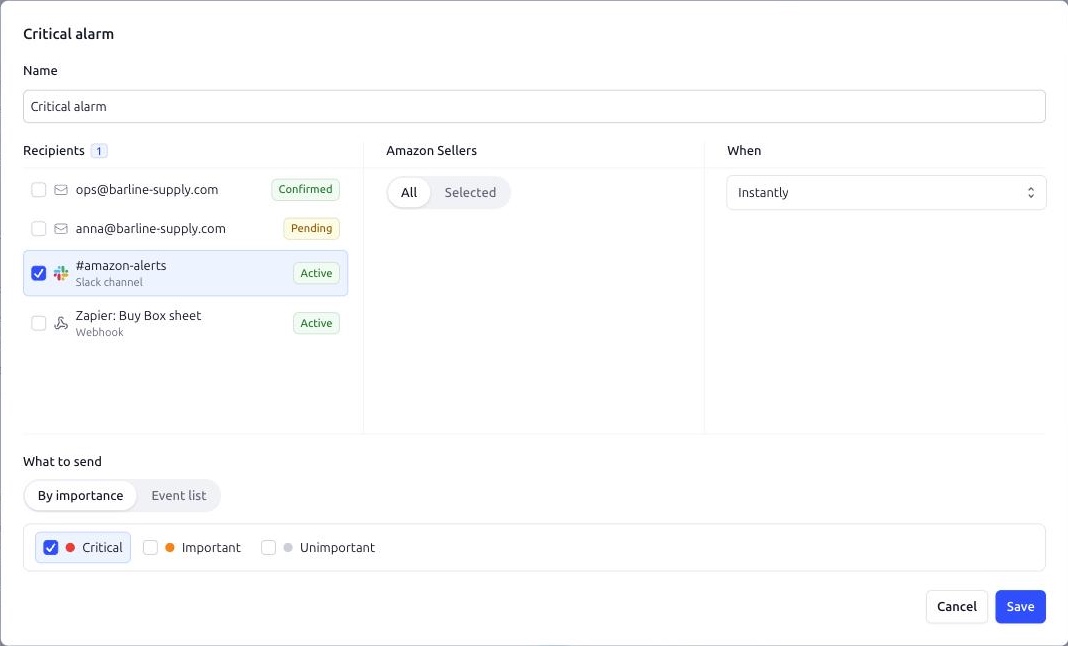
Press Add setting. In the editor you give the setting a Name and fill in four parts:
Recipients — tick who receives this setting. A paused or pending recipient receives nothing until it is active again.
Amazon Sellers — All your seller accounts or Selected ones. Handy when a client or a teammate should see only their own store.
When — the schedule:
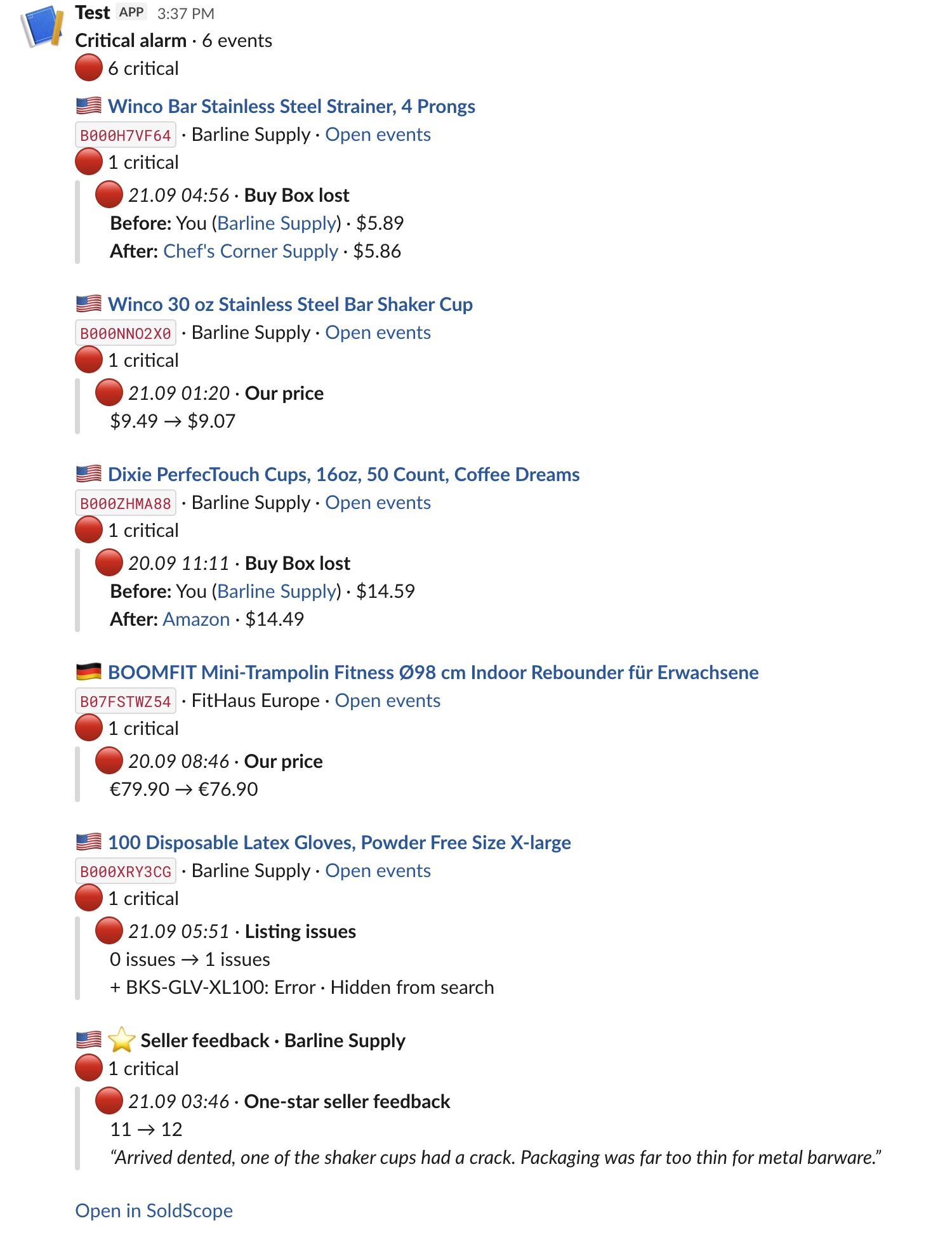
Instantly: events are sent shortly after they are recorded. Events that arrive together come in one message.
Every few hours: a digest every 1, 2, 3, 4, 6, 8 or 12 hours. Tick Do not disturb to skip a window, by default 22:00 to 08:00, in the timezone you pick.
Once a day: a digest at the hour you pick, in the timezone you pick. Your browser timezone is suggested by default.
What to send — By importance sends every event of the ticked importance levels; Event list lets you pick specific fields and feedback star counts instead.
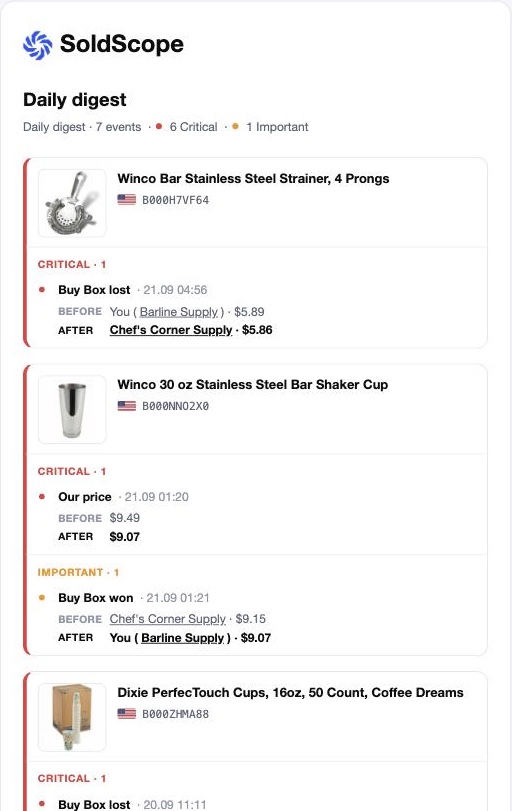
A digest groups events by product and skips empty periods: if nothing happened, nothing is sent. The toggle on a setting card pauses it without deleting.
A setup that works for most sellers
The morning read: one Once a day setting, By importance with Critical and Important, to your email.
The alarm: one Instantly setting, By importance with Critical only, to a Slack or Telegram channel your team watches.
Optionally: an Event list setting for a colleague who cares about one thing, for example listing issues and Buy Box lost.
Note: every alert email includes an unsubscribe link that pauses all emails to that address. If someone unsubscribed by accident, resume the recipient from its menu.
When messages do not arrive
Check in this order: the recipient is Confirmed or Active and not paused; the setting is enabled; the event's importance or field is covered by the setting; for Every few hours, the sending time is not inside the Do not disturb window; for digests, the sending time has not come yet. Then send a test message from the recipient's menu. If the test arrives, the delivery works and the answer is in the setting.